
This is the print version of this page. All content is copyright Indezine.com 2000-2026.
Definitions and resources for terms and techniques used in the world of presentations
See Also:
PowerPoint and Presenting Notes
PowerPoint and Presenting Glossary
Presentations Glossary in alphabetical order:
A |
B |
C |
D |
E |
F |
G |
H |
I |
J |
K |
L |
M |
N |
O |
P |
Q |
R |
S |
T |
U |
V |
W |
X |
Y |
Z

Echo Swinford began making slides as a medical meeting planner in 1997 and just never stopped. She uses PowerPoint as the basis for webcasts, CDs and online applications. Her Echo’s Voice site is graced by dozens of downloadable and helpful documents, and she has been a member of the Microsoft PowerPoint MVP team since 2000.
Here’s a list of links on Indezine.com where she has been featured:
 Presentation Summit 2024: Conversation with Echo Swinford
September 20, 2024
 Building PowerPoint Templates v2: Conversation with Echo Swinford
October 20, 2021
 Presentation Summit 2020: Conversation with Echo Swinford
June 11, 2020
Presentation Summit 2019: Conversation with Echo Swinford
November 12, 2019
 Show Some Love to PowerPoint Tables
June 26, 2019
Presentation Summit 2017: Conversation with Echo Swinford
August 21, 2017
The Presentation Guild: Conversation with Echo Swinford
October 17, 2016
Presentation Summit 2016: Conversation with Echo Swinford
August 19, 2016
Presentation Summit 2015: Conversation with Echo Swinford
September 23, 2015
 Building PowerPoint Templates: Conversation with Echo Swinford
November 10, 2012
 Crash Courses at the Presentation Summit 2012
October 8, 2012
 Outstanding Presentations Workshop 2012: Conversation with Ellen Finkelstein
September 13, 2012
 Semi-Circles Again in PowerPoint 2003
September 18, 2009
 Creating an Autorun PowerPoint Presentation
March 3, 2009
 Medicine Presentations: Conversation with Echo Swinford
April 13, 2008
 Ric’s Podcast: Why You, Too, Should Kiss Your Frog!
March 24, 2008
 Ric’s Podcast: Presentation Party Invitation to PowerPoint Live
January 20, 2008
 PowerPoint 2007 Complete Makeover Kit: Conversation with Echo Swinford
January 19, 2008
 Change Case Cycles: How They Work?
August 19, 2007
An Interview with Echo Swinford
June 05, 2006
 Real PowerPoint Help
March 28, 2006
Fixing PowerPoint Annoyances
January 15, 2006
Change Alignment of Numbers in a Chart
June 21, 2005
PowerPoint Autorun CD Do-it-Yourself
January 12, 2004
Autorun CD Using the New Viewer
January 5, 2004
 Bézier Curves in PowerPoint
December 18, 2003
Filed Under:
E
Tagged as: Echo Swinford, Microsoft, MVP, PowerPoint, Presentation Guild
Comments Off on Echo Swinford

Carmen Simon is a cognitive neuroscientist, author, and founder of Memzy, a company that uses brain science to help corporations create memorable messages. Carmen’s most recent book, “Impossible to Ignore: Create Memorable Content to Influence Decisions,” has won the acclaim of publications such as Inc.com, Forbes, and Fast Company and has been selected as one of the top international books on persuasion. Carmen holds two doctorates, one in instructional technology and another in cognitive psychology. Carmen speaks frequently to corporate, academic, and government audiences on the importance of using brain science to craft communication that is not only memorable but sparks action.
Here’s a list of links on Indezine.com where she has been featured:
 More than Pretty: Composition that Impacts Meaning
June 25, 2025
 Do Audiences Recall your Slides?
May 15, 2025
 Presentation Management 23: Short and Memorable Presentations
May 12, 2021
 Presentation Summit 2017: Conversation with Carmen Simon
September 11, 2017
 Presentation Summit 2016: Conversation with Carmen Simon
September 12, 2016
 Create Memorable Content: Conversation with Carmen Simon
May 17, 2016
 Impossible to Ignore: Conversation with Carmen Simon
May 13, 2016
 Carmen Simon at the Presentation Summit 2015
October 21, 2015
 Remembering Your Slides: Conversation with Carmen Simon
June 9, 2014
 Remembering Slides: Conversation with Carmen Simon
December 11, 2013
 Counterintuitive Research Findings
March 6, 2013
 Carmen Simon at the Presentation Summit 2012
October 11, 2012
 Remember Slides Seen 2 Days Ago?
September 20, 2012
 Carmen Simon at the Presentation Summit 2011
September 21, 2011
An Interview with Carmen Simon
December 05, 2009
Filed Under:
C
Tagged as: Carmen Simon, Memory, Personality
Comments Off on Carmen Simon
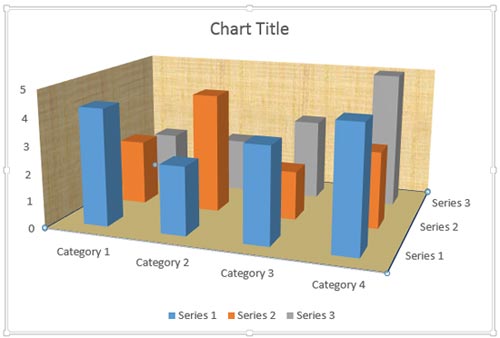
Let’s imagine your slide background is filled with some picture or texture. This may cause your chart columns to appear merged with the background. In such a situation, you can make your chart columns prominent by formatting the walls and floor of your 3D chart.
To learn more, choose your version of PowerPoint. If we do not have a tutorial for your version of PowerPoint, explore the version closest to the one you use.
Format Walls and Floor of 3D Charts in PowerPoint 2013
Format Walls and Floor of 3D Charts in PowerPoint 2011
Tutorial Code: 10 11 04
Previous: 10 11 03 Rotate 3D Charts in PowerPoint
Next: 10 12 01 Adjust the Chart Gap Width in PowerPoint
Filed Under:
Number
Tagged as: 10-11, 3D Charts, Charts and Graphs, PowerPoint Tutorials
Comments Off on 3D Charts: Format Walls and Floor of 3D Charts in PowerPoint
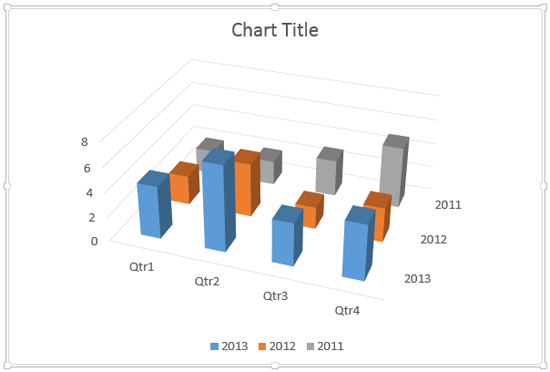
When your 3D chart comprises columns of various heights, chances are that some of the columns hide other columns placed behind them. To overcome this problem you can rotate the 3D chart so that you end up with a view in which the shorter columns become clearly visible.
To learn more, choose your version of PowerPoint. If we do not have a tutorial for your version of PowerPoint, explore the version closest to the one you use.
Rotate 3D Charts in PowerPoint 2013
Rotate 3D Charts in PowerPoint 2011
Tutorial Code: 10 11 03
Previous: 10 11 02 Make 3D Columns Semi-Transparent for Charts in PowerPoint
Next: 10 11 04 Format Walls and Floor of 3D Charts in PowerPoint
Filed Under:
Number
Tagged as: 10-11, 3D Charts, Charts and Graphs, PowerPoint Tutorials
Comments Off on 3D Charts: Rotate 3D Charts in PowerPoint
It’s good to avoid using 3D charts unless your chart data requires a Z-axis. Having said that, we have chosen the topic of making your 3D columns in a chart transparent. Yes, there’s a reason to do so especially when you find that some of the columns in your 3D chart may be hiding behind one or more of the other columns, just because they are not tall enough.
To learn more, choose your version of PowerPoint. If we do not have a tutorial for your version of PowerPoint, explore the version closest to the one you use.
Make 3D Columns Semi-Transparent for Charts in PowerPoint 2013
Make 3D Columns Semi-Transparent for Charts in PowerPoint 2011

Tutorial Code: 10 11 02
Previous: 10 11 01 Z Axis in PowerPoint Charts: Pros and Cons
Next: 10 11 03 Rotate 3D Charts in PowerPoint
Filed Under:
Number
Tagged as: 10-11, Chart Legend, Charts and Graphs, PowerPoint Tutorials
Comments Off on 3D Charts: Make 3D Columns Semi-Transparent for Charts in PowerPoint
Microsoft and the Office logo are trademarks or registered trademarks of Microsoft Corporation in the United States and/or other countries.