
This is the print version of this page. All content is copyright Indezine.com 2000-2026.
Definitions and resources for terms and techniques used in the world of presentations
See Also:
PowerPoint and Presenting Notes
PowerPoint and Presenting Glossary
Presentations Glossary in alphabetical order:
A |
B |
C |
D |
E |
F |
G |
H |
I |
J |
K |
L |
M |
N |
O |
P |
Q |
R |
S |
T |
U |
V |
W |
X |
Y |
Z
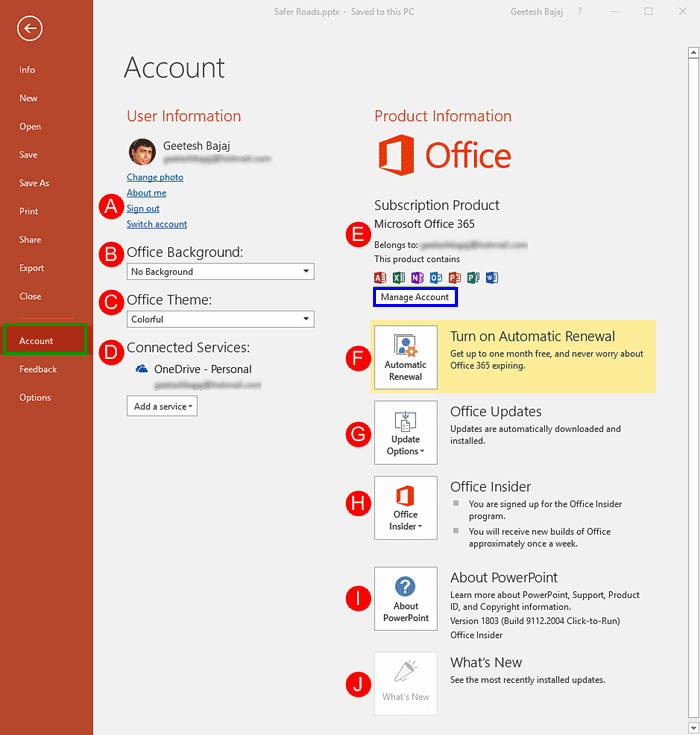
In PowerPoint, and in other Office programs you typically need to sign in to a Microsoft Account so that you can access saved settings, customizations, and even some files off the cloud. You typically do this by managing your Account, right inside PowerPoint or another Office program such as Word and Excel. The Account tab in Backstage view allows you to sign in to your Microsoft Account, and automatically connect to your OneDrive account.
To learn more, choose your version of PowerPoint. If we do not have a tutorial for your version of PowerPoint, explore the version closest to the one you use.
Account Tab of Backstage View in PowerPoint 365
Account Tab of Backstage View in PowerPoint 2016
Account Tab of Backstage View in PowerPoint 2013
Account Tab of Backstage View in PowerPoint 2016
Tutorial Code: 01 08 13
Previous: 01 08 12 Embed PowerPoint Presentations
Next: 01 08 14 Help Tab of Backstage View in PowerPoint
Filed Under:
F
Tagged as: 01-08, File Types File Menu and Backstage View, Interface and Basics, PowerPoint Tutorials
Comments Off on File Types, File Menu, and Backstage View: Account Tab of Backstage View in PowerPoint
PowerPoint’s export options come into play after you have created your slide decks, and are looking for ways to share your slides with others in the most effective way possible. PowerPoint allows you to save your presentation in different forms, that allows you to view and share your slides on almost any device. Did you know you can create a PDF from your presentation, or export all slides to a video? If you need an old-fashioned way to share, you can burn your slides to a CD. You can also create Word document handouts. Finally, PowerPoint lets you save in so many other file formats.
Filed Under:
F
Tagged as: 01-08, File Types File Menu and Backstage View, Interface and Basics, PowerPoint Tutorials
Comments Off on File Types, File Menu, and Backstage View: Export Tab in Backstage View in PowerPoint
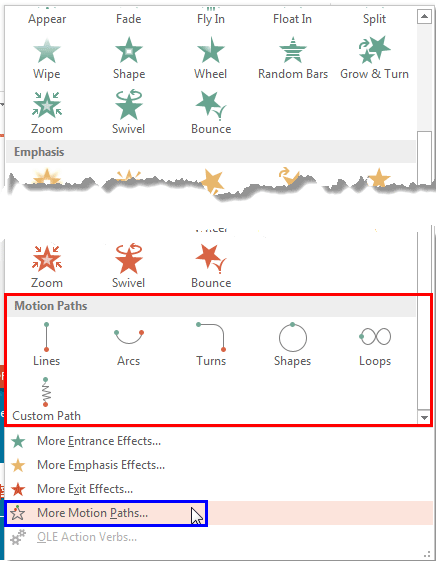
The three basic animation types in PowerPoint: entrance, emphasis, and exit animations are something we have already explored. The fourth animation type is called Motion Path animations, and this is something more advanced in nature than the basic animation types explored so far. Motion Path animations determine the route (path) and the direction in which the animated slide object moves across or around on the slide. For example, you can move a slide object up, down, right, or left, on a preset or created motion path, or possibly anywhere you want.
To learn more, choose your version of PowerPoint. If we do not have a tutorial for your version of PowerPoint, explore the version closest to the one you use.
Motion Path Animations in PowerPoint 2016
Motion Path Animations in PowerPoint 2013
Motion Path Animations in PowerPoint 2010
Motion Path Animations in PowerPoint 2007, 2003, and 2002
Motion Path Animations in PowerPoint2011
Tutorial Code: 13 02 01
Previous: 13 01 08 Apply Two or More Animations to One Object at the Same Time in PowerPoint
Next: 13 02 02 Getting Started with Motion Path Animations in PowerPoint
Filed Under:
M
Tagged as: 13-02, Animations and Transitions, Motion Path Animations, PowerPoint Tutorials
Comments Off on Motion Path Animations: Motion Path Animations in PowerPoint
By default, animation effects are numbered in the order in which they are applied to slide objects. You might need to reorder your animations mainly because you may have more than one animated object on a slide, and re-sequencing of animations as they happen in relation to each other may provide a better result. Or you may just want some animations to happen before other animations. Also, there are logical reasons to reorder animations since typically entrance and exit animations need to be the first and last animations for any slide object. PowerPoint’s Reorder option for animations lets you play with their sequencing.
To learn more, choose your version of PowerPoint. If we do not have a tutorial for your version of PowerPoint, explore the version closest to the one you use.
Reorder Animations in PowerPoint 2016
Reorder Animations in PowerPoint 2013
Reorder Animations in PowerPoint 2010
Reorder Animations in PowerPoint 2007, 2003, and 2002
Reorder Animations in PowerPoint 2011

Tutorial Code: 13 03 04
Previous: 13 03 03 Remove Animations in PowerPoint
Next: 13 03 05 Change Animations in PowerPoint
Filed Under:
A
Tagged as: 13-03, Advanced Animation Concepts, Animations and Transitions, PowerPoint Tutorials
Comments Off on Advanced Animation Concepts: Reorder Animations in PowerPoint
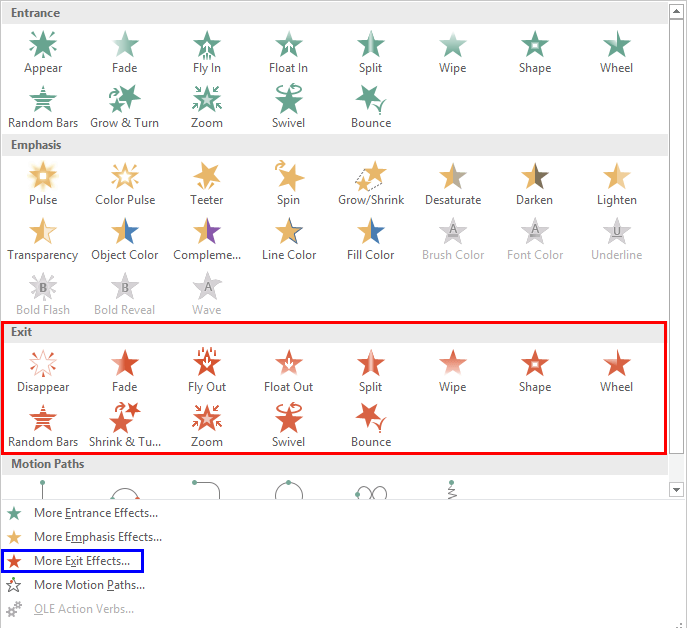
Exit animation effects determine how animated slide objects leave the Slide Area. For example, a slide object can fade or fly out the screen area, or use any of the many other Exit animation effects available within PowerPoint. Typical Exit animation effects include Disappear, in which an object just vanishes or Float Down, in which slide object mimics the setting sun. You can also apply Exit animation effects to text objects so that words Spiral out of the slide. There are plenty of Exit animation effects that PowerPoint provides. However, make sure you use animation sparingly to emphasize rather than to distract.
To learn more, choose your version of PowerPoint. If we do not have a tutorial for your version of PowerPoint, explore the version closest to the one you use.
Exit Animations in PowerPoint 2016
Exit Animations in PowerPoint 2013
Exit Animations in PowerPoint 2010
Exit Animations in PowerPoint 2007, 2003, and 2002
Exit Animations in PowerPoint 2011
Tutorial Code: 13 01 07
Previous: 13 01 06 Emphasis Animations in PowerPint
Next: 13 01 08 Apply Two or More Animations to One Object at the Same Time in PowerPoint
Filed Under:
B
Tagged as: 13-01, Animations and Transitions, Basics of PowerPoint Animation, PowerPoint Tutorials
Comments Off on Basics of Animation: Exit Animations in PowerPoint
Microsoft and the Office logo are trademarks or registered trademarks of Microsoft Corporation in the United States and/or other countries.