
This is the print version of this page. All content is copyright Indezine.com 2000-2026.
Definitions and resources for terms and techniques used in the world of presentations
See Also:
PowerPoint and Presenting Notes
PowerPoint and Presenting Glossary
Presentations Glossary in alphabetical order:
A |
B |
C |
D |
E |
F |
G |
H |
I |
J |
K |
L |
M |
N |
O |
P |
Q |
R |
S |
T |
U |
V |
W |
X |
Y |
Z
In PowerPoint, the Slide Master influences the layout and look of all slides in your presentation. Make changes to the Slide Master and those changes reflect on your presentation slides. For example, you can apply another Background Style so that all Slide Layouts and slides in your presentation use this changed slide background.
Filed Under:
S
Tagged as: 04-07, PowerPoint Tutorials, Slide Master and Slide Layouts, Themes Templates Masters and Layouts
Comments Off on Slide Master and Slide Layouts: Change Background Styles in the Slide Master in PowerPoint
Microsoft Office programs, such as PowerPoint connect with an Account. Additionally, they may also integrate with the Account you use to sign in within your Windows-based operating system, such as Windows 10 or Windows 8. Many options within PowerPoint show up or change depending upon which Account you are signed into. These include your Recent Files list, your connected services, and even the interface color for your program.
Filed Under:
F
Tagged as: 01-08, File Types File Menu and Backstage View, Interface and Basics, PowerPoint Tutorials
Comments Off on File Types, File Menu, and Backstage View: Sign and Switch Accounts in PowerPoint
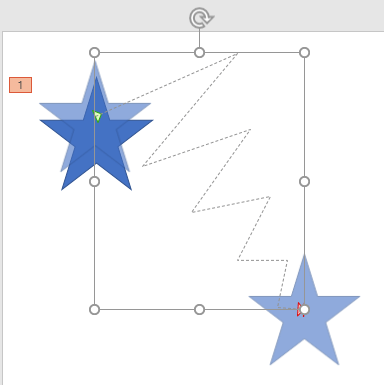
If none of the preset Motion Paths effects suit your needs, or if you cannot easily edit them to the way you want, you can easily create your own motion paths. In these tutorials, you will learn how to use PowerPoint’s Custom Path option to create your own motion path.
To learn more, choose your version of PowerPoint. If we do not have a tutorial for your version of PowerPoint, explore the version closest to the one you use.
Drawing Custom Paths for Motion Path Animations in PowerPoint 2016
Drawing Custom Paths for Motion Path Animations in PowerPoint 2013
Drawing Custom Paths for Motion Path Animations in PowerPoint 2010
Drawing Custom Paths for Motion Path Animations in PowerPoint 2007, 2003 and 2002
Drawing Custom Paths for Motion Path Animations in PowerPoint 2011
Tutorial Code: 13 02 03
Previous: 13 02 02 Getting Started with Motion Path Animations in PowerPoint
Next: 13 02 04 Reversing Paths of Motion Path Animations in PowerPoint
Filed Under:
M
Tagged as: 13-02, Animations and Transitions, Motion Path Animations, PowerPoint Tutorials
Comments Off on Motion Path Animations: Drawing Custom Paths for Motion Path Animations in PowerPoint

Edward Tufte is a well-known critic of slide-ware applications such as PowerPoint.
Here are some pages on Indezine where he has been referred to:
 Does PowerPoint Really Have Such a Power?
July 7, 2014
 The Leading Edge in Evidence Presentation is in Science
August 22, 2013
 The Anti-PowerPoint Party: Another Precinct Heard From
August 10, 2011
 The Presentation: A Story About Communicating Successfully With Very Few Slides: Conversation with Andrew Abela
October 11, 2010
 PowerPoint Turns 20
June 21, 2007
Heralding Clarity?
August 21, 2006
 The War Against PowerPoint?
July 5, 2006
 New York Times Article About PowerPoint Raises Storm
December 16, 2003
Image: Keegan Peterzell – Own work, CC BY-SA 4.0
Filed Under:
E
Tagged as: Edward Tufte, Personality, PowerPoint
Comments Off on Edward Tufte
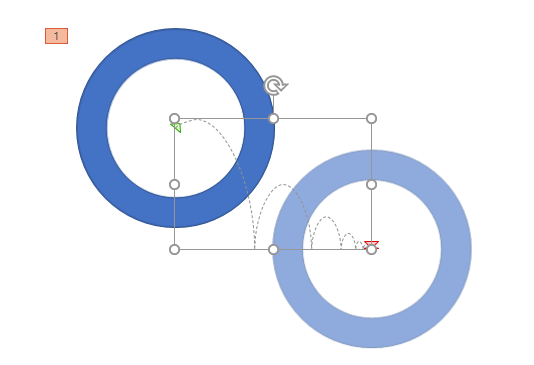
Motion Path animations in PowerPoint enable you to make any slide object move within or outside the slide, and also make it move anywhere within the slide in a particular path! PowerPoint provides dozens of Motion Path presets, in every shape that you can imagine.
To learn more, choose your version of PowerPoint. If we do not have a tutorial for your version of PowerPoint, explore the version closest to the one you use.
Getting Started with Motion Path Animations in PowerPoint 2016
Getting Started with Motion Path Animations in PowerPoint 2013
Getting Started with Motion Path Animations in PowerPoint 2010
Getting Started with Motion Path Animations in PowerPoint 2007, 2003, and 2002
Getting Started with Motion Path Animations in PowerPoint 2011 for Mac
Tutorial Code: 13 02 02
Previous: 13 02 01 Motion Path Animations
Next: 13 02 03 Drawing Custom Paths for Motion Path Animations in PowerPoint
Filed Under:
M
Tagged as: 13-02, Animations and Transitions, Motion Path Animations, PowerPoint Tutorials
Comments Off on Motion Path Animations: Getting Started with Motion Path Animations in PowerPoint
Microsoft and the Office logo are trademarks or registered trademarks of Microsoft Corporation in the United States and/or other countries.