
This is the print version of this page. All content is copyright Indezine.com 2000-2026.
Definitions and resources for terms and techniques used in the world of presentations
See Also:
PowerPoint and Presenting Notes
PowerPoint and Presenting Glossary
Presentations Glossary in alphabetical order:
A |
B |
C |
D |
E |
F |
G |
H |
I |
J |
K |
L |
M |
N |
O |
P |
Q |
R |
S |
T |
U |
V |
W |
X |
Y |
Z
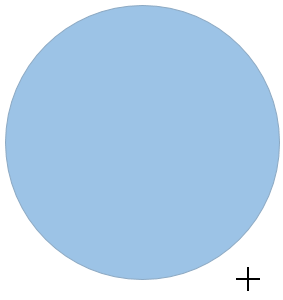
Drawing shapes is drop-dead easy with the vast repertoire of readymade shapes available in PowerPoint. You can easily insert these shapes with a click or two, but once in a while you may get stumped. One such scenario is when you need to draw a circle, you’ll find that PowerPoint’s Shape gallery has no Circle shape! Don’t worry, all is not lost because there is an Oval shape and that can be used to draw a perfect circle.
To learn more, choose your version of PowerPoint. If we do not have a tutorial for your version of PowerPoint, explore the version closest to the one you use.
Drawing a Perfect Circle in PowerPoint 2013
Drawing a Perfect Circle in PowerPoint 2010
Drawing a Perfect Circle in PowerPoint 2011
Tutorial Code: 06 07 01
Previous: 06 06 06 Grouping and Ungrouping Shortcut Keys in PowerPoint
Next: 06 07 02 Drawing a Perfect Square in PowerPoint
Filed Under:
S
Tagged as: 06-07, Circles and Squares, PowerPoint Tutorials, Shapes
Comments Off on Circles and Squares: Drawing a Perfect Circle in PowerPoint

Julie Terberg is a Microsoft PowerPoint MVP (Most Valuable Professional) and the owner of Terberg Design LLC. She has more than 20 years of presentation-design and computer-graphic experience. She specializes in custom presentations designed to help presenters better communicate with their audiences. Julie is also the author of Building PowerPoint Templates Step by Step with the Experts, published by Que.
Here’s a list of links on Indezine.com where she has been featured:
 Presentation Summit 2025: Conversation with Julie Terberg
September 29, 2025
 Presentation Summit 2024: Conversation with Julie Terberg
September 24, 2024
 Presentation Summit 2023: Conversation with Julie Terberg
August 31, 2023
 Presentation Summit 2022: Conversation with Julie Terberg
June 16, 2022
 Building PowerPoint Templates v2: Conversation with Julie Terberg
October 21, 2021
 Presentation Summit 2021: Conversation with Julie Terberg
July 23, 2021
 Presentation Summit 2020: Conversation with Julie Terberg
June 10, 2020
 Click 2019, the Presentation Design Conference: Conversation with David Blatner
March 4, 2019
An Update on “Safe Fonts” for PowerPoint
June 20, 2018
Presentation Summit 2017: Conversation with Julie Terberg
August 16, 2017
 Presentation Summit 2016: Conversation with Julie Terberg
August 17, 2016
 Can I Get a Better Green?: Conversation with Geetesh Bajaj and Julie Terberg
February 07, 2014
 Building PowerPoint Templates: Conversation with Julie Terberg
November 5, 2012
 Outstanding Presentations Workshop 2012: Conversation with Ellen Finkelstein
September 13, 2012
 Office Intervention: Learning PowerPoint with Julie Terberg
May 16, 2009
 The PowerPoint Live Template Contest: Conversation with Rick Altman
March 21, 2009
 PowerPoint Design Shift: Conversation with Julie Terberg
August 6, 2008
 The Polished Presentation: Shellie Tucker and Julie Terberg
July 8, 2008
 An Open Book in PowerPoint
April 12, 2006
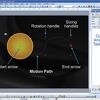 Motion Paths
December 17, 2005
 Resolution Explained
December 3, 2005
Perfect Medical Presentations wins BMA Prize
November 5, 2005
 Consistent Color Palettes in PowerPoint
October 11, 2005
 An Interview with Julie Terberg
February 26, 2004
Filed Under:
J
Tagged as: Julie Terberg, MVP, PowerPoint Design, Presentations, Templates
Comments Off on Julie Terberg
Default text in PowerPoint always takes the Font type and size from the Theme of the presentation. However, you can override these defaults and choose a typeface (font type) that is different — or even a different font size. Explore in the following tutorials how you can choose different font types and change the font size of the selected text on the slide. Select a link based upon your PowerPoint version.
Filed Under:
F
Tagged as: 05-02, Fonts, PowerPoint Tutorials, Text and Fonts
Comments Off on Fonts: Font Types and Sizes in PowerPoint
In PowerPoint, there are some differences between text placeholders and text boxes. As far as formatting for text placeholders and text boxes is concerned, almost everything else does work in the same way. However, there is one more vital difference between a text placeholder and a text box. You cannot insert text placeholders on a slide since they are part of the layout for your slide and already exist when you insert a new slide. Text boxes on the other hand need to be inserted manually.
Filed Under:
T
Tagged as: 05-01, PowerPoint Tutorials, Text and Fonts, Text Basics
Comments Off on Text Basics: Inserting a Text Box in PowerPoint
Reusing your existing slides can be a great help: first you need not recreate stuff you already have and secondly you are saving so much time that you can use more effectively to practice your presentation!
Having said that, always start by creating an outline of your presentation. This is important because it gives you an opportunity to plan your slides all over again. Thereafter, reuse any existing slides. PowerPoint provides a quick command that locates specific slides, and enables you to add it to the active presentation. While this process works the same way in all versions of PowerPoint.
Filed Under:
W
Tagged as: 01-09, Interface and Basics, PowerPoint Tutorials, Working with Slides
Comments Off on Working With Slides: Reuse Slides in PowerPoint
Microsoft and the Office logo are trademarks or registered trademarks of Microsoft Corporation in the United States and/or other countries.