
This is the print version of this page. All content is copyright Indezine.com 2000-2026.
Definitions and resources for terms and techniques used in the world of presentations
See Also:
PowerPoint and Presenting Notes
PowerPoint and Presenting Glossary
Presentations Glossary in alphabetical order:
A |
B |
C |
D |
E |
F |
G |
H |
I |
J |
K |
L |
M |
N |
O |
P |
Q |
R |
S |
T |
U |
V |
W |
X |
Y |
Z
Programs such as PowerPoint are a very significant part of our workflows not just because of their vast abilities but also because they can understand content from so many file formats. These include file types that PowerPoint can save and open. When you go and look at the file types that PowerPoint can open, you’ll find that the list of file types is not exactly the same as the ones that you save to. There are several omissions and additions compared to that list.
Filed Under:
F
Tagged as: 01-08, File Types File Menu and Backstage View, Interface and Basics, PowerPoint Tutorials
Comments Off on File Types, File Menu, and Backstage View: File Types that Can be Opened in PowerPoint
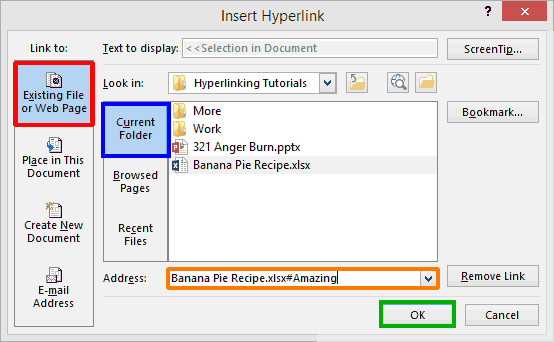
Do you want to link to an Excel file from within PowerPoint? You can then use the typical hyperlink technique. However, click on the link, and you will end up opening your Excel file at the last saved location. What if you always wanted your link to access a particular cell or a range of cells in Excel? This is possible, but you will rarely find this secret option documented at all!
To learn more, choose your version of PowerPoint. If we do not have a tutorial for your version of PowerPoint, explore the version closest to the one you use.
Link to Excel Cells and Ranges in PowerPoint 365
Link to Excel Cells and Ranges in PowerPoint 2013
Tutorial Code: 17 01 03
Previous: 17 01 02 Insert Excel Spreadsheet in PowerPoint
Next: 17 01 04 PowerPoint Slides from Excel List
Filed Under:
W
Tagged as: 17-01, PowerPoint Tutorials, Working with Microsoft Excel, Working with Other Programs
Comments Off on Working with Other Programs: Link to Excel Cells and Ranges in PowerPoint
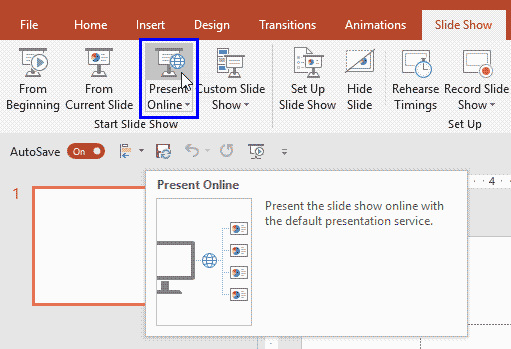
Many presenters are used to connecting their computers to projectors or display units and navigating through their slides as they speak to a live audience. Yet, in the recent past, it’s become normal to present from your computer via a webinar, with your audiences spanning different countries and time zones. You can use many webinar options, but did you know that Microsoft included a basic, free option right inside PowerPoint? This option is known as Present Online.
To learn more, choose your version of PowerPoint. If we do not have a tutorial for your version of PowerPoint, explore the version closest to the one you use.
Present Online in PowerPoint 2016
Present Online in PowerPoint 2013
Tutorial Code: 16 05 01
Previous: 16 04 17 Password Protection for PDFs in Adobe Acrobat
Next: 16 05 02 Package a Presentation to a CD or Folder in PowerPoint
Filed Under:
S
Tagged as: 16-05, PowerPoint Tutorials, Share and Prepare, Share Options
Comments Off on Share and Prepare: Present Online in PowerPoint
Among the tabs within Backstage view, we have already explored the Open, New, and Save, tabs. Here, we explore the Share tab, that provides you with options to share the current presentation through the cloud via OneDrive. You can also email the presentation as an attachment, a link, or a PDF.
To learn more, choose your version of PowerPoint. If we do not have a tutorial for your version of PowerPoint, explore the version closest to the one you use.
Share Tab of Backstage View in PowerPoint 365
Share Tab of Backstage View in PowerPoint 2019
Share Tab in Backstage View in PowerPoint 2016
Share Tab in Backstage View in PowerPoint 2013
Share Tab of Backstage View in PowerPoint 365
Share Tab of Backstage View in PowerPoint 2019

Tutorial Code: 01 08 11
Previous: 01 08 10 Print Tab in Backstage View in PowerPoint
Next: 01 08 12 Embed PowerPoint Presentations
Filed Under:
F
Tagged as: 01-08, File Types File Menu and Backstage View, Interface and Basics, PowerPoint Tutorials
Comments Off on File Types, File Menu, and Backstage View: Share Tab in Backstage View in PowerPoint
Tom Bunzel specializes in knowing what other presenters need and how to make technology work. He has appeared on Tech TV’s Call for Help as “Professor PowerPoint”, and is a featured speaker at industry events each year. Tom is also a “technology coach” and does presentation and video consulting in southern California.
Filed Under:
T
Tagged as: Author, Personality, PowerPoint, Tom Bunzel
Comments Off on Tom Bunzel
Microsoft and the Office logo are trademarks or registered trademarks of Microsoft Corporation in the United States and/or other countries.