
This is the print version of this page. All content is copyright Indezine.com 2000-2026.
Definitions and resources for terms and techniques used in the world of presentations
See Also:
PowerPoint and Presenting Notes
PowerPoint and Presenting Glossary
Presentations Glossary in alphabetical order:
A |
B |
C |
D |
E |
F |
G |
H |
I |
J |
K |
L |
M |
N |
O |
P |
Q |
R |
S |
T |
U |
V |
W |
X |
Y |
Z
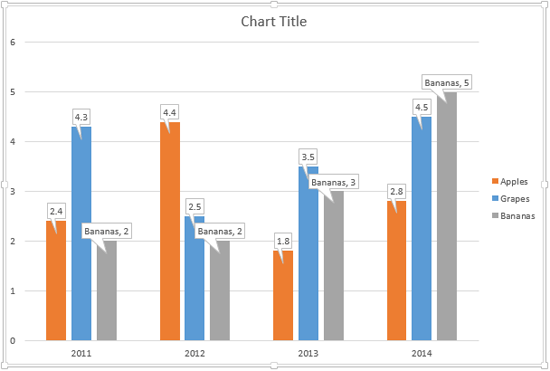
In PowerPoint, there is an option called Data Callouts that allows you to place your Data Labels within callout shapes.
To learn more, choose your version of PowerPoint. If we do not have a tutorial for your version of PowerPoint, explore the version closest to the one you use.
Change Callout Shapes for Data Labels in PowerPoint 2013

Tutorial Code: 10 06 04
Previous: 10 06 03 Callout Data Labels for Charts in PowerPoint
Next: 10 06 05 Label Options for Chart Data Labels in PowerPoint
Filed Under:
C
Tagged as: 10-06, Chart Data Labels, Charts and Graphs, PowerPoint Tutorials
Comments Off on Chart Data Labels: Change Callout Shapes for Data Labels in PowerPoint
Data Labels in PowerPoint are used to display the value, and/or the name of the Chart Series, and/or Categories right within or above the Series on the chart. In versions older than PowerPoint, Data Labels were contained within a plain text box.
To learn more, choose your version of PowerPoint. If we do not have a tutorial for your version of PowerPoint, explore the version closest to the one you use.
Callout Data Labels for Charts in PowerPoint 2013
Tutorial Code: 10 06 03
Previous: 10 06 02 Chart Data Label Format Options in PowerPoint
Next: 10 06 04 Change Callout Shapes for Data Labels in PowerPoint
Filed Under:
C
Tagged as: 10-06, Chart Data Labels, Charts and Graphs, PowerPoint Tutorials
Comments Off on Chart Data Labels: Callout Data Labels for Charts in PowerPoint
Different PowerPoint versions support a number of audio file formats. Obviously, the new PowerPoint versions support a larger number of audio file formats.
To learn more, click a link from the tutorials listed below.
PowerPoint Friendly Audio Formats

Tutorial Code: 14 01 02
Previous: 14 01 01 PowerPoint Friendly Video Formats
Next: 14 02 01 Insert Video Clips in PowerPoint
Filed Under:
P
Tagged as: 14-01, Multimedia, PowerPoint Multimedia Basics, PowerPoint Tutorials
Comments Off on PowerPoint Multimedia Basics: PowerPoint Friendly Audio Formats
Adding Data Labels is one of the ways in which you can make your charts in PowerPoint more effective, informative, and relevant for your audience. Once added, you can also further change the appearance of the Data Labels to suit your requirements.
To learn more, choose your version of PowerPoint. If we do not have a tutorial for your version of PowerPoint, explore the version closest to the one you use.
Chart Data Label Format Options in PowerPoint 2013
Chart Data Label Format Options in PowerPoint 2011

Tutorial Code: 10 06 02
Previous: 10 06 01 Chart Data Labels in PowerPoint
Next: 10 06 03 Callout Data Labels for Charts in PowerPoint
Filed Under:
C
Tagged as: 10-06, Chart Data Labels, Charts and Graphs, PowerPoint Tutorials
Comments Off on Chart Data Labels: Chart Data Label Format Options in PowerPoint
In a PowerPoint chart, Data Labels are used to display various types of information. You can display the value, the name of the Chart Series, and/or the Categories right within or above the Series on the chart. Adding Data Labels can help the presenter reveal exact values along with the Series so that he or she need not check on the Value axis to ascertain approximate values of any Series.
To learn more, choose your version of PowerPoint. If we do not have a tutorial for your version of PowerPoint, explore the version closest to the one you use.
Chart Data Labels in PowerPoint 2013
Chart Data Labels in PowerPoint 2011

Tutorial Code: 10 06 01
Previous: 10 05 08 Creating Charts Using Existing Excel Data in PowerPoint
Next: 10 06 02 Chart Data Label Format Options in PowerPoint
Filed Under:
C
Tagged as: 10-06, Chart Data Labels, Charts and Graphs, PowerPoint Tutorials
Comments Off on Chart Data Labels: Chart Data Labels in PowerPoint
Microsoft and the Office logo are trademarks or registered trademarks of Microsoft Corporation in the United States and/or other countries.