
This is the print version of this page. All content is copyright Indezine.com 2000-2026.
Definitions and resources for terms and techniques used in the world of presentations
See Also:
PowerPoint and Presenting Notes
PowerPoint and Presenting Glossary
Presentations Glossary in alphabetical order:
A |
B |
C |
D |
E |
F |
G |
H |
I |
J |
K |
L |
M |
N |
O |
P |
Q |
R |
S |
T |
U |
V |
W |
X |
Y |
Z
The gap width within a chart is the space between bunch of columns that represent categories. Usually the gap width is automatically calculated based on the chart data and the plot area. The space between two series’ points will be very narrow if there are many data series, or very wide when there are few data series. Even then, there is scope for some change in the gap width.
To learn more, choose your version of PowerPoint. If we do not have a tutorial for your version of PowerPoint, explore the version closest to the one you use.
Adjust the Chart Gap Width in PowerPoint 2013
Adjust the Chart Gap Width in PowerPoint 2011

Tutorial Code: 10 12 01
Previous: 10 11 04 Format Walls and Floor of 3D Charts in PowerPoint
Next: 10 12 02 Using the Invert if Negative Option for Charts in PowerPoint
Filed Under:
A
Tagged as: 10-12, Advanced Chart Techniques, Charts and Graphs, PowerPoint Tutorials
Comments Off on Advanced Chart Techniques: Adjust the Chart Gap Width in PowerPoint
Creating outlines for PowerPoint in various external applications lets you stay away from distractions in PowerPoint-land and concentrate on the structure of your slides rather than their appearance. Once you have the outline created, it’s very easy to import it in the form of slides into PowerPoint. While this import process works the same way in all versions of PowerPoint, there are small interface changes.
Filed Under:
T
Tagged as: Interface and Basics, PowerPoint Tutorials, Text and Outlines
Comments Off on Text and Outlines: Import Outlines in PowerPoint
Adobe Presenter is an add-in that works inside PowerPoint, and also runs as a standalone program.
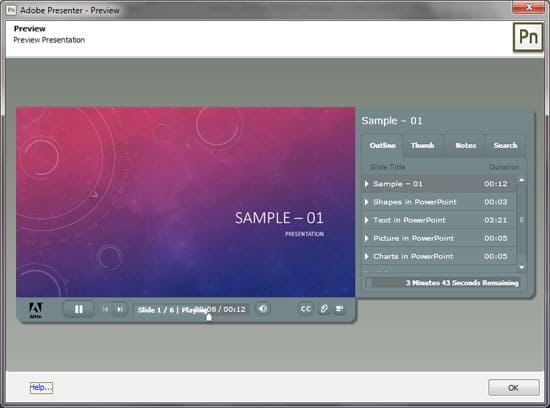
Here are some Adobe Presenter related pages on Indezine:
Record Video in Adobe Presenter
January 08, 2015
Insert Scenes in PowerPoint using Adobe Presenter
December 31, 2014
Insert Characters in PowerPoint using Adobe Presenter
December 30, 2014
Insert Interactions and Manage in PowerPoint using Adobe Presenter
December 29, 2014
Insert Scenario Interaction using Adobe Presenter
December 22, 2014
Edit Video using Adobe Presenter
August 21, 2014
Insert Video using Adobe Presenter
August 20, 2014
Insert SWFs using Adobe Presenter
August 06, 2014
Manage SWFs using Adobe Presenter
August 07, 2014
Edit Audio in Adobe Presenter
July 31, 2014
Sync Audio and Animation Timings in Adobe Presenter
July 30, 2014
Record Audio in Adobe Presenter
July 29, 2014
Preview Options in Adobe Presenter
July 24, 2014
Adobe Presenter 9: Conversation with Dr. Pooja Jaisingh
April 02, 2014
About Adobe Presenter
January 23, 2014
Adobe Presenter: The Beginnings
January 03, 2014
Adobe Presenter 7: The Indezine Review
May 05, 2009
Using Adobe Presenter 7
May 05, 2009
Filed Under:
A
Tagged as: Add-in, Adobe Presenter
Comments Off on Adobe Presenter
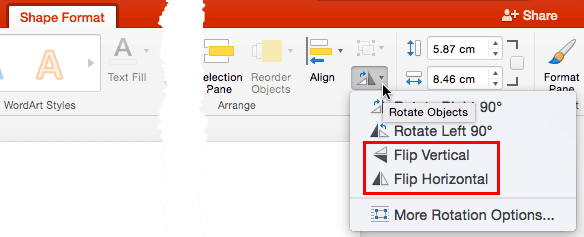
The shape on your slide looks perfect. It’s got the right color and it works well with your slide content. Yet there’s something that could be better? There are times when most slide designers think exactly the same thoughts! And the easiest task you can do to your shape is to flip it. There are other options, and some of these options depend upon the shape in question.
To learn more, choose your version of PowerPoint. If we do not have a tutorial for your version of PowerPoint, explore the version closest to the one you use.
Flip Shapes in PowerPoint 2016
Flip Shapes in PowerPoint 2013
Flip Shapes in PowerPoint 2010
Flip Shapes in PowerPoint 2016
Flip Shapes in PowerPoint 2011
Flip Shapes in PowerPoint for the Web
Tutorial Code: 06 01 05
Previous: 06 01 04 Rotate Shapes in PowerPoint
Next: 06 01 06 Shift Key Fun
Filed Under:
B
Tagged as: 06-01, Basics About Shapes, PowerPoint Tutorials, Shapes
Comments Off on Basics About Shapes: Flip Shapes in PowerPoint
PowerPoint allows you to animate any slide object that can be selected on your slide. Such objects include pictures, shapes, text, bulleted lists, SmartArt graphics, charts, etc. You can tweak the way objects on your slides appear, move, and disappear by adding animation.
To learn more, choose your version of PowerPoint. If we do not have a tutorial for your version of PowerPoint, explore the version closest to the one you use.
Adding Animation in PowerPoint 2016
Adding Animation in PowerPoint 2013
Adding Animation in PowerPoint 2010
Adding Animation in PowerPoint 2002, 2003 and 2007
Adding Animation in PowerPoint 2011

Tutorial Code: 13 01 03
Previous: 13 01 02 Animation Guidelines for PowerPoint
Next: 13 01 04 Types of Animation in PowerPoint
Filed Under:
B
Tagged as: 13-01, Animations and Transitions, Basics of PowerPoint Animation, PowerPoint Tutorials
Comments Off on Basics of PowerPoint Animation: Adding Animation in PowerPoint
Microsoft and the Office logo are trademarks or registered trademarks of Microsoft Corporation in the United States and/or other countries.