
This is the print version of this page. All content is copyright Indezine.com 2000-2026.
Definitions and resources for terms and techniques used in the world of presentations
See Also:
PowerPoint and Presenting Notes
PowerPoint and Presenting Glossary
Presentations Glossary in alphabetical order:
A |
B |
C |
D |
E |
F |
G |
H |
I |
J |
K |
L |
M |
N |
O |
P |
Q |
R |
S |
T |
U |
V |
W |
X |
Y |
Z
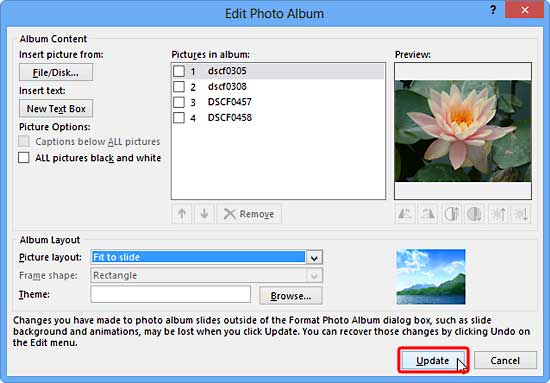
Once your Photo Album presentation has been created, you don’t reach a dead-end stop! In fact there is so much you can still do to make non-destructive edits to your photo album presentation.
To learn more, choose your version of PowerPoint. If we do not have a tutorial for your version of PowerPoint, explore the version closest to the one you use.
Editing Your Photo Album in PowerPoint 2013
Editing Your Photo Album in PowerPoint 2010
Tutorial Code: 09 07 02
Previous: 09 07 01 Create Photo Album in PowerPoint
Next: 09 07 03 Reorder, Remove, and Edit Photos within Photo Album in PowerPoint
Filed Under:
P
Tagged as: 09-07, Photo Album, Pictures and Visuals, PowerPoint Tutorials
Comments Off on Photo Album: Editing Your Photo Album in PowerPoint
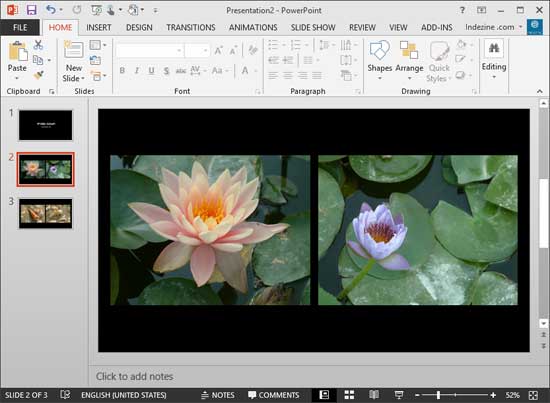
If you like to use many pictures in your PowerPoint presentations, then you’ll be glad to know that PowerPoint can import pictures in several formats – from the ubiquitous JPG to the ancient BMP. Whichever file format you use, importing tens or even hundreds of pictures into consecutive PowerPoint slides can be a chore – fortunately, the awesome Photo Album feature makes this task a simple affair.
To learn more, choose your version of PowerPoint. If we do not have a tutorial for your version of PowerPoint, explore the version closest to the one you use.
Create Photo Album in PowerPoint 2013
Create Photo Album in PowerPoint 2010
Tutorial Code: 09 07 01
Previous: 09 06 04 Reorder Pictures in PowerPoint
Next: 09 07 02 Editing Your Photo Album in PowerPoint
Filed Under:
P
Tagged as: 09-07, Photo Album, Pictures and Visuals, PowerPoint Tutorials
Comments Off on Photo Album: Create Photo Album in PowerPoint
You can do any of the typical positioning tasks in PowerPoint for your pictures such as resizing, aligning, and grouping. In addition, you can also reorder the pictures on your slide. In fact, you can also reorder a bunch of pictures and other slide objects such as shapes quite easily using the various ordering options available within the program.
To learn more, choose your version of PowerPoint. If we do not have a tutorial for your version of PowerPoint, explore the version closest to the one you use.
Reorder Pictures in PowerPoint 2013
Reorder Pictures in PowerPoint 2010
Reorder Pictures in PowerPoint 2011

Tutorial Code: 09 06 04
Previous: 09 06 03 Group Pictures in PowerPoint
Next: 09 07 01 Create Photo Album in PowerPoint
Filed Under:
P
Tagged as: 09-06, Pictures - Position and Order, Pictures and Visuals, PowerPoint Tutorials
Comments Off on Pictures – Position and Order: Reorder Pictures in PowerPoint
Grouping pictures can be helpful in various scenarios. You may want to resize or rotate all pictures. Rather than rotate them individually, you can group them and thereafter rotate.
To learn more, choose your version of PowerPoint. If we do not have a tutorial for your version of PowerPoint, explore the version closest to the one you use.
Group Pictures in PowerPoint 2013
Group Pictures in PowerPoint 2010
Group Pictures in PowerPoint 2011

Tutorial Code: 09 06 03
Previous: 09 06 02 Align and Distribute Pictures in PowerPoint
Next: 09 06 04 Reorder Pictures in PowerPoint
Filed Under:
P
Tagged as: 09-06, Pictures - Position and Order, Pictures and Visuals, PowerPoint Tutorials
Comments Off on Pictures – Position and Order: Group Pictures in PowerPoint
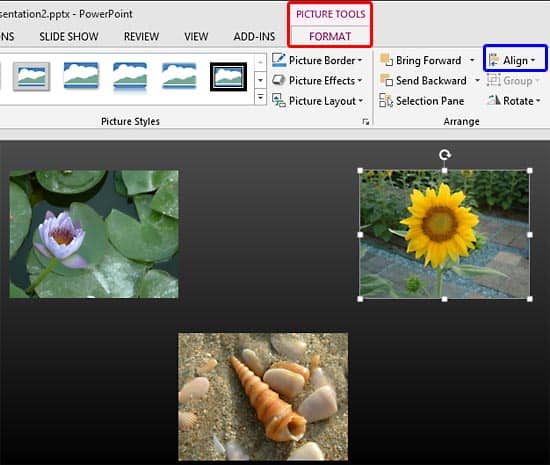
Whichever slide objects you place on your PowerPoint slide, their position and alignment matters a lot, be it shapes or even the many inserted pictures.
To learn more, choose your version of PowerPoint. If we do not have a tutorial for your version of PowerPoint, explore the version closest to the one you use.
Align and Distribute Pictures in PowerPoint 2016
Align and Distribute Pictures in PowerPoint 2013
Align and Distribute Pictures in PowerPoint 2010
Align and Distribute Pictures in PowerPoint 2011
Tutorial Code: 09 06 02
Previous: 09 06 01 Resize, Rotate, and Flip Pictures in PowerPoint
Next: 09 06 03 Group Pictures in PowerPoint
Filed Under:
P
Tagged as: 09-06, Pictures - Position and Order, Pictures and Visuals, PowerPoint Tutorials
Comments Off on Pictures – Position and Order: Align and Distribute Pictures in PowerPoint
Microsoft and the Office logo are trademarks or registered trademarks of Microsoft Corporation in the United States and/or other countries.