
This is the print version of this page. All content is copyright Indezine.com 2000-2026.
Definitions and resources for terms and techniques used in the world of presentations
See Also:
PowerPoint and Presenting Notes
PowerPoint and Presenting Glossary
Presentations Glossary in alphabetical order:
A |
B |
C |
D |
E |
F |
G |
H |
I |
J |
K |
L |
M |
N |
O |
P |
Q |
R |
S |
T |
U |
V |
W |
X |
Y |
Z

Bess Gallanis is the founder of Speaking with Power and Persuasion, an executive communications consulting firm based in Chicago. She is a communication coach, speaker, journalist, a student of yoga and insight meditation and the author of Yoga Chick (Warner Books, 2006). For more than 25 years, public and private company CEOs, senior executives, portfolio managers, and financial advisors have sought out Bess to help them develop their leadership voice and to make an impact through skillful communications. She prepares clients for high stakes presentations, media interviews, and sensitive conversations. Bess draws from the universal wisdom of yoga and insight meditation as a model for Presentation Yoga, which emphasizes leadership from within, personal authenticity, and storytelling.
Here’s a list of links on Indezine.com where she has been featured:
 Master a Five Minute Talk: My Road to Ignite Chicago by Bess Gallani
April 13, 2012
 The Firestarter Experience: Conversation with Bess Gallanis
January 2, 2012
 The Best Story Wins – Part I
February 10, 2011
The Best Story Wins – Part II
February 10, 2011
 Presentation Yoga: Conversation with Bess Gallanis
January 24, 2011
Filed Under:
B
Tagged as: Author, Bess Gallanis, Personality
Comments Off on Bess Gallanis
In the last few days, we have shown you all the options available to you for creating Photo Album presentations in PowerPoint, and yet there’s something that is larger than all these options put together. That something is creativity and curiosity. This creativity and curiosity can only be satisfied with practice and inspiration. Even though the option to edit your existing Photo Album provides you with the freedom to experiment and tweak, nothing is more important than actually experimenting and playing with all those options.
To learn more, choose your version of PowerPoint. If we do not have a tutorial for your version of PowerPoint, explore the version closest to the one you use.
Photo Album Ideas and Samples in PowerPoint 2010

Tutorial Code: 09 07 09
Previous: 09 07 08 Apply Themes to Photo Album Presentations in PowerPoint
Next: 09 08 01 Clip Organizer in PowerPoint
Filed Under:
P
Tagged as: 09-07, Photo Album, Pictures and Visuals, PowerPoint Tutorials
Comments Off on Photo Album: Photo Album Ideas and Samples in PowerPoint
Once your Photo Album presentation has been created, you may notice that the default Photo Album template has a white background with black text. You can easily change the appearance of the slides by applying a Theme to your Photo Album presentation. You can of course do it outside the Photo Album presentation, like how you apply a Theme. But, you can also apply a Theme right within the Photo Album dialog box.
To learn more, choose your version of PowerPoint. If we do not have a tutorial for your version of PowerPoint, explore the version closest to the one you use.
Apply Themes to Photo Album Presentations in PowerPoint 2013
Apply Themes to Photo Album Presentations in PowerPoint 2010

Tutorial Code: 09 07 08
Previous: 09 07 07 Frame Shapes for Photo Album in PowerPoint
Next: 09 07 09 Photo Album Ideas and Samples in PowerPoint
Filed Under:
P
Tagged as: 09-07, Photo Album, Pictures and Visuals, PowerPoint Tutorials
Comments Off on Photo Album: Apply Themes to Photo Album Presentations in PowerPoint
PowerPoint’s Photo Album feature is very powerful, allowing you to insert hundreds of pictures in two or three clicks. The best part is all these pictures are editable, right down to their picture layouts, captions, etc. In fact, you can also change the frame shapes of the pictures. You’ll end up with pictures that have drop shadows, or a black border, or even a picture that’s contained in a frame with rounded corners. What frame you choose depends entirely upon you.
To learn more, choose your version of PowerPoint. If we do not have a tutorial for your version of PowerPoint, explore the version closest to the one you use.
Frame Shapes for Photo Album in PowerPoint 2013
Frame Shapes for Photo Album in PowerPoint 2010

Tutorial Code: 09 07 07
Previous: 09 07 06 Black and White Options for Photo Album Presentations in PowerPoint
Next: 09 07 08 Apply Themes to Photo Album Presentations in PowerPoint
Filed Under:
P
Tagged as: 09-07, Photo Album, Pictures and Visuals, PowerPoint Tutorials
Comments Off on Photo Album: Frame Shapes for Photo Album in PowerPoint
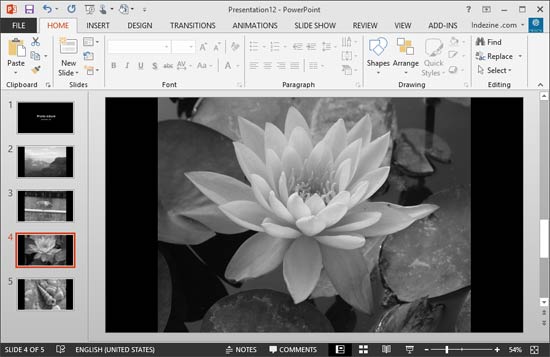
Rich, vibrant color attracts more attention in a picture than black and white. However, the contrast visible in a black and white photo is far superior. Artists and photography purists have long hailed the black and white picture as a creative medium. You may want to extend this creative medium to your Photo Album presentations. Fortunately, a click or two is all that is required to create an inspirational black and white Photo Album.
To learn more, choose your version of PowerPoint. If we do not have a tutorial for your version of PowerPoint, explore the version closest to the one you use.
Black and White Options for Photo Album Presentations in PowerPoint 2013
Black and White Options for Photo Album Presentations in PowerPoint 2010
Tutorial Code: 09 07 06
Previous: 09 07 05 Using Captions in Photo Album Presentations in PowerPoint
Next: 09 07 07 Frame Shapes for Photo Album in PowerPoint
Filed Under:
P
Tagged as: 09-07, Photo Album, Pictures and Visuals, PowerPoint Tutorials
Comments Off on Photo Album: Black and White Options for Photo Album Presentations in PowerPoint
Microsoft and the Office logo are trademarks or registered trademarks of Microsoft Corporation in the United States and/or other countries.