
This is the print version of this page. All content is copyright Indezine.com 2000-2026.
Definitions and resources for terms and techniques used in the world of presentations
See Also:
PowerPoint and Presenting Notes
PowerPoint and Presenting Glossary
Presentations Glossary in alphabetical order:
A |
B |
C |
D |
E |
F |
G |
H |
I |
J |
K |
L |
M |
N |
O |
P |
Q |
R |
S |
T |
U |
V |
W |
X |
Y |
Z

Rick Altman is a California based presentation consultant who has been helping organizations communicate better in public since before Microsoft developed PowerPoint. He has been hosting end-user conferences since 1989 and is well known as the host of the annual Presentation Summit.
Here’s a list of links on Indezine.com where he has been featured:
 Presentation Summit 2026: Conversation with Rick Altman
August 26, 2026
 Crush Your Next Virtual Presentation: Conversation with Rick Altman
January 28, 2026
 Presentation Summit 2024: Conversation with Rick Altman
September 4, 2024
 Virtual PowerPoint Workshop, Spring 2024: Conversation with Rick Altman
March 1, 2024
 Presentation Summit 2023: Conversation with Rick Altman
June 14, 2023
 Presentation Summit 2022 Sweepstakes: Conversation with Rick Altman
May 9, 2022
Presentation Summit 2022: Conversation with Rick Altman
December 16, 2021
Presentation Summit 2021 Sweepstakes: Conversation with Rick Altman
June 17, 2021
Presentation Summit 2020: Conversation with Rick Altman
April 17, 2020
Presentation Summit 2019 and 2020: Conversation with Rick Altman
February 28, 2020
Presentation Summit 2019: Conversation with Rick Altman
June 28, 2019
 Presentation Summit-Powtoon Contest: Entries Showcase
May 20, 2019
 Why Most PowerPoint Presentations Suck (Fourth Edition): Conversation with Rick Altman
May 16, 2019
 Presentation Summit-Powtoon Contest: Conversation with Rick Altman
April 24, 2019
 Presentation Summit 2018: Conversation with Rick Altman
April 2, 2018
 Presentation Summit 2017: Conversation with Rick Altman
August 14, 2017
Presentation Summit 2016: Conversation with Rick Altman
September 20, 2016
 Presentation Summit Cruise: Conversation with Rick Altman
August 3, 2016
Presentation Summit 2016: Conversation with Rick Altman
April 21, 2016
Presentation Summit 2015: Conversation with Rick Altman
May 1, 2015
Presentation Summit 2014: Conversation with Rick Altman
April 24, 2014
 Presentation Summit 2013: Conversation with Rick Altman
May 22, 2013
Presentation Summit 2012 and 2013: Conversation with Rick Altman
October 24, 2012
 Crash Courses at the Presentation Summit 2012
October 8, 2012
 Outstanding Presentations Workshop 2012: Conversation with Ellen Finkelstein
September 13, 2012
Presentation Summit 2012: Conversation with Rick Altman
July 19, 2012
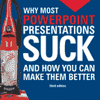 Why Most PowerPoint Presentations Suck 3rd Edition: Conversation with Rick Altman
July 4, 2012
 Presentation Summit 2011 Template Contest: Conversation with Rick Altman
July 25, 2011
PresentationNext: Conversation with Rick Altman
January 18, 2011
Presentation Summit, Looking Back and Beyond: Conversation with Rick Altman
November 8, 2010
Presentation Summit Template Contest 2010: Conversation with Rick Altman
April 12, 2010
Presentation Summit 2010: Conversation with Rick Altman
March 26, 2010
PowerPoint Live 2009: Conversation with Rick Altman
October 27, 2009
 The PowerPoint Live Template Contest: Conversation with Rick Altman
March 21, 2009
 PowerPoint Live 2008 Retrospective: Conversation with Rick Altman
November 21, 2008
PowerPoint Live: Conversation with Rick Altman
November 17, 2007
 From Screen to Toner: Printing your Presentation
June 2, 2007
Check out the PowerPoint Live Video
April 11, 2006
PPT Live 2005 – An Interview with Rick Altman
July 1, 2005
The Golden Triangle – Presenter, Audience, and Slides
May 16, 2005
PPT Live – An Interview with Rick Altman
August 4, 2003
Filed Under:
R
Tagged as: Personality, PowerPoint, Rick Altman
Comments Off on Rick Altman
Prezi is a cloud-based presentation software and also a storytelling tool for presenting.
Here’s a list of links on Indezine.com related to Prezi:
 2015 Prezi Awards: Conversation with Susannah Shattuck
December 21, 2015
 50 Million Prezi Users: Conversation with Scott Kabat
May 18, 2015
 Prezi Nutshell
April 2, 2015
 Prezi/Harris Interactive Survey: Conversation with Peter Arvai
October 1, 2014
 Prezi/Harris Interactive Survey: Conversation with Carmine Gallo
September 29, 2014
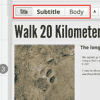 Prezi Notes for PowerPoint Users 01: Change Fonts
August 5, 2014
 20 Million Prezi Users: Conversation with Drew Banks
April 8, 2013
Filed Under:
P
Tagged as: Online_Presentations, Presentations, Prezi
Comments Off on Prezi
SlideShare is a well-known slide sharing and uploading site. Once you sign up, you get access to a ton of features that let you do so much more with your slide content.
Here’s a list of links on Indezine.com related to SlideShare:
 Haiku Deck Interface within SlideShare
December 4, 2014
 Creating Slides on SlideShare
November 28, 2014
 Creating Slides on SlideShare: Conversation with Arpit Dhariwal
November 27, 2014
 SlideShare’s Android App: Conversation with Andri Kristinsson
May 15, 2014
 Present Yourself: Conversation with Andrea Meyer
August 26, 2013
 Present Yourself: Conversation with Kit Seeborg
August 22, 2013
 LinkedIn’s SlideShare Acquisition: Conversation with Amit Ranjan
July 12, 2012
 SlideShare Moves to HTML5: Conversation with Jonathan Boutelle
October 05, 2011
Sharing SlideShare Content on LinkedIn: Conversation with Amit Ranjan
July 18, 2011
 World’s Best Presentation Contest 2010: Conversation with Cory Jim
December 24, 2010
 SlideShare Channels: Conversation with Rashmi Sinha
February 04, 2010
 Healthcare Napkins wins SlideShare’s World’s Best Presentation Contest for 2009
September 30, 2009
 SlideShare Now Supports Keynote
December 9, 2008
 SlideShare Announces Contest Winners
September 04, 2008
The World’s Best Presentation Contest: Conversation with Rashmi Sinha
September 03, 2008
 SlideShare: Contest Winners
May 12, 2007
 World’s Best Presentation Contest
March 23, 2007
 An Interview with Jonathan Boutelle
November 10, 2006
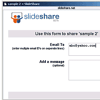 SlideShare: Sharing Slides and Presentations
October 11, 2006
 SlideShare: Uploading Presentations
October 10, 2006
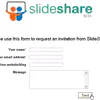 SlideShare: Joining SlideShare
October 09, 2006
 Looking at SlideShare
October 05, 2006

Filed Under:
S
Tagged as: Online_Presentations, Presentations, SlideShare
Comments Off on SlideShare
Although you can add animation to a chart in the same way as you would add to any other slide object, PowerPoint provides some extra animation options that are applicable only to charts. For example, you can animate series and categories individually as required – and you can also decide whether you want to animate the plot area or not. In the following tutorials, learn how to apply animation to charts, and also explore the different Chart Animation options available in various versions of PowerPoint:
To learn more, choose your version of PowerPoint. If we do not have a tutorial for your version of PowerPoint, explore the version closest to the one you use.
Animate Charts in PowerPoint 2013
Animate Charts in PowerPoint 2010
Animate Charts in PowerPoint 2007
Animate Charts in PowerPoint 2011

Tutorial Code: 13 04 03
Previous: 13 04 02 Fake-Animate Tables in PowerPoint
Next: 13 04 04 Animate Text in PowerPoint
Filed Under:
A
Tagged as: 13-04, Animate Slide Objects, Animations and Transitions, PowerPoint Tutorials
Comments Off on Animate Slide Objects: Animate Charts in PowerPoint
Guides allow you to position and snap your slide objects in place. When you enable guides in PowerPoint, you see one horizontal and one vertical guide. They span to intersect at the very center of the slide. In the following tutorials, learn how to enable the Guides in PowerPoint. Select one of them based on the PowerPoint version you use:
Working with Guides in PowerPoint 2016
Adding More Guides in PowerPoint 2016
Guide Options in PowerPoint 2016
Hierarchical Guide Options in PowerPoint 2016
Smarter Guides in PowerPoint 2016
Working with Guides in PowerPoint 2013
Adding More Guides in PowerPoint 2013
New Guide Options in PowerPoint 2013
New Hierarchical Guide Options in PowerPoint 2013
Smarter Guides in PowerPoint 2013
Adding More Guides in PowerPoint 2010
Working with Guides in PowerPoint 2010
Smart Guides in PowerPoint 2010
Guides in PowerPoint 2011
Adding More Guides in PowerPoint 2011

Filed Under:
L
Tagged as: Guides, Guides in PowerPoint, Layouts, Positioning, PowerPoint, PowerPoint Tutorials
Comments Off on Layout and Positioning: Guides
Microsoft and the Office logo are trademarks or registered trademarks of Microsoft Corporation in the United States and/or other countries.