
This is the print version of this page. All content is copyright Indezine.com 2000-2026.
Definitions and resources for terms and techniques used in the world of presentations
See Also:
PowerPoint and Presenting Notes
PowerPoint and Presenting Glossary
Presentations Glossary in alphabetical order:
A |
B |
C |
D |
E |
F |
G |
H |
I |
J |
K |
L |
M |
N |
O |
P |
Q |
R |
S |
T |
U |
V |
W |
X |
Y |
Z
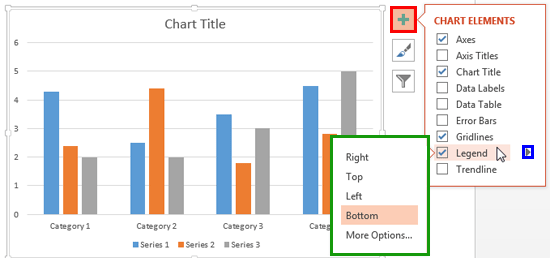
The legend within a chart is one of those elements that lets you identify all series in a chart via color or pattern. Typically, the legend is a box or area with those identifying color or pattern swatches.
To learn more, choose your version of PowerPoint. If we do not have a tutorial for your version of PowerPoint, explore the version closest to the one you use.
Chart Legend in PowerPoint 2013
Chart Legend in PowerPoint 2010
Chart Legend in PowerPoint 2007
Chart Legend in PowerPoint 2003
Chart Legend in PowerPoint 2011
Tutorial Code: 10 09 01
Previous: 10 08 08 Crossed Axes for Charts in PowerPoint
Next: 10 10 01 Picture Fills for Chart Series in PowerPoint
Filed Under:
C
Tagged as: 10-09, Chart Legend, Charts and Graphs, PowerPoint Tutorials
Comments Off on Chart Legend: Chart Legend in PowerPoint
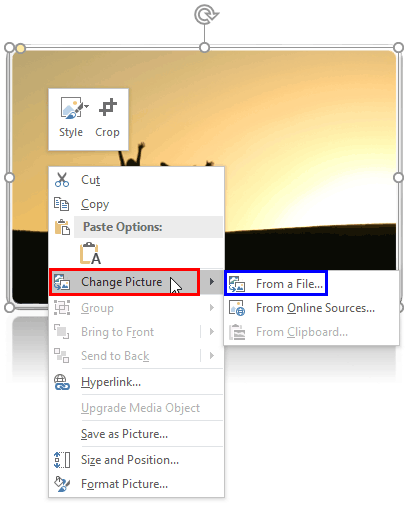
Imagine you have inserted a picture in PowerPoint, and then applied various picture editing options to enhance its appearance that includes applying a border, some Picture Effects, etc. Next, you also added a couple of animations such as Fade and Zoom, synced them to happen together, and also timed the animations to occur at a particular speed. And then you realize that you have a better picture, or your boss asked you to change the existing picture to another one, but with all the same effects and animations! You would probably delete the original picture and start all over again, and yes, that is a long process! Or you can change any existing picture into another with just a couple of clicks, retaining all effects and animations.
To learn more, choose your version of PowerPoint. If we do not have a tutorial for your version of PowerPoint, explore the version closest to the one you use.
Change Picture in PowerPoint 2016
Change Picture in PowerPoint 2013
Change Picture in PowerPoint 2010
Change Picture in PowerPoint 2011
Change Picture in PowerPoint Online
Tutorial Code: 09 01 18
Previous: 09 01 17 Artistic Effects for Pictures in PowerPoint
Next: 09 01 19 Reset Pictures in PowerPoint
Filed Under:
P
Tagged as: 09-01, Picture Basics and Adjustments, Pictures and Visuals, PowerPoint Tutorials
Comments Off on Picture Basics and Adjustments: Change Picture in PowerPoint
Since many people use PowerPoint for training programs, you will find many slides containing screenshots of various computer program interfaces. Typically screenshots are captured outside PowerPoint using a screen capturing tool and then inserted within PowerPoint slide. The Screenshot option in PowerPoint has made this task even easier as you can easily take and insert a screenshot on your slide without leaving PowerPoint.
To learn more, choose your version of PowerPoint. If we do not have a tutorial for your version of PowerPoint, explore the version closest to the one you use.
Inserting Screenshots in PowerPoint 2013
Inserting Screenshots in PowerPoint 2010

Tutorial Code: 09 01 12
Previous: 09 01 11 Insert Pictures from Facebook in PowerPoint
Next: 09 01 13 Recolor Picture Backgrounds in PowerPoint
Filed Under:
P
Tagged as: 09-01, Pictures and Visuals, Pictures Basics and Adjustments, PowerPoint Tutorials
Comments Off on Pictures Basics and Adjustments: Inserting Screenshots in PowerPoint
Quick, how many file formats (types) can PowerPoint save your slides to? If you take count of every single format from the necessary to the irrelevant (and forget the missing ones), then the number is 28. Some of these could be genuinely helpful, such as the MPEG-4 Video export and others like GIF, JPG, PNG, WMF, and EMF ensure that you get good graphic outputs. And RTF outlines can sometimes be a boon.
Filed Under:
F
Tagged as: 01-08, File Types File Menu and Backstage View, Interface and Basics, PowerPoint Tutorials
Comments Off on File Types, File Menu, and Backstage View: File Formats in PowerPoint
In PowerPoint, a placeholder is a container that you can use to fill in with some content. When you launch PowerPoint, you will see distinctive boxes that invite you to add some content. Haven’t you noticed the “Click to add title” suggestions? All these boxes are placeholders.
Filed Under:
S
Tagged as: 04-08, PowerPoint Tutorials, Slide Master and Slide Layouts, Themes Templates Masters and Layouts
Comments Off on Slide Master and Slide Layouts: Inserting New Placeholders Within Slide Layouts in PowerPoint
Microsoft and the Office logo are trademarks or registered trademarks of Microsoft Corporation in the United States and/or other countries.