
This is the print version of this page. All content is copyright Indezine.com 2000-2026.
Definitions and resources for terms and techniques used in the world of presentations
See Also:
PowerPoint and Presenting Notes
PowerPoint and Presenting Glossary
Presentations Glossary in alphabetical order:
A |
B |
C |
D |
E |
F |
G |
H |
I |
J |
K |
L |
M |
N |
O |
P |
Q |
R |
S |
T |
U |
V |
W |
X |
Y |
Z
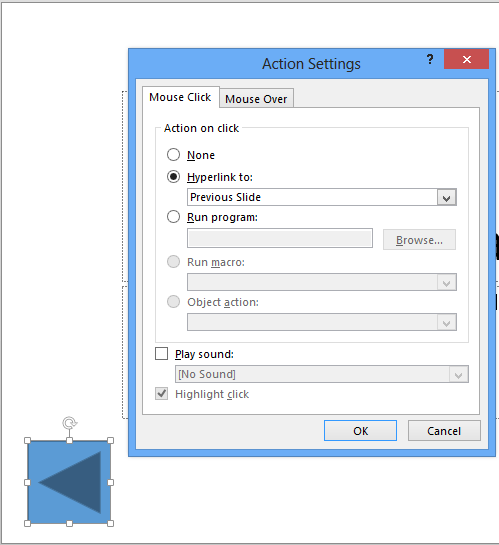
Shapes may look basic or even primitive, but they are the building blocks of almost anything you create on your PowerPoint slides. Fortunately, you are not deprived of choices because PowerPoint provides plenty of shapes, neatly categorized into nine types.
To learn more, choose your version of PowerPoint. If we do not have a tutorial for your version of PowerPoint, explore the version closest to the one you use.
Action Buttons in PowerPoint 2013
Action Buttons in PowerPoint 2010
Action Buttons in PowerPoint 2011
Tutorial Code: 06 12 01
Previous: 06 11 04 Creating Diagonal Callouts in PowerPoint
Next: 06 12 02 Default Behaviors for Action Buttons in PowerPoint
Filed Under:
A
Tagged as: 06-12, Action Buttons, PowerPoint Tutorials, Shapes
Comments Off on Action Buttons: Action Buttons in PowerPoint
Sections in PowerPoint is a feature that lets you organize slides into segments or divisions for easier management. For instance, if you have many slides, you may find the content difficult to handle, edit, or even deliver. And if you have a few slides, even then you may have the need to organize them logically in Sections. The Section option within PowerPoint enables you to divide your presentation slides into logical parts.
Filed Under:
S
Tagged as: Interface and Basics, PowerPoint Tutorials, Sections
Comments Off on Sections: Getting Started with Sections in PowerPoint
Many times when you use Microsoft Office programs online, or even when you want to sign on to Microsoft’s OneDrive cloud service, you will be asked to sign in with your Microsoft Account. So what does a Microsoft Account actually mean?
If you have an account for Hotmail, Xbox Live, Windows Phone, OneDrive, Outlook.com, Skype (the new, migrated accounts), or even a Windows (not the local Windows account), then you already have a Microsoft Account!
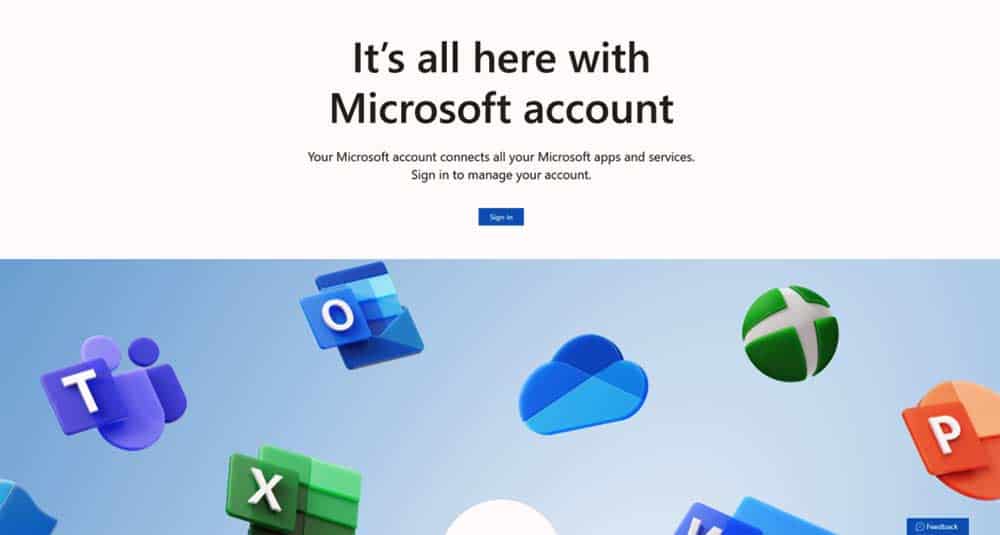
At the most basic level, you can sign in with your free Microsoft Account to access a whole lot of services. For example, if you sign in to OneDrive, you get access to a basic level of viewing and editing Office files within the program.
Many times, people get confused between Microsoft Accounts and Microsoft 365 subscriptions.
Firstly, basic Microsoft 365 subscriptions are also signed in via your Microsoft Account. Or you may have a greater level @on.microsoft.com email address that provides access to higher-level enterprise subscriptions for Microsoft 365. Whichever Microsoft 365 level you may be at, using those credentials unlocks the entire program on desktops, tablets, and phones.
So really speaking, all Microsoft 365 subscriptions are Microsoft Accounts, but not all Microsoft Accounts are Microsoft 365 subscriptions!
Filed Under:
M
Tagged as: Microsoft, Microsoft Account, Office 365
Comments Off on Microsoft Account
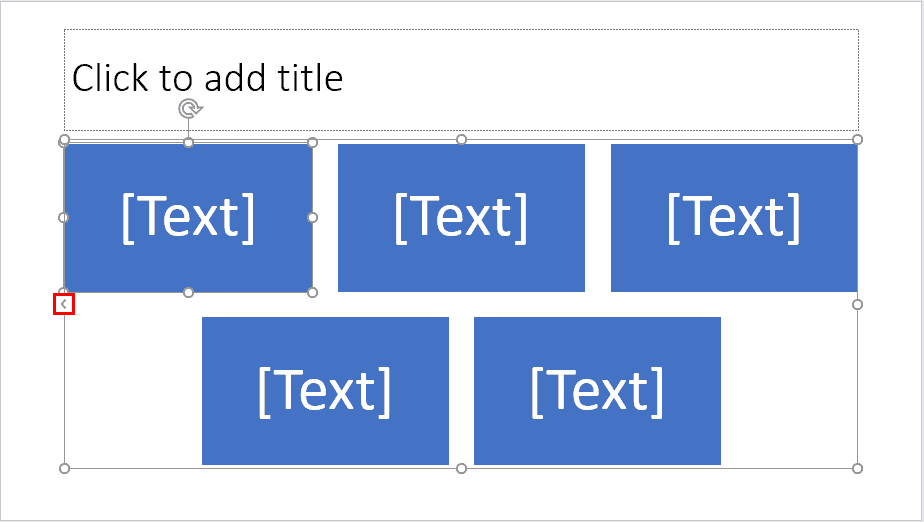
SmartArt in PowerPoint allows you to replace bullet points with info-graphic content using shapes (and also pictures) that contain text. This approach is very helpful to the audience as well as the presenter since it complements the way you view and present the content.
To learn more, choose your version of PowerPoint. If we do not have a tutorial for your version of PowerPoint, explore the version closest to the one you use.
Inserting SmartArt in PowerPoint 2016
Inserting SmartArt in PowerPoint 2013
Inserting SmartArt in PowerPoint 2010
Inserting SmartArt in PowerPoint 2007
Inserting SmartArt in PowerPoint 2011
Tutorial Code: 11 01 01
Previous: 10 15 11 PowerPoint Chart Tips 10: Ask Help, Read Books
Next: 11 01 02 Convert Bulleted Text to SmartArt in PowerPoint
Filed Under:
S
Tagged as: 11-01, PowerPoint Tutorials, SmartArt Basics, SmartArt Graphics
Comments Off on SmartArt Basics: Inserting SmartArt in PowerPoint
Do you want to show only selected slides from your presentation to a particular audience? The answer is not to delete the slides you do not want to show and thereafter saving as a copy. The answer is to create a custom slide show! So what’s a custom slide show? Think of your individual slides as songs, then a custom slide show is a playlist of those songs! Even better, since this is like a playlist, you do not have to delete the slides that are not used. And there’s more, you can create any number of custom slide shows!
To learn more, choose your version of PowerPoint. If we do not have a tutorial for your version of PowerPoint, explore the version closest to the one you use.
Creating Custom Slide Shows in PowerPoint 2013
Creating Custom Slide Shows in PowerPoint 2010
Creating Custom Slide Shows in PowerPoint 2011

Tutorial Code: 16 09 01
Previous: 16 08 03 Kiosk Mode and Kiosk Assistant
Next: 16 09 02 Playing Custom Shows in PowerPoint
Filed Under:
C
Tagged as: 16-09, Custom Slide Show, PowerPoint Tutorials, Share and Prepare
Comments Off on Custom Slide Show: Creating Custom Slide Shows in PowerPoint
Microsoft and the Office logo are trademarks or registered trademarks of Microsoft Corporation in the United States and/or other countries.