
This is the print version of this page. All content is copyright Indezine.com 2000-2026.
Definitions and resources for terms and techniques used in the world of presentations
See Also:
PowerPoint and Presenting Notes
PowerPoint and Presenting Glossary
Presentations Glossary in alphabetical order:
A |
B |
C |
D |
E |
F |
G |
H |
I |
J |
K |
L |
M |
N |
O |
P |
Q |
R |
S |
T |
U |
V |
W |
X |
Y |
Z
Imagine this situation: you started working on a presentation, saved it couple of times, then got so much involved in your work that you spent an inordinate amount of time working on it without saving it. Then, your computer unexpectedly crashes or just shuts off due to some unexpected crisis. Or maybe just PowerPoint crashes for some reason. Does it mean you are now left with your presentation in the status when you last saved it and lost all your work? Not really because you can restart PowerPoint, and one of two occurrences may happen.
To learn more, choose your version of PowerPoint. If we do not have a tutorial for your version of PowerPoint, explore the version closest to the one you use.
Recovering Unsaved Presentations in PowerPoint 2016
Recovering Unsaved Presentations in PowerPoint 2013
Recovering Unsaved Presentations in PowerPoint 2010

Tutorial Code: 16 03 02
Previous: 16 03 01 AutoRecover and AutoSave Options in PowerPoint
Next: 16 03 03 Recovering New Unsaved Presentations Manually in PowerPoint
Filed Under:
M
Tagged as: 16-03, Manage Versions, PowerPoint Tutorials, Share and Prepare
Comments Off on Manage Versions: Recovering Unsaved Presentations in PowerPoint
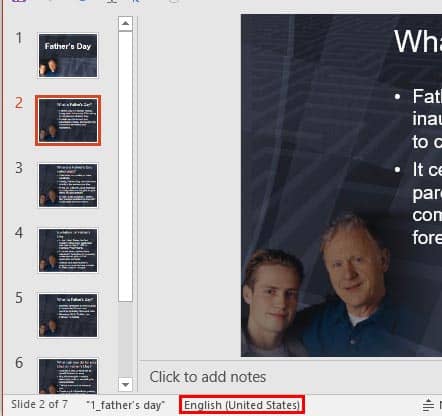
In PowerPoint, when you select any text container such as a text placeholder, shape, or text box, then you may (or may not) see the language specified for the text container on the Status Bar. However it is quite possible that you may not be seeing any language specified on the Status Bar, and this can happen for one of two reasons.
To learn more, choose your version of PowerPoint. If we do not have a tutorial for your version of PowerPoint, explore the version closest to the one you use.
Language Options on the Status Bar in PowerPoint 365
Language Options on the Status Bar in PowerPoint 2016
Language Options on the Status Bar in PowerPoint 2013
Language Options on the Status Bar in PowerPoint 2010
Tutorial Code: 05 08 18
Previous: 05 08 17 Add and Remove Proofing Dictionaries for Foreign Languages in PowerPoint
Next: 05 08 19 Setting Proofing Language for Text in PowerPoint
Filed Under:
S
Tagged as: 05-08, AutoCorrect, PowerPoint Tutorials, Spelling, Spelling AutoCorrect and Reference Tools, Text and Fonts
Comments Off on Spelling, AutoCorrect, and Reference Tools: Language Options on the Status Bar in PowerPoint
If you created a long presentation for a particular event or concept and then realize that you used the wrong terminology across the presentation, then what would you do? Yes, you can manually find the problem word and replace its each occurrence. But what if you have more than a few slides? Even then, you might miss out on locating the problem word in some occurrences. Your best choice is to do replace using the Find and Replace option in PowerPoint.
To learn more, choose your version of PowerPoint. If we do not have a tutorial for your version of PowerPoint, explore the version closest to the one you use.
Find and Replace Words in PowerPoint 2016
Find and Replace Words in PowerPoint 2013
Find and Replace Words in PowerPoint 2010
Find and Replace Words in PowerPoint 2011

Tutorial Code: 05 08 11
Previous: 05 08 10 Creating Formatted AutoCorrect Entries in PowerPoint
Next: 05 08 12 Creating and Editing Custom Dictionaries in PowerPoint
Filed Under:
S
Tagged as: 05-08, AutoCorrect, AutoCorrect Entries in PowerPoint, PowerPoint Tutorials, Spelling, Spelling AutoCorrect and Reference Tools
Comments Off on Spelling, AutoCorrect, and Reference Tools: Find and Replace Words in PowerPoint
Creating a slide deck, and you suddenly want to authenticate a figure or double-check a fact? Well, there’s no need to open a web browser or even access a conventional dictionary. Research, a less explored option is available within most Microsoft Office applications, including PowerPoint. This option connects with various online and offline reference sources such as translations, dictionaries, and news services.
To learn more, choose your version of PowerPoint. If we do not have a tutorial for your version of PowerPoint, explore the version closest to the one you use.
Research Tools in PowerPoint 365
Research Tools in PowerPoint 2016
Research Tools in PowerPoint 2013
Research Tools in PowerPoint 2010

Tutorial Code: 05 08 21
Previous: 05 08 20 Changing Proofing Language for an Entire Presentation in PowerPoint
Next: 05 08 22 Research Options in PowerPoint
Filed Under:
S
Tagged as: 05-08, PowerPoint Tutorials, Spelling AutoCorrect and Reference Tools, Text and Fonts
Comments Off on Spelling, AutoCorrect, and Reference Tools: Research Tools in PowerPoint
Unknown to many users, there are lesser known options within PowerPoint that can change your workflow, and make you work faster. Most of these preferences are to be found within the PowerPoint Options dialog box.
To learn more, choose your version of PowerPoint. If we do not have a tutorial for your version of PowerPoint, explore the version closest to the one you use.
Options Tab in Backstage View in PowerPoint 365
Options Tab of Backstage View in PowerPoint 2016
Options Tab of Backstage View in PowerPoint 2013
Options Tab of Backstage View in PowerPoint 2010

Tutorial Code: 01 08 15
Previous: 01 08 14 Help Tab of Backstage View PowerPoint
Next: 01 08 16 Feedback Tab of Backstage View in PowerPoint
Filed Under:
F
Tagged as: 01-08, and Backstage View, File Menu, File Types, Interface and Basics, PowerPoint Tutorials
Comments Off on File Types, File Menu, and Backstage View: Options Tab of Backstage View in PowerPoint
Microsoft and the Office logo are trademarks or registered trademarks of Microsoft Corporation in the United States and/or other countries.