
This is the print version of this page. All content is copyright Indezine.com 2000-2026.
Definitions and resources for terms and techniques used in the world of presentations
See Also:
PowerPoint and Presenting Notes
PowerPoint and Presenting Glossary
Presentations Glossary in alphabetical order:
A |
B |
C |
D |
E |
F |
G |
H |
I |
J |
K |
L |
M |
N |
O |
P |
Q |
R |
S |
T |
U |
V |
W |
X |
Y |
Z
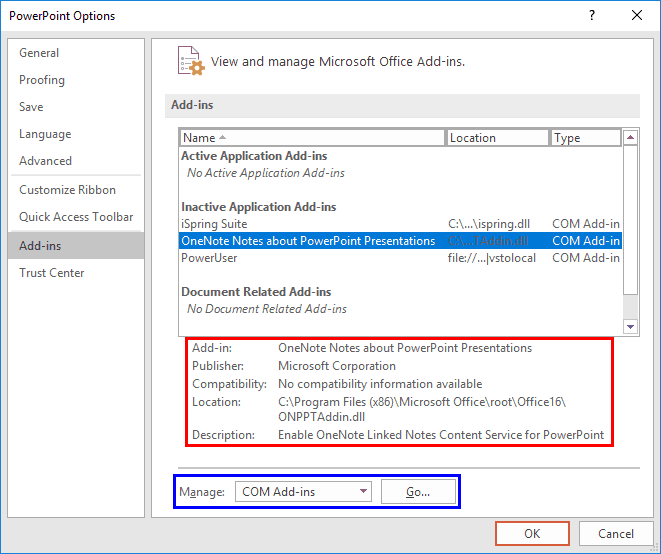
Add-ins are mini-programs that add new capabilities to PowerPoint. Some of these add-ins blend so seamlessly within PowerPoint; they almost appear to be PowerPoint-native options! At other times, you may have installed a new add-in but see no indication of any new, expected abilities within the program interface. Fortunately, PowerPoint provides a listing of all installed add-ins.
To learn more, choose your version of PowerPoint. If we do not have a tutorial for your version of PowerPoint, explore the version closest to the one you use.
View Add-ins in PowerPoint 2016
View Add-ins in PowerPoint 2013
View Add-ins in PowerPoint 2010
Tutorial Code: 20 02 01
Previous: 20 01 01 Enable the Missing Developer Tab in the Ribbon in PowerPoint
Next: 20 02 02 Manage and Load Add-ins in PowerPoint
Filed Under:
W
Tagged as: 20-02, Add-in, PowerPoint, PowerPoint Tutorials, Programming, Working with Add-ins
Comments Off on Working with Add-ins: View Add-ins in PowerPoint
It is true that both pictures and words are important, and they both play complementary roles. If you had to choose just one of them; then seeing is a much more important part of presenting. Presentations, by their very nature, are meant to be seen since they evoke actions such as project, display, or broadcast; and all of these actions represent visual media. Text and speaking are important too, but you can be more effectively heard and remembered if your content includes both text and pictures.
To learn more, choose your version of PowerPoint. If we do not have a tutorial for your version of PowerPoint, explore the version closest to the one you use.
Insert Pictures in PowerPoint 2016
Insert Pictures in PowerPoint 2013
Insert Pictures in PowerPoint 2010
Insert Pictures in PowerPoint 2002 and 2003
Insert Pictures in PowerPoint 2016
Insert Pictures in PowerPoint 2011
Insert Pictures in PowerPoint Online

Tutorial Code: 09 01 01
Previous: 08 06 12 Using Custom Textures as Slide Backgrounds in PowerPoint
Next: 09 01 02 Insert or Link Pictures in PowerPoint
Filed Under:
P
Tagged as: 09-01, Pictures and Visuals, Pictures Basics and Adjustments, PowerPoint Tutorials
Comments Off on Pictures Basics and Adjustments: Insert Pictures in PowerPoint
We explored how you can translate text from one language to another. To make better use of these translation features, you should be aware of the various options available to get just the results you want.
To learn more, choose your version of PowerPoint. If we do not have a tutorial for your version of PowerPoint, explore the version closest to the one you use.
Translation Options in PowerPoint 2013
Translation Options in PowerPoint 2010

Tutorial Code: 05 08 25
Previous: 05 08 24 Translation in PowerPoint
Next: 05 09 01 Highlight Text in PowerPoint
Filed Under:
S
Tagged as: 05-08, PowerPoint Tutorials, Spelling AutoCorrect and Reference Tools, Text and Fonts
Comments Off on Spelling, AutoCorrect, and Reference Tools: Translation Options in PowerPoint
Do you quickly need to translate your slides from English to French or some words from English to Hindi? The best option available to you is to get a professional translator but did you know that PowerPoint includes rudimentary translation skills? This translation is not something that you could use without checking the results, but this is still a great start.
To learn more, choose your version of PowerPoint. If we do not have a tutorial for your version of PowerPoint, explore the version closest to the one you use.
Translation in PowerPoint 2016
Translation in PowerPoint 2013
Translation in PowerPoint 2010

Tutorial Code: 05 08 24
Previous: 05 08 23 Thesaurus in PowerPoint
Next: 05 08 25 Translation Options in PowerPoint
Filed Under:
S
Tagged as: 05-08, PowerPoint Tutorials, Spelling AutoCorrect and Reference Tools, Text and Fonts
Comments Off on Spelling, AutoCorrect, and Reference Tools: Translation in PowerPoint
Are you unable to locate PowerPoint on your computer? Sometimes, such a question can be embarrassing! However, look at support forums and you will find that is a valid issue. Many users may work in an environment where they get a computer with their office programs pre-installed. Or in other cases, there may be more than one version of PowerPoint on your computer; maybe an older version in addition to a new version? Yes, we know that this can happen, although it does sound a little strange. However, there are perfectly valid excuses for you to be unable to find PowerPoint in such cases. In the following tutorials, learn how to find a PowerPoint instance on your computer.
Filed Under:
G
Tagged as: 01-04, Getting Started, Interface and Basics, Locate PowerPoint, PowerPoint Tutorials
Comments Off on Getting Started: Locate Your Version in PowerPoint
Microsoft and the Office logo are trademarks or registered trademarks of Microsoft Corporation in the United States and/or other countries.