
This is the print version of this page. All content is copyright Indezine.com 2000-2026.
Definitions and resources for terms and techniques used in the world of presentations
See Also:
PowerPoint and Presenting Notes
PowerPoint and Presenting Glossary
Presentations Glossary in alphabetical order:
A |
B |
C |
D |
E |
F |
G |
H |
I |
J |
K |
L |
M |
N |
O |
P |
Q |
R |
S |
T |
U |
V |
W |
X |
Y |
Z

Shyam Pillai is a Microsoft PowerPoint MVP. His site has many VBA snippets, plus free and commercial PowerPoint add-ins.
Here’s a list of links on Indezine sites, where Shyam Pillai has been featured:
 Missing “Video from Web Site” Option in PowerPoint 2010 for Windows
March 7, 2014
 YouTube Video Wizard
June 22, 2012
 Create Spirographs in PowerPoint Programmatically
March 20, 2009
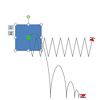 Motion Path Tools
October 27, 2008
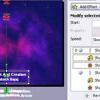 Animation Carbon
June 6, 2004
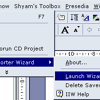 Image Importer Wizard 2.x
November 9, 2001
Filed Under:
S
Tagged as: Add-in, Shyam Pillai PowerPoint
Comments Off on Shyam Pillai
Each logged-in user has a default custom dictionary accessible within PowerPoint and other Microsoft Office programs called RoamingCustom.dic. Additionally, you can create and use many more custom dictionaries. Over time, your custom dictionaries may become a very useful resource, especially since any custom dictionary loaded is used by all the Office applications such as Word, Excel, PowerPoint, and Outlook. Let us assume that you have added several words to the custom dictionaries over the last 4 or 5 years, and now you need to move to a new computer.
To learn more, choose your version of PowerPoint. If we do not have a tutorial for your version of PowerPoint, explore the version closest to the one you use.
Sharing Custom Dictionaries in PowerPoint 365
Sharing Custom Dictionaries in PowerPoint 2016
Sharing Custom Dictionaries in PowerPoint 2013
Sharing Custom Dictionaries in PowerPoint 2010
Sharing Custom Dictionaries in PowerPoint 2011

Tutorial Code: 05 08 15
Previous: 05 08 14 Edit Custom Dictionaries in PowerPoint
Next: 05 08 16 Disable, Enable, and Set the Default Custom Dictionary in PowerPoint
Filed Under:
S
Tagged as: 05-08, AutoCorrect, AutoCorrect Entries in PowerPoint, PowerPoint Tutorials, Spelling, Spelling AutoCorrect and Reference Tools
Comments Off on Spelling, AutoCorrect, and Reference Tools: Sharing Custom Dictionaries in PowerPoint
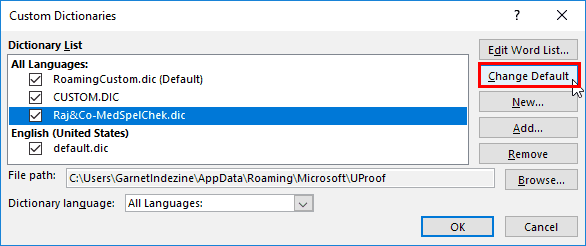
Any custom dictionary that you create within PowerPoint or any other Microsoft Office program is used by all the Office applications installed on your computer. Also, any changes made to the list of words within a custom dictionary reflect in proofing tools of all Office applications. Each logged-in user has a default custom dictionary called RoamingCustom.dic, stored in a separate folder for each local user.
To learn more, choose your version of PowerPoint. If we do not have a tutorial for your version of PowerPoint, explore the version closest to the one you use.
Disable, Enable, and Set the Default Custom Dictionary in PowerPoint 365
Disable, Enable, and Set the Default Custom Dictionary in PowerPoint 2016
Disable, Enable, and Set the Default Custom Dictionary in PowerPoint 2013
Disable, Enable, and Set the Default Custom Dictionary in PowerPoint 2010
Disable and Enable Custom Dictionaries in PowerPoint 2011
Tutorial Code: 05 08 16
Previous: 05 08 15 Sharing Custom Dictionaries in PowerPoint
Next: 05 08 17 Add and Remove Proofing Dictionaries for Foreign Languages in PowerPoint
Filed Under:
S
Tagged as: 05-08, AutoCorrect, AutoCorrect Entries in PowerPoint, PowerPoint Tutorials, Spelling, Spelling AutoCorrect and Reference Tools
Comments Off on Spelling, AutoCorrect, and Reference Tools: Disable, Enable, and Set the Default Custom Dictionary in PowerPoint
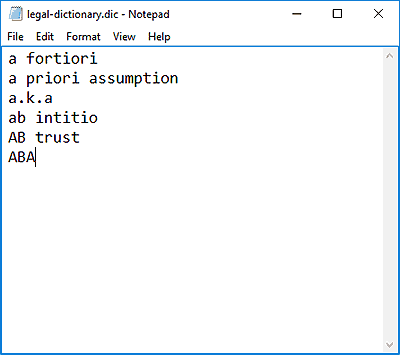
Although PowerPoint provides a spelling dictionary which contains a list of all common words, you might be working on a particular project that uses uncommon words not found in everyday language. You could edit a custom dictionary or load a ready-made third-party dictionary within PowerPoint. But you can actually create your own dictionary that includes a set of words for a particular project. So, if you need to do a legal presentation for a client once a year, you could create a separate dictionary for just this one project, and then edit it as required within a text editor such as Notepad.
To learn more, choose your version of PowerPoint. If we do not have a tutorial for your version of PowerPoint, explore the version closest to the one you use.
Creating and Editing Custom Dictionaries in PowerPoint 365
Creating and Editing Custom Dictionaries in PowerPoint 2016
Creating and Editing Custom Dictionaries in PowerPoint 2013
Creating and Editing Custom Dictionaries in PowerPoint 2010
Creating and Editing Custom Dictionaries in PowerPoint 2011
Tutorial Code: 05 08 13
Previous: 05 08 12 Loading and Using Custom Dictionaries in PowerPoint
Next: 05 08 14 Edit Custom Dictionaries in PowerPoint
Filed Under:
S
Tagged as: 05-08, AutoCorrect, AutoCorrect Entries in PowerPoint, PowerPoint Tutorials, Spelling, Spelling AutoCorrect and Reference Tools
Comments Off on Spelling, AutoCorrect, and Reference Tools: Creating and Editing Custom Dictionaries in PowerPoint
When you run a spell check, PowerPoint looks at each word you have typed and matches those words with the entries listed in its dictionary. If it comes across any word that the dictionary does not contain, it goes ahead and marks that word as misspelled. Yes, if a word does not exist within that dictionary, it is not necessarily misspelled! There are so many specialized words in different knowledge branches like medicine, research, law, computing, etc. that are not common. To counter this state of affairs, you can use specialized dictionaries. These dictionaries can be then loaded within PowerPoint and other Microsoft Office programs to give you a larger range of words to use.
To learn more, choose your version of PowerPoint. If we do not have a tutorial for your version of PowerPoint, explore the version closest to the one you use.
Loading and Using Custom Dictionaries in PowerPoint 365
Loading and Using Custom Dictionaries in PowerPoint 2016
Loading and Using Custom Dictionaries in PowerPoint 2013
Loading and Using Custom Dictionaries in PowerPoint 2010
Loading and Using Custom Dictionaries in PowerPoint 2011

Tutorial Code: 05 08 12
Previous: 05 08 11 Find and Replace Words in PowerPoint
Next: 05 08 13 Creating and Editing Custom Dictionaries in PowerPoint
Filed Under:
S
Tagged as: 05-08, AutoCorrect, AutoCorrect Entries in PowerPoint, PowerPoint Tutorials, Spelling, Spelling AutoCorrect and Reference Tools
Comments Off on Spelling, AutoCorrect, and Reference Tools: Loading and Using Custom Dictionaries in PowerPoint
Microsoft and the Office logo are trademarks or registered trademarks of Microsoft Corporation in the United States and/or other countries.