
This is the print version of this page. All content is copyright Indezine.com 2000-2026.
Definitions and resources for terms and techniques used in the world of presentations
See Also:
PowerPoint and Presenting Notes
PowerPoint and Presenting Glossary
Presentations Glossary in alphabetical order:
A |
B |
C |
D |
E |
F |
G |
H |
I |
J |
K |
L |
M |
N |
O |
P |
Q |
R |
S |
T |
U |
V |
W |
X |
Y |
Z
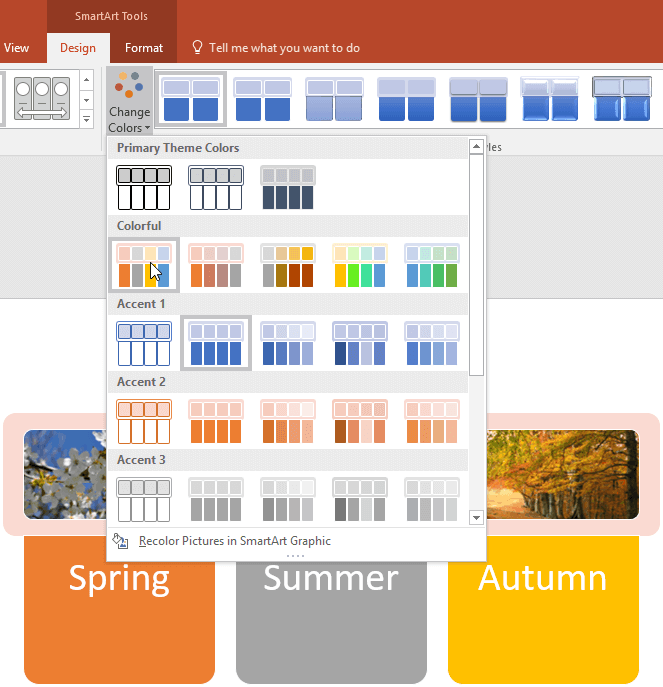
Although default colors within a SmartArt graphic may work great, you may want to explore changing colors of individual shapes contained inside the SmartArt graphic. You change colors of everything within the SmartArt graphic at one go or change colors of individual shapes within the SmartArt graphic.
To learn more, choose your version of PowerPoint. If we do not have a tutorial for your version of PowerPoint, explore the version closest to the one you use.
Change Shape Colors of SmartArt Graphics in PowerPoint 2016
Change Shape Colors of SmartArt Graphics in PowerPoint 2013
Change Shape Colors of SmartArt Graphics in PowerPoint 2010
Change Shape Colors of SmartArt Graphics in PowerPoint 2011
Tutorial Code: 11 02 04
Previous: 11 02 03 Change SmartArt Graphic Layouts in PowerPoint
Next: 11 02 05 Shape Fills, Lines, and Effects for SmartArt in PowerPoint
Filed Under:
W
Tagged as: 11-02, PowerPoint Tutorials, SmartArt Graphics, Working with SmartArt
Comments Off on Working with SmartArt: Change Shape Colors of SmartArt Graphics in PowerPoint
Presentations was the name of a well-known industry publication that is no longer published.
Its last editor, Tad Simons was interviewed by Indezine in 2004.

Filed Under:
P
Tagged as: Presentations Magazine
Comments Off on Presentations Magazine
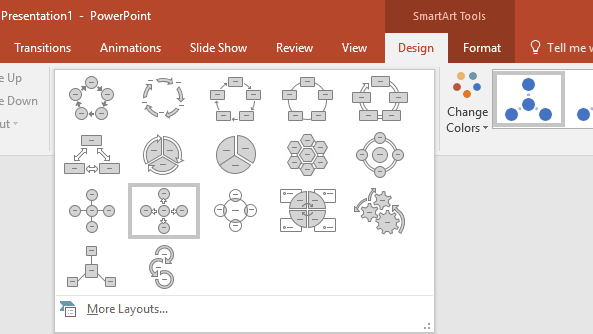
After inserting a SmartArt graphic within PowerPoint or converting some bulleted text to SmartArt, you might want to change the layout of the SmartArt. You can choose from various SmartArt graphics variations available within PowerPoint.
To learn more, choose your version of PowerPoint. If we do not have a tutorial for your version of PowerPoint, explore the version closest to the one you use.
Change SmartArt Graphic Layouts in PowerPoint 2016
Change SmartArt Graphic Layouts in PowerPoint 2013
Change SmartArt Graphic Layouts in PowerPoint 2010
Change SmartArt Graphic Layouts in PowerPoint 2011
Tutorial Code: 11 02 03
Previous: 11 02 02 Delete Shapes from Existing SmartArt Graphics in PowerPoint
Next: 11 02 04 Change Shape Colors of SmartArt Graphics in PowerPoint
Filed Under:
W
Tagged as: 11-02, PowerPoint Tutorials, SmartArt Graphics, Working with SmartArt
Comments Off on Working with SmartArt: Change SmartArt Graphic Layouts in PowerPoint
Imagine this scenario: you have created a specialized, medical presentation that’s full of squiggly, red, underlined words! These squiggly underlines indicate what PowerPoint considers to be as a misspelled word! Don’t blame PowerPoint, because its medical terminology is somewhat limited. We do know that almost all the words in your medical presentation are perfectly valid as far as spelling is concerned. The silver lining here though is that you can teach PowerPoint to spell those words, and enhance PowerPoint’s custom dictionary.
To learn more, choose your version of PowerPoint. If we do not have a tutorial for your version of PowerPoint, explore the version closest to the one you use.
Edit Custom Dictionaries in PowerPoint 365
Edit Custom Dictionaries in PowerPoint 2016
Edit Custom Dictionaries in PowerPoint 2013
Edit Custom Dictionaries in PowerPoint 2010
Edit Custom Dictionaries in PowerPoint 2011

Tutorial Code: 05 08 14
Previous: 05 08 13 Creating and Editing Custom Dictionaries in PowerPoint
Next: 05 08 15 Sharing Custom Dictionaries in PowerPoint
Filed Under:
S
Tagged as: 05-08, AutoCorrect, AutoCorrect Entries in PowerPoint, PowerPoint Tutorials, Spelling, Spelling AutoCorrect and Reference Tools
Comments Off on Spelling, AutoCorrect, and Reference Tools: Edit Custom Dictionaries in PowerPoint
As you type, PowerPoint’s AutoCorrect feature automatically corrects common typos and spelling errors. How does PowerPoint know that a particular word is spelled wrong? Does it refer to some resource as a reference? Also, do you find some AutoCorrect options such as the capitalization of some words unnecessary? Several researchers working in different scientific fields need to use some words that cannot start with a capital letter, and the first thing they want to do is turn off this automatic capitalization.
To learn more, choose your version of PowerPoint. If we do not have a tutorial for your version of PowerPoint, explore the version closest to the one you use.
AutoCorrect Options in PowerPoint 365
AutoCorrect Options in PowerPoint 2016
AutoCorrect Options in PowerPoint 2013
AutoCorrect Options in PowerPoint 2010
AutoCorrect Options in PowerPoint 2011

Tutorial Code: 05 08 06
Previous: 05 08 05 AutoCorrect in PowerPoint
Next: 05 08 07 Creating and Editing AutoCorrect Entries in PowerPoint
Filed Under:
S
Tagged as: 05-08, AutoCorrect, PowerPoint Tutorials, Spelling, Spelling AutoCorrect and Reference Tools, Text and Fonts
Comments Off on Spelling, AutoCorrect, and Reference Tools: AutoCorrect Options in PowerPoint
Microsoft and the Office logo are trademarks or registered trademarks of Microsoft Corporation in the United States and/or other countries.