
This is the print version of this page. All content is copyright Indezine.com 2000-2026.
Definitions and resources for terms and techniques used in the world of presentations
See Also:
PowerPoint and Presenting Notes
PowerPoint and Presenting Glossary
Presentations Glossary in alphabetical order:
A |
B |
C |
D |
E |
F |
G |
H |
I |
J |
K |
L |
M |
N |
O |
P |
Q |
R |
S |
T |
U |
V |
W |
X |
Y |
Z
When you click the File menu and access Backstage view in PowerPoint, you see several options. Here, we explore two of these options: Save and Save As.
Filed Under:
F
Tagged as: 01-08, File Types File Menu and Backstage View, Interface and Basics, PowerPoint Save, PowerPoint Tutorials
Comments Off on File Types, File Menu, and Backstage View: Save and Save As Tabs of Backstage View in PowerPoint
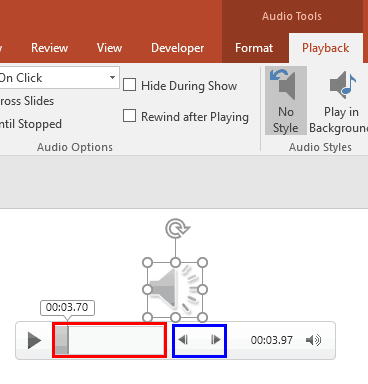
PowerPoint lets you play your audio files from a certain point within the clip using the Bookmarks option. Bookmarks in PowerPoint are similar to the conventional bookmarks you place within the pages of a book you read. In the same way that you can easily access a particular page with the help of a bookmark, the Bookmark option within an audio clip becomes an indicator of the position you want to play the clip from.
To learn more, choose your version of PowerPoint. If we do not have a tutorial for your version of PowerPoint, explore the version closest to the one you use.
Add Bookmarks for Audio Clips in PowerPoint 2016
Add Bookmarks for Audio Clips in PowerPoint 2013
Add Bookmarks for Audio Clips in PowerPoint 2010
Tutorial Code: 14 10 01
Previous: 14 09 04 Insert Online Audio in PowerPoint
Next: 14 10 02 Remove Bookmarks from Audio Clips in PowerPoint
Filed Under:
B
Tagged as: 14-10, Bookmarks in Audio Clips, Multimedia, PowerPoint Tutorials
Comments Off on Bookmarks in Audio Clips: Add Bookmarks for Audio Clips in PowerPoint
When you select an audio clip in PowerPoint, you will see two extra contextual tabs on the Ribbon. One of these tabs is the Audio Tool Playback tab that provides options to configure properties that define how your inserted audio will play: whether it will play automatically, or will it play audio across slides? Let’s assume that you want your audio to play as a background score across multiple slides. Typically you would have to make four separate choices, but PowerPoint Audio Styles feature lets you automatically apply these four settings at once!
To learn more, choose your version of PowerPoint. If we do not have a tutorial for your version of PowerPoint, explore the version closest to the one you use.
Audio Styles in PowerPoint 2016
Audio Styles in PowerPoint 2013

Tutorial Code: 14 11 05
Previous: 14 11 04 Format Tab for Audio Clips in PowerPoint
Next: 14 12 01 Animating Slide Objects While Media is Playing in PowerPoint
Filed Under:
A
Tagged as: 14-11, Audio in PowerPoint - Advanced, Multimedia, PowerPoint Tutorials
Comments Off on Audio in PowerPoint – Advanced: Audio Styles in PowerPoint
We have already explored the Eyedropper tool in PowerPoint that lets you sample colors from any object within your PowerPoint slide and use that same color as a fill or outline for a shape. But what do you do if the color you want to use exists on a web page, your desktop wallpaper, or anywhere else? The technique to capture a color from outside PowerPoint is little different. In this article, we will explore how you can copy a color from somewhere outside PowerPoint and use it as the fill and outline color of a text.
Filed Under:
S
Tagged as: 08-01, Fills Lines and Effects, PowerPoint Tutorials, Shape Fills
Comments Off on Shape Fills: Advanced Eyedropper Options in PowerPoint
Sounds come in so many file types: MP3, WMA, or WAV files are just the common types that you can insert in PowerPoint slides. These sound files automatically embed into your presentation; this means that you no longer have to worry about linked files getting misplaced or lost like you had to in previous versions of PowerPoint.
To learn more, choose your version of PowerPoint. If we do not have a tutorial for your version of PowerPoint, explore the version closest to the one you use.
Insert Audio (Sound) in PowerPoint 365
Insert Audio (Sound) in PowerPoint 2019
Insert Audio (Sound) in PowerPoint 2016
Insert Audio (Sound) in PowerPoint 2013
Insert Audio (Sound) in PowerPoint 2010
Insert Audio (Sound) in PowerPoint 2007
Insert Audio (Sound) in PowerPoint 2003 and 2002
Insert Audio (Sound) in PowerPoint 365
Insert Audio (Sound) in PowerPoint 2019
Insert Audio (Sound) in PowerPoint 2016
Insert Audio (Sound) in PowerPoint 2011
Insert Audio (Sound) in PowerPoint

Tutorial Code: 14 09 01
Previous: 14 08 02 Insert Flash Movies using the Developer Tab in PowerPoint
Next: 14 09 02 Sound Across Slides in PowerPoint
Filed Under:
A
Tagged as: 14-09, Audio in PowerPoint - Basics, Multimedia, PowerPoint Tutorials
Comments Off on Audio in PowerPoint – Basics: Insert Audio (Sound) in PowerPoint
Microsoft and the Office logo are trademarks or registered trademarks of Microsoft Corporation in the United States and/or other countries.