
This is the print version of this page. All content is copyright Indezine.com 2000-2026.
Definitions and resources for terms and techniques used in the world of presentations
See Also:
PowerPoint and Presenting Notes
PowerPoint and Presenting Glossary
Presentations Glossary in alphabetical order:
A |
B |
C |
D |
E |
F |
G |
H |
I |
J |
K |
L |
M |
N |
O |
P |
Q |
R |
S |
T |
U |
V |
W |
X |
Y |
Z
Google’s Image Source Search is an amazing piece of work, we use it all the time to find a source of an unknown image! Do you want to learn how you can use this tool to help you use pictures more effectively? We do have a getting started tutorial on our Google’s Image Source Search page.
To learn more, click the link below.
Google Image Source Search In Depth
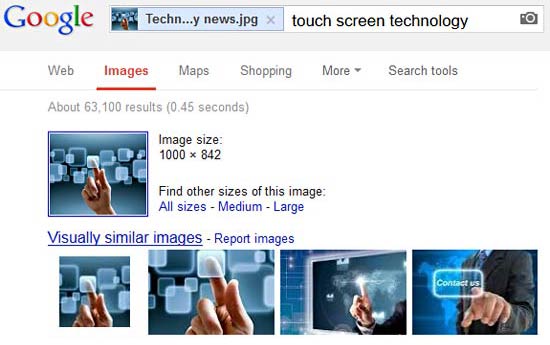
Tutorial Code: 09 11 06
Previous: 09 11 05 Google’s Image Source Search
Next: 09 11 07 Public Domain Pictures
Filed Under:
P
Tagged as: 09-11, Picture Basics, Pictures and Visuals, PowerPoint Tutorials
Comments Off on Picture Basics: Google Image Source Search In Depth

Ingrid Mengdehl is a Senior Designer at BrightCarbon, a presentation and eLearning agency. Originally from an animation background, she stumbled into PowerPoint almost by accident and hasn’t looked back ever since. She’s passionate about good design, engaging animations, and thinks Morph is pretty amazing. When not making presentations, Ingrid can be found in the dark corners of a theatre, making sets and fixing things with gaffer tape, and even sometimes dabbling in projection mapping.
Here’s a list of links on Indezine.com where she has been featured:
 Presentation Summit 2022: Conversation with Ingrid Mengdehl
July 18, 2022
 Presentation Summit 2020: Conversation with Ingrid Mengdehl
June 12, 2020
Filed Under:
I
Tagged as: Ingrid Mengdehl, Personality
Comments Off on Ingrid Mengdehl
Do you have a picture somewhere that’s been with you for years, and you have the perfect opportunity to use it in next week’s big presentation? And then you just realize that you have no clue about where this picture came from?
To learn more, click the link below.

Tutorial Code: 09 11 05
Previous: 09 11 04 Creative Commons and Pictures in PowerPoint Slides
Next: 09 11 06 Google Image Source Search In Depth
Filed Under:
P
Tagged as: 09-11, Picture Basics, Pictures and Visuals, PowerPoint Tutorials
Comments Off on Picture Basics: Google’s Image Source Search
While you will be able to find a huge amount of visual content that is available within Public Domain, there is another option called Creative Commons that you should be aware of. Unlike Public Domain, where content belongs to all mankind. The content within Creative Commons still belongs to the person who created it. For pictures such as camera photographs, any content classified as Creative Commons would still belong to the photographer or the entity that commissioned the photographer.
To learn more, click the link below.

Tutorial Code: 09 11 04
Previous: 09 11 03 Attributing Creative Commons Pictures in PowerPoint Slides
Next: 09 11 05 Google’s Image Source Search
Filed Under:
P
Tagged as: 09-11, Picture Basics, Pictures and Visuals, PowerPoint Tutorials
Comments Off on Picture Basics: Creative Commons and Pictures
Millions of pictures are available online within the Creative Commons license. Many of these pictures can be found on Flickr.
To learn more, click the link below.
Attributing Creative Commons Pictures in PowerPoint Slides

Tutorial Code: 09 11 03
Previous: 09 11 02 Searching Flickr for Creative Commons Pictures in PowerPoint
Next: 09 11 04 Creative Commons and Pictures
Filed Under:
P
Tagged as: 09-11, Picture Basics, Pictures and Visuals, PowerPoint Tutorials
Comments Off on Picture Basics: Attributing Creative Commons Pictures in PowerPoint Slides
Microsoft and the Office logo are trademarks or registered trademarks of Microsoft Corporation in the United States and/or other countries.