
This is the print version of this page. All content is copyright Indezine.com 2000-2026.
Definitions and resources for terms and techniques used in the world of presentations
See Also:
PowerPoint and Presenting Notes
PowerPoint and Presenting Glossary
Presentations Glossary in alphabetical order:
A |
B |
C |
D |
E |
F |
G |
H |
I |
J |
K |
L |
M |
N |
O |
P |
Q |
R |
S |
T |
U |
V |
W |
X |
Y |
Z
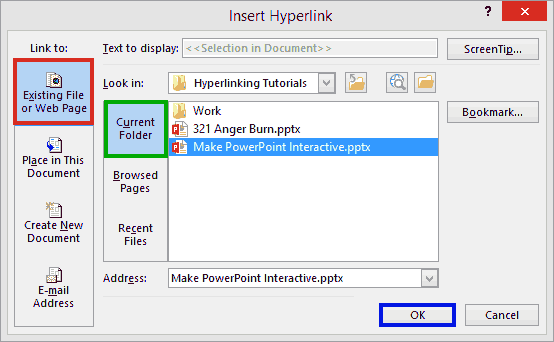
We already explored how you can link from an anchor object to any slide within the active presentation. However, this sort of linking is only the beginning of the possibilities for linking that PowerPoint provides. To take this to the next level, we will learn how you can link from an anchor object to any other PowerPoint presentation. In fact, you can also link to a particular slide in another presentation too!
To learn more, click a link from the tutorials listed below.
Linking to Another Presentation in PowerPoint 2013
Tutorial Code: 15 02 02
Previous: 15 02 01 Linking Between Slides in PowerPoint
Next: 15 02 03 Linking to Web Pages in PowerPoint
Filed Under:
H
Tagged as: 15-02, Hyperlinking, Interactivity and Linking, PowerPoint Tutorials
Comments Off on Hyperlinking: Linking to Another Presentation in PowerPoint
We have explored how you can animate words between slides using the Morph transition effect. But what if you want to take this technique further to a kinetic typography level, where a hundred text characters need to animate to different positions and styles in the next slide?
To learn more, choose your version of PowerPoint. If we do not have a tutorial for your version of PowerPoint, explore the version closest to the one you use.
Using the Morph Transition with Characters in PowerPoint 365

Tutorial Code: 13 10 05
Previous: 13 10 04 Using the Morph Transition with Words in PowerPoint
Next: 13 10 06 Using Morph to Highlight Parts of an Image in PowerPoint
Filed Under:
M
Tagged as: 13-10, Animations and Transitions, Morph in PowerPoint, PowerPoint Tutorials
Comments Off on Morph in PowerPoint: Using the Morph Transition with Characters in PowerPoint
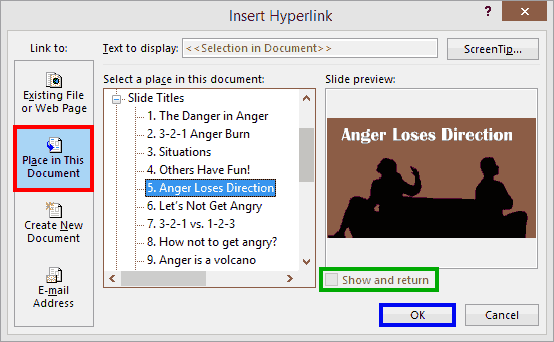
While you can link from an anchor object on a slide to almost anywhere, you will certainly want first to explore how you can link between slides in the same presentation. This is simple to do, and also very useful because it lets you use your presentation in a non-linear way and you are not limited to viewing your slides in sequential order.
To learn more, click a link from the tutorials listed below.
Linking Between Slides in PowerPoint 2013
Tutorial Code: 15 02 01
Previous: 15 01 01 Anatomy of a Link in PowerPoint
Next: 15 02 02 Linking to Another Presentation in PowerPoint
Filed Under:
H
Tagged as: 15-02, Hyperlinking, Interactivity and Linking, PowerPoint Tutorials
Comments Off on Hyperlinking: Linking Between Slides in PowerPoint
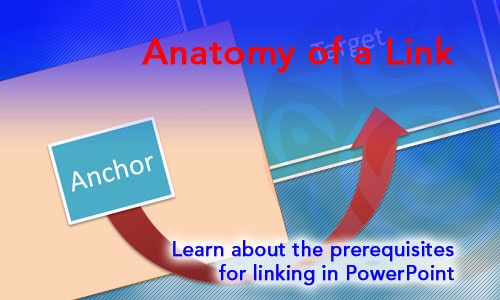
Linking (or hyperlinking) makes objects and documents connected to each other. To provide an analogy, consider each slide or presentation to be an individual computer on a network. Individual computers do some awesome work, but the network is much more useful and increases the worth of each individual computer. In this case, linking adds the network to your PowerPoint files. Linking can happen from one slide to another, or even to another file or a website from within PowerPoint presentations. In each of these linking scenarios, you will find that three factors are always present, which we call the anatomy of a link.
To learn more, click a link from the tutorials listed below.
Anatomy of a Link in PowerPoint
Tutorial Code: 15 01 01
Previous: 14 12 01 Animating Slide Objects While Media is Playing in PowerPoint
Next: 15 02 01 Linking Between Slides in PowerPoint
Filed Under:
I
Tagged as: 15-01, Basics, Interactivity and Linking, PowerPoint Tutorials
Comments Off on Interactivity and Linking Basics: Anatomy of a Link in PowerPoint
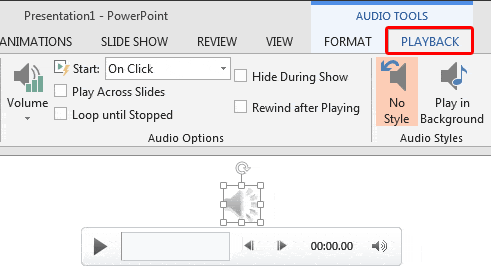
When you insert an audio clip into a PowerPoint slide, you can control its volume, set it to play looped, or even hide the audio icon. These are some of the advanced options available for any inserted audio clip in PowerPoint. Remember that these advanced options only exist so that you can use them when they are required, rather than using them just because they exist!
To learn more, choose your version of PowerPoint. If we do not have a tutorial for your version of PowerPoint, explore the version closest to the one you use.
Advanced Audio Options in PowerPoint 2013
Advanced Audio Options in PowerPoint 2010
Tutorial Code: 14 11 03
Previous: 14 11 02 Trim Audio Clips in PowerPoint
Next: 14 11 04 Format Tab for Audio Clips in PowerPoint
Filed Under:
A
Tagged as: 14-11, Audio in PowerPoint - Advanced, Multimedia, PowerPoint Tutorials
Comments Off on Audio in PowerPoint – Advanced: Advanced Audio Options
Microsoft and the Office logo are trademarks or registered trademarks of Microsoft Corporation in the United States and/or other countries.