
This is the print version of this page. All content is copyright Indezine.com 2000-2026.
Definitions and resources for terms and techniques used in the world of presentations
See Also:
PowerPoint and Presenting Notes
PowerPoint and Presenting Glossary
Presentations Glossary in alphabetical order:
A |
B |
C |
D |
E |
F |
G |
H |
I |
J |
K |
L |
M |
N |
O |
P |
Q |
R |
S |
T |
U |
V |
W |
X |
Y |
Z

Kartik Sundar is focused on helping PowerPoint users improve their productivity. As a former corporate strategy and management consultant, Kartik has firsthand knowledge of consulting, sales, and marketing workflows. In addition, he understands the process of building insightful business presentations. Kartik has leveraged this background as a co-founder at Aploris GmbH, a software firm that builds PowerPoint-focused productivity tools including Slide Finder and TeamSlide.
Here’s a list of links on Indezine.com where he has been featured:
 Slide Generation with TeamSlide: Conversation with Kartik Sundar
March 6, 2026
 Slide Finder: Conversation with Kartik Sundar
September 26, 2022
 TeamSlide Pro: Conversation with Kartik Sundar
July 5, 2017
TeamSlide: Conversation with Kartik Sundar
November 5, 2015
Filed Under:
K
Tagged as: Personality
Comments Off on Kartik Sundar

Robin Jung is Head of Product Management at think-cell, where he is in charge of transforming the voice of the customers into new product innovations. He is a former MBB consultant and tech enthusiast, holding a Master in Management degree from HHL – Leipzig Graduate School of Management.
Here’s a list of links on Indezine.com where he has been featured:
 think-cell 14 Niceties
December 17, 2025
 think-cell Niceties in PowerPoint
October 3, 2022
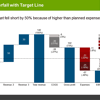 Five Best Features of think-cell
April 26, 2022
Filed Under:
R
Tagged as: Add-ins, Personality
Comments Off on Robin Jung
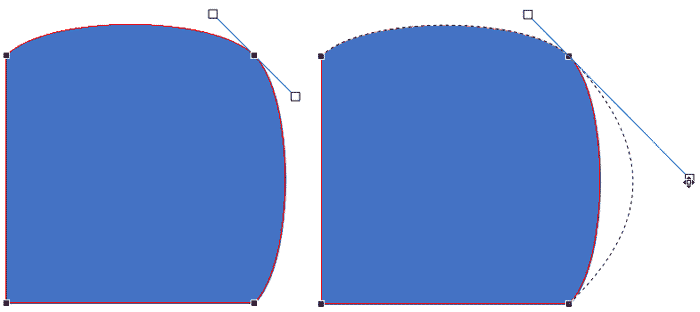
Every shape in PowerPoint is created using both points and segments. Points, also known as vertexes are pronounced areas of a shape, and segments are straight or curved lines that connect these points. It is easy to understand the relationship between points and segments using a connect-the-dots analogy. The points represent the dots whereas the segments represent the lines you draw between the dots.
To learn more, choose your version of PowerPoint. If we do not have a tutorial for your version of PowerPoint, explore the version closest to the one you use.
Types of Points (Vertexes) for Shapes in PowerPoint 2016
Types of Points (Vertexes) for Shapes in PowerPoint 2013
Types of Points (Vertexes) for Shapes in PowerPoint 2010
Types of Points (Vertexes) for Shapes in PowerPoint 2003
Types of Points (Vertexes) for Shapes in PowerPoint 2011
Tutorial Code: 06 14 03
Previous: 06 14 02 Add or Delete Points (Vertexes) for Shapes in PowerPoint
Next: 06 14 04 Edit Points: Open and Close Paths in PowerPoint
Filed Under:
A
Tagged as: 06-14, Advanced Drawing Techniques, PowerPoint Tutorials, Shapes
Comments Off on Advanced Drawing Techniques: Types of Points (Vertexes) for Shapes in PowerPoint
You know that Action Buttons are helpful because they at least look like buttons! But choices are limited to what PowerPoint provides—and let’s face it, choices for Action Buttons have remained unchanged for the last 20 years. What has changed in those 20 years? There was no Facebook, almost no social media, and the internet was in its infancy. Given this scenario, it is no surprise that the Action Buttons are limited to VCR-style buttons, those were probably in vogue 20 years ago! Now times have changed, and fortunately you can tweak Action Buttons to create your own variants, as we will show you in this tutorial.
To learn more, choose your version of PowerPoint. If we do not have a tutorial for your version of PowerPoint, explore the version closest to the one you use.
Adding Iconography to Action Buttons in PowerPoint 2013

Tutorial Code: 06 12 04
Previous: 06 12 03 Hyperlinks for Action Buttons in PowerPoint
Next: 06 13 01 Drawing Lines in PowerPoint
Filed Under:
A
Tagged as: 06-12, Action Buttons, PowerPoint Tutorials, Shapes
Comments Off on Action Buttons: Adding Iconography to Action Buttons in PowerPoint
There are so many shapes in PowerPoint, from the basic Rectangle and Oval to the fancy Pie and Smiley Face! You can use these shapes as they are, or you can use the Merge Shape commands to create your own unique shapes. However, even if you do not create new shapes, there are some existing shapes that can be used in myriad ways. One of these is the Arc shape, that we will explore today.
To learn more, choose your version of PowerPoint. If we do not have a tutorial for your version of PowerPoint, explore the version closest to the one you use.

Tutorial Code: 06 02 08
Previous: 06 02 07 Working with Pie Shapes in PowerPoint
Next: 06 02 09 Drawing Angles in PowerPoint
Filed Under:
A
Tagged as: 06-02, Advanced Shape Techniques, PowerPoint Tutorials, Shapes
Comments Off on Advanced Shape Techniques: Drawing Arcs in PowerPoint
Microsoft and the Office logo are trademarks or registered trademarks of Microsoft Corporation in the United States and/or other countries.