
This is the print version of this page. All content is copyright Indezine.com 2000-2026.
Definitions and resources for terms and techniques used in the world of presentations
See Also:
PowerPoint and Presenting Notes
PowerPoint and Presenting Glossary
Presentations Glossary in alphabetical order:
A |
B |
C |
D |
E |
F |
G |
H |
I |
J |
K |
L |
M |
N |
O |
P |
Q |
R |
S |
T |
U |
V |
W |
X |
Y |
Z
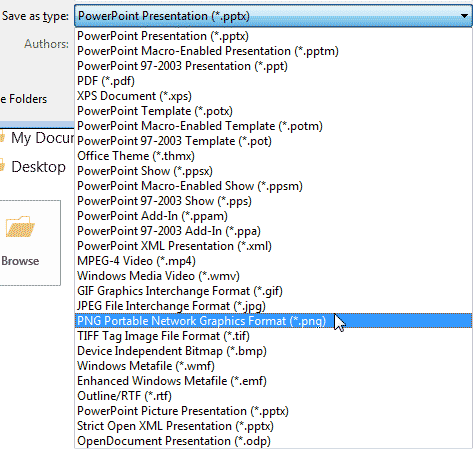
PowerPoint allows you to save your slides to many graphic file formats, which can later be used in other applications as required. One of the most popular graphic formats that you can export your slides to is PNG. This tutorial will show you how you can export slides to PNG, but using the same process; you can also export to other graphic file formats such as JPG, GIF, TIF, BMP, WMF, EMF, etc.
To learn more, choose your version of PowerPoint. If we do not have a tutorial for your version of PowerPoint, explore the version closest to the one you use.
Exporting Graphic File Formats in PowerPoint 2013
Exporting Graphic File Formats in PowerPoint 2010
Exporting Graphic File Formats in PowerPoint 2007
Exporting Graphic File Formats in PowerPoint 2011
Tutorial Code: 16 04 03
Previous: 16 04 02 Caveats in Exporting Videos in PowerPoint
Next: 16 04 04 Save as PDF in PowerPoint
Filed Under:
E
Tagged as: 16-04, Exporting Slides, PowerPoint Tutorials, Share and Prepare
Comments Off on Exporting Slides: Exporting Graphic File Formats in PowerPoint
Yes, it’s quite easy to create a presentation and then export it entirely to a video clip in PowerPoint. If you are lucky, you may face no problems at all. However, if you do hit a roadblock, and there can be several roadblocks, then here are some caveats we have found along with solutions and workaround for them.
To learn more, choose your version of PowerPoint. If we do not have a tutorial for your version of PowerPoint, explore the version closest to the one you use.
Caveats in Exporting Videos in PowerPoint 2013

Tutorial Code: 16 04 02
Previous: 16 04 01 Export a Presentation to a Video Clip in PowerPoint
Next: 16 04 03 Exporting Graphic File Formats in PowerPoint
Filed Under:
E
Tagged as: 16-04, Exporting Slides, PowerPoint Tutorials, Share and Prepare
Comments Off on Exporting Slides: Caveats in Exporting Videos in PowerPoint
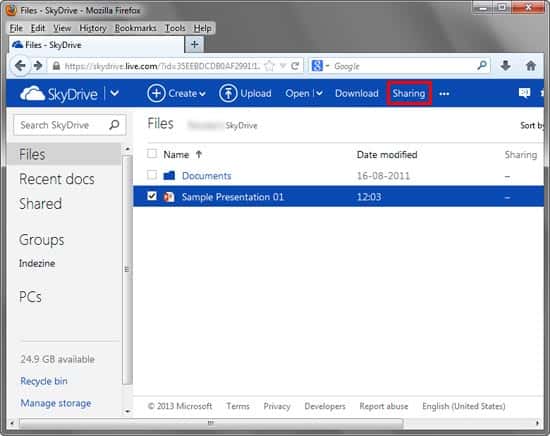
In a previous tutorial, we showed you how you can share PowerPoint presentations online using the Microsoft Office Web Viewer. That option works great if you have your own domain where you want to upload and share PowerPoint presentations (or even Word and Excel files). However, if you already use Microsoft’s OneDrive to create and edit your presentations, then it makes sense to use a similar sharing option that is already built within the OneDrive service.
To learn more, choose your version of PowerPoint. If we do not have a tutorial for your version of PowerPoint, explore the version closest to the one you use.
Share PowerPoint Presentations Online using OneDrive
Tutorial Code: 16 12 03
Previous: 16 12 02 Share PowerPoint Presentations Online using the Microsoft Office Web Viewer
Next: 16 12 04 Sharing Presentations on SlideBoom
Filed Under:
S
Tagged as: 16-12, PowerPoint Tutorials, Share and Prepare, Sharing Presentations Online
Comments Off on Sharing Presentations Online: Share PowerPoint Presentations Online using OneDrive
Let us say that you want to share your PowerPoint presentations with others, but you don’t know if they have a version of PowerPoint installed on their computers. Or maybe the person who needs to view does not want to bother downloading your slides and opening them in PowerPoint.
To learn more, choose your version of PowerPoint. If we do not have a tutorial for your version of PowerPoint, explore the version closest to the one you use.
Share PowerPoint Presentations Online using the Microsoft Office Web Viewer

Tutorial Code: 16 12 02
Previous: 16 12 01 Share PowerPoint Presentations on Social Sites using OneDrive
Next: 16 12 03 Share PowerPoint Presentations Online using OneDrive
Filed Under:
S
Tagged as: 16-12, PowerPoint Tutorials, Share and Prepare, Sharing Presentations Online
Comments Off on Sharing Presentations Online: Share PowerPoint Presentations Online using the Microsoft Office Web Viewer

Anand R Krishnan is a presentation expert and the founder of SlideBazaar, a presentation design agency. After his post-graduation in fine arts, he started off his career as a visual designer, creating presentations for in-house teams. He later worked extensively as a freelance presentation designer for Fortune 500 companies. He founded SlideBazaar when he realized there was a demand for modern, high-quality presentation designs and custom slides.
Here’s a list of links on Indezine.com where he has been featured:
 SlideKit: Conversation with Anand R Krishnan
November 25, 2022
 SlideBazaar: Conversation with Anand R Krishnan
October 26, 2022
Filed Under:
A
Tagged as: Personality, PowerPoint
Comments Off on Anand R Krishnan
Microsoft and the Office logo are trademarks or registered trademarks of Microsoft Corporation in the United States and/or other countries.