
This is the print version of this page. All content is copyright Indezine.com 2000-2026.
Definitions and resources for terms and techniques used in the world of presentations
See Also:
PowerPoint and Presenting Notes
PowerPoint and Presenting Glossary
Presentations Glossary in alphabetical order:
A |
B |
C |
D |
E |
F |
G |
H |
I |
J |
K |
L |
M |
N |
O |
P |
Q |
R |
S |
T |
U |
V |
W |
X |
Y |
Z
There are many different types of shapes PowerPoint provides, and you can format these shapes by resizing, rotating, flipping, etc. Other than these basic formatting tasks, you must explore the yellow square handles. When you select most shapes in PowerPoint, you can see eight resizing handles and a single rotation handle.
To learn more, choose your version of PowerPoint. If we do not have a tutorial for your version of PowerPoint, explore the version closest to the one you use.
Manipulating Shapes by Dragging Yellow Handles in PowerPoint 365
Manipulating Shapes by Dragging Yellow Handles in PowerPoint 2016
Manipulating Shapes by Dragging Yellow Squares in PowerPoint 2013
Manipulating Shapes by Dragging Yellow Handles in PowerPoint 2010
Manipulating Shapes by Dragging Yellow Handles in PowerPoint 365
Manipulating Shapes by Dragging Yellow Handles in PowerPoint 2016
Manipulating Shapes by Dragging Yellow Handles in PowerPoint 2011

Tutorial Code: 06 02 02
Previous: 06 02 01 Change One Shape to Another in PowerPoint
Next: 06 02 03 Format Painter in PowerPoint
Filed Under:
A
Tagged as: 06-02, Advanced Shape Techniques, PowerPoint Tutorials, Shapes
Comments Off on Advanced Shape Techniques: Manipulating Shapes by Dragging Yellow Handles in PowerPoint

Glenna Shaw’s husband nicknamed her the PowerPoint Magician because she loves the “magic” of PowerPoint. Glenna likes to use PowerPoint’s native audio and video features to create Flash-like effects. She calls this technique “PowerPoint Sleight of Hand”. Because of her quirky sense of humor and her advanced skills, Glenna is frequently sought out for her expertise on presentations, training and desktop publishing. Glenna teaches classes on a variety of topics nationwide.
Here’s a list of links on Indezine.com where she has been featured:
 Selling Stockholm with iPads
September 24, 2012
 Outstanding Presentations Workshop 2012: Conversation with Ellen Finkelstein
September 13, 2012
 Dynamic Content Transitions in PowerPoint 2010: Conversation with Glenna Shaw
November 4, 2010
 Crystal Xcelsius: Conversation with Glenna Shaw
September 16, 2006
 Glenna’s Treasure Trove
June 13, 2005
How Do I Loop Sound/Music For a Looped Presentation
August 23, 2004
The Incredible, Accessible Presentation
March 05, 2004
Craft Your Content With A KISS
February 14, 2004
Filed Under:
G
Tagged as: Accessibility, Glenna Shaw, MVP, PowerPoint
Comments Off on Glenna Shaw

Carmine Gallo is a communications coach for the world’s most admired brands. His client list includes Intel, Chase, Barclays, IBM, Nokia, and many others. He is an Emmy award-winning journalist and former anchor, host, and business correspondent for CNN, Fox, CNET, and CBS. Gallo writes a bi-weekly column on the subject of business communications for Businessweek.com and he is the author of two books aimed at business professionals who want to become better speakers and presenters.
Here’s a list of links on Indezine sites, where he has been featured:
 Viral Voices: Conversation with Carmine Gallo
February 25, 2026
 The Bezos Blueprint: Conversation with Carmine Gallo
September 19, 2022
 Five Stars: The Communication Secrets to Get from Good to Great: Conversation with Carmine Gallo
June 6, 2018
 The Storyteller’s Secret: Conversation with Carmine Gallo
February 10, 2016
 Prezi/Harris Interactive Survey: Conversation with Peter Arvai
October 1, 2014
Prezi/Harris Interactive Survey: Conversation with Carmine Gallo
September 29, 2014
 Talk Like TED: Conversation with Carmine Gallo
February 27, 2014
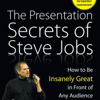 The Presentation Secrets of Steve Jobs: An Interview with Carmine Gallo
March 17, 2010
 Create a Presentation the Steve Jobs Way
December 1, 2009
 Fire Them Up!: Conversation with Carmine Gallo
November 16, 2007
An Interview with Carmine Gallo
June 5, 2007
 Designing the Perfect Presentation
May 1, 2007
How To PowerPoint Like a Pro
June 3, 2006
How to Wow ‘Em Like Steve Jobs
April 7, 2006
Filed Under:
C
Tagged as: Author, Carmine Gallo, Personality
Comments Off on Carmine Gallo

Cliff Atkinson is an acclaimed writer, popular keynote speaker, and an independent consultant to leading attorneys and Fortune 500 companies. He designed the presentations that helped persuade a jury to award a $253 million verdict to the plaintiff in the nation’s first Vioxx trial in 2005, which Fortune magazine called “frighteningly powerful.” Cliff’s bestselling book Beyond Bullet Points (now in its 3rd edition) was named a Best Book of 2007 by the editors of Amazon.com, and it expands on a communications approach he has taught at many of the country’s top law firms, government agencies, business schools, and corporations.
Here’s a list of links on Indezine.com where he has been featured.
 Presentation Summit 2022: Conversation with Cliff Atkinson
June 9, 2022
 Beyond Bullet Points 4th Edition: Conversation with Cliff Atkinson
January 6, 2020
 Presentation Summit 2019: Conversation with Cliff Atkinson
August 8, 2019
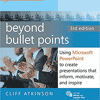 Cliff Atkinson, Beyond Bullet Points, and Legal Presentations
June 28, 2012
 Beyond Bullet Points 101 Online Course: Conversation with Cliff Atkinson
June 4th, 2012
 Beyond Bullet Points Live Course: Conversation with Cliff Atkinson
September 21st, 2010
 An Interview with Cliff Atkinson (Social Media)
June 15th, 2006
 Sociable Media PowerPoint Add-In: Conversation with Lisa Allen
June 8, 2006
 Moving Beyond Bullet Points: A Three-Step Approach
May 17th, 2006
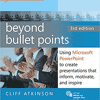 Powering up your Points
May 9th, 2006
Making a (Power)Point of Not Being Tiresome
April 29, 2006
 My Message is My Brand, Not My Logo – Jason Fried
April 25, 2004
 An Interview with Dave Gray
March 23, 2004
 Five Ways to Reduce PowerPoint Overload
March 18, 2004
 Really Bad PowerPoint, Revisited
March 17, 2004
 The Cliff Atkinson Interview
February 27, 2004
How to Gain Control of Your PowerPoint Culture
February 13, 2004
A Broken PowerPoint Culture
February 12, 2004
 The Cognitive Load of PowerPoint: Interview with Richard E Mayer
January 20, 2004
Filed Under:
C
Tagged as: Cliff Atkinson, Personality
Comments Off on Cliff Atkinson

Jerry Weissman is among the world’s foremost corporate presentations coaches. His private client list reads like a who’s who of the world’s best companies, including the top brass at Yahoo!, Intel, Intuit, Cisco Systems, Microsoft, Netflix and many others.
Here’s a list of links on Indezine.com where he has been featured:
 Breaking Through Writer’s Block II
September 23, 2026
 Breaking Through Writer’s Block – I
July 6, 2026
 Three Simple Rules for Slideshow Animation
May 25, 2026
 Isabel Allende on Creativity
April 16, 2026
 The Cyrano Parable
March 5, 2026
 Presentation Advice from the iPhone
January 14, 2026
 Don’t Let Your Cup “Runneth Over”
December 4, 2025
 The Elevator Pitch in One Sentence
November 5, 2025
 David Letterman’s Top Ten
June 9, 2025
 The Ideal Length for an Effective Presentation
April 9, 2025
 What do Churchill and Teenagers Have in Common?
January 27, 2025
 Communication Advice from Vin Skully
November 25, 2024
 Does That Make Sense?
October 7, 2024
 Are We There Yet? 3 Speed Traps to Speaking
September 11, 2024
 Never Say “Never”
August 2, 2024
 Aristotle, the First Salesman
June 19, 2024
 In Praise of Examples
April 5, 2024
 Misdirection
February 9, 2024
 When Not to Tell ‘Em
January 5, 2024
 Mark Your Accent
December 1, 2023
 Sounds of Silence
November 6, 2023
 Vinod Khosla’s Five-Second Rule
October 11, 2023
 What Do I Do With My Hands?
August 10, 2023
 Concentration Creates Control
July 12, 2023
 Are We There Yet? 3 Speed Traps to Speaking
June 22, 2023
 Why Executive Presence Works and How to Get It
May 17, 2023
 Why Learning to Present is Like Learning to Swim
April 17, 2023
 First Impressions Last
March 10, 2023
 How to Remember What to Say
January 24, 2023
 In Praise of Analogies
January 11, 2023
 In the Line of Fire, 3rd Edition: Conversation with Jerry Weissman
December 19, 2022
 Three Simple Rules for Slideshow Animation
November 24, 2022
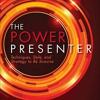 The Power Presenter, 2nd Edition: Conversation with Jerry Weissman
November 16, 2022
 The Elephant
October 27, 2022
 Presenting to Win, 3rd Edition: Conversation with Jerry Weissman
October 20, 2022
 Presentation Design and Instagram
March 28, 2022
 Obama Gets Back on Message
February 17, 2020
 Writer’s Block: How to Break Through
October 4, 2018
 Stage Fright
September 17, 2018
 Is It, Like, OK To Say ‘Like’?
August 22, 2018
 Six Ways to Win With Words
August 3, 2018
 Viral Video In Two Steps: Presentation And Perseverance
July 11, 2018
 Build A Better Mousetrap And Presentation
July 2, 2018
 Make Your Meetings Productive: Ask These 5 Questions
June 4, 2018
 The Sixth Success Factor for Startups: The Perfected Pitch
September 8, 2016
 How To Present A Fireside Chat In 4 Easy Lessons
August 10, 2016
 The Single Most Important Factor For Persuasion
July 1, 2016
 Andreessen Horowitz Shows How to Avoid the Worst Death by PowerPoint
June 29, 2015
 One Plus And Two Minuses For Hillary Clinton’s Logo
May 6, 2015
 Audiences Revolt Against PowerPoint
April 17, 2015
 Winning Strategies for Power Presentations: Conversation with Jerry Weissman
April 10, 2013
 But I’m Not an Artist!
February 7, 2013
 Paul Ryan: Criticize and Propose
September 10, 2012
 The Outline Trap – Britannica and Brainstorming
May 28, 2012
 How Audiences See: Follow the Action
March 8, 2012
 Don’t Raise the Bridge, Lower the Water: Better Box Thinking
September 16, 2011
 The Anti-PowerPoint Party: Another Precinct Heard From
August 10, 2011
 Go in the Right Direction: A Presentation Lesson from Akira Kurosawa
July 27, 2011
 Jon Stewart’s Right: Positioned on Purpose?
May 27, 2011
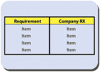 PowerPoint and Movie Stunts: Use Graphics to Create Continuity
May 26, 2011
 The Graphics Spectrum — Lives of Quiet Desperation: Guest Post by Jerry Weissman
May 25, 2011
 Signage versus Documents—Drive Your PowerPoint Home
May 24, 2011
Why Use PowerPoint at All? A Picture Is Worth a Thousand Words
May 23, 2011
Presentations in Action: An Interview with Jerry Weissman
May 18, 2011
The Power Presenter: The Jerry Weissman Interview
March 16, 2009
 An Interview with Jerry Weissman
March 23, 2007
 World’s Best Presentation Contest
March 23, 2007
Filed Under:
J
Tagged as: Author, Jerry Weissman, Personality, Presentation Skills
Comments Off on Jerry Weissman
Microsoft and the Office logo are trademarks or registered trademarks of Microsoft Corporation in the United States and/or other countries.