
This is the print version of this page. All content is copyright Indezine.com 2000-2026.
Definitions and resources for terms and techniques used in the world of presentations
See Also:
PowerPoint and Presenting Notes
PowerPoint and Presenting Glossary
Presentations Glossary in alphabetical order:
A |
B |
C |
D |
E |
F |
G |
H |
I |
J |
K |
L |
M |
N |
O |
P |
Q |
R |
S |
T |
U |
V |
W |
X |
Y |
Z
The Format Painter is an awesome option within PowerPoint that lets you copy formatting attributes of slide objects such as shapes, text boxes, pictures, etc. – and apply those attributes to another similar slide object. Do note though that the Format Painter is an all-or-nothing option that picks up and applies all formatting associated with the object, although you can choose to only copy text formatting in any object using techniques explained in specific tutorials we have created.
To learn more, choose your version of PowerPoint. If we do not have a tutorial for your version of PowerPoint, explore the version closest to the one you use.
Format Painter in PowerPoint 365
Format Painter in PowerPoint 2013
Format Painter in PowerPoint 2010
Format Painter in PowerPoint 365
Format Painter in PowerPoint 2011
Format Painter in PowerPoint for the Web

Tutorial Code: 06 02 03
Previous: 06 02 02 Manipulating Shapes by Dragging Yellow Handles in PowerPoint
Next: 06 02 04 Change a Diagonal Line to a Horizontal or Vertical Line in PowerPoint
Filed Under:
F
Tagged as: 06-02, Advanced Shape Techniques, PowerPoint Tutorials, Shapes
Comments Off on Advanced Shape Techniques: Format Painter in PowerPoint
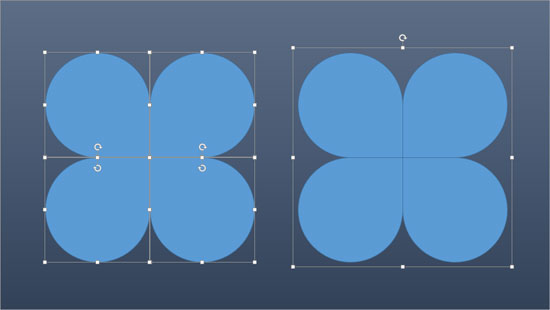
So what exactly does grouping mean? And what is ungrouping and regrouping going to do further? The moment you select a slide object such as a shape on a PowerPoint slide, you will see some selection handles, which indicates that the shape is selected.
To learn more, choose your version of PowerPoint. If we do not have a tutorial for your version of PowerPoint, explore the version closest to the one you use.
Group, Ungroup, and Regroup Shapes in PowerPoint 2016
Group, Ungroup, and Regroup Shapes in PowerPoint 2013
Group, Ungroup, and Regroup Shapes in PowerPoint 2010
Grouping Slide Objects in PowerPoint 2007
Ungrouping Slide Objects in PowerPoint 2007
Grouping Slide Objects in PowerPoint 2003 and 2002
Ungrouping Slide Objects in PowerPoint 2003 and 2002
Group, Ungroup, and Regroup Shapes in PowerPoint 2011
Tutorial Code: 06 06 01
Previous: 06 05 04 Space Objects Equally in PowerPoint
Next: 06 06 02 Nudge and Move Shapes in PowerPoint
Filed Under:
G
Tagged as: 06-06, Group Nudge and Reorder Shapes, PowerPoint Tutorials, Shapes
Comments Off on Group, Nudge, and Reorder Shapes: Group, Ungroup, and Regroup Shapes in PowerPoint
Shapes play a significant role within any slides you create for your PowerPoint presentation. In many ways, shapes are like the building blocks of almost anything you do on your PowerPoint slides. PowerPoint provides hundreds of shapes efficiently categorized into 9 types or categories. You can do so much with these shapes. For example, you can combine shapes to create your own unique shapes, format shapes with fills, lines, and effects, and even group or layer them to create more amazing graphics. You can even create flowcharts with these shapes.
To learn more, choose your version of PowerPoint. If we do not have a tutorial for your version of PowerPoint, explore the version closest to the one you use.
Types of Shapes in PowerPoint 365
Types of Shapes in PowerPoint 2016
Types of Shapes in PowerPoint 2013
Types of Shapes in PowerPoint 2010 and 2007
Types of Shapes in PowerPoint 365
Types of Shapes in PowerPoint 2016
Types of Shapes in PowerPoint 2011
Types of Shapes in PowerPoint for the Web

Tutorial Code: 06 01 01
Previous: 05 09 02 Copy and Remove Highlighting for Text in PowerPoint
Next: 06 01 02 Insert Shapes in PowerPoint
Filed Under:
B
Tagged as: 06-01, Basics About Shapes, PowerPoint Tutorials, Shapes
Comments Off on Basics About Shapes: Types of Shapes in PowerPoint
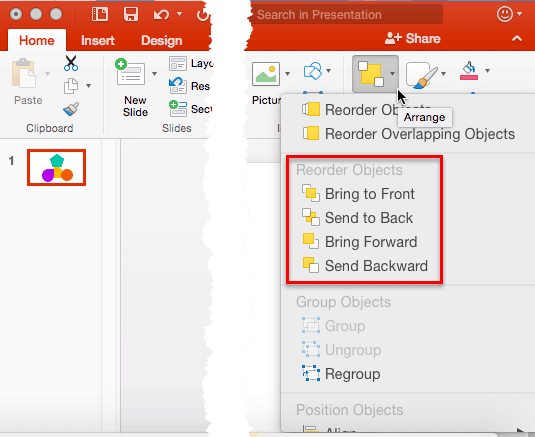
If your PowerPoint slide has umpteen shapes or slide objects, you may find that some of these objects are hidden or overlapped. Or you probably do not know if there are any objects hidden behind the large shape or picture on your slide? How can you tackle this issue? It’s easy to solve this problem if you know how to work with Reorder options. These Reorder options allow you to bring forward any shape or slide object so that it stays right on top of all other objects. Similarly, you can send any shape or slide object behind everything else on your slide.
To learn more, choose your version of PowerPoint. If we do not have a tutorial for your version of PowerPoint, explore the version closest to the one you use.
Reorder Shapes and Slide Objects in PowerPoint 2013
Reorder Shapes and Slide Objects in PowerPoint 2010
Reorder Shapes and Slide Objects in PowerPoint 2016
Reorder Shapes and Slide Objects in PowerPoint 2011
Tutorial Code: 06 06 03
Previous: 06 06 02 Nudge and Move Shapes in PowerPoint
Next: 06 06 04 Dynamic Reordering of Shapes in PowerPoint
Filed Under:
G
Tagged as: 06-06, Group, Group Nudge and Reorder Shapes, Nudge, PowerPoint Tutorials, Shapes
Comments Off on Group, Nudge, and Reorder Shapes: Reorder Shapes and Slide Objects in PowerPoint
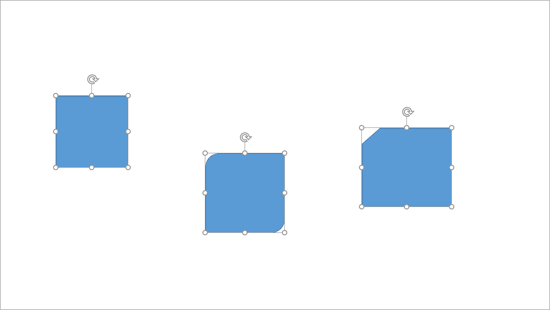
You can align multiple objects on your slide using different alignment parameters. For example, you can align all object left, right, middle, center, up, or down. Alignment works on both horizontal and vertical planes. Options to align may be found in differing locations, depending upon the version of PowerPoint you use or the operating system you are using.
To learn more, choose your version of PowerPoint. If we do not have a tutorial for your version of PowerPoint, explore the version closest to the one you use.
Align Shapes in PowerPoint 2016
Align Shapes in PowerPoint 2013
Align Shapes in PowerPoint 2010
Align Shapes in PowerPoint 2011
Tutorial Code: 06 05 01
Previous: 06 04 03 Drawing Multiple Shapes Quickly in PowerPoint
Next: 06 05 02 Align Shapes to Center of Slide in PowerPoint
Filed Under:
A
Tagged as: 06-05, Aligning and Distributing Shapes, PowerPoint Tutorials, Shapes
Comments Off on Aligning and Distributing Shapes: Align Shapes in PowerPoint
Microsoft and the Office logo are trademarks or registered trademarks of Microsoft Corporation in the United States and/or other countries.