
This is the print version of this page. All content is copyright Indezine.com 2000-2026.
Definitions and resources for terms and techniques used in the world of presentations
See Also:
PowerPoint and Presenting Notes
PowerPoint and Presenting Glossary
Presentations Glossary in alphabetical order:
A |
B |
C |
D |
E |
F |
G |
H |
I |
J |
K |
L |
M |
N |
O |
P |
Q |
R |
S |
T |
U |
V |
W |
X |
Y |
Z
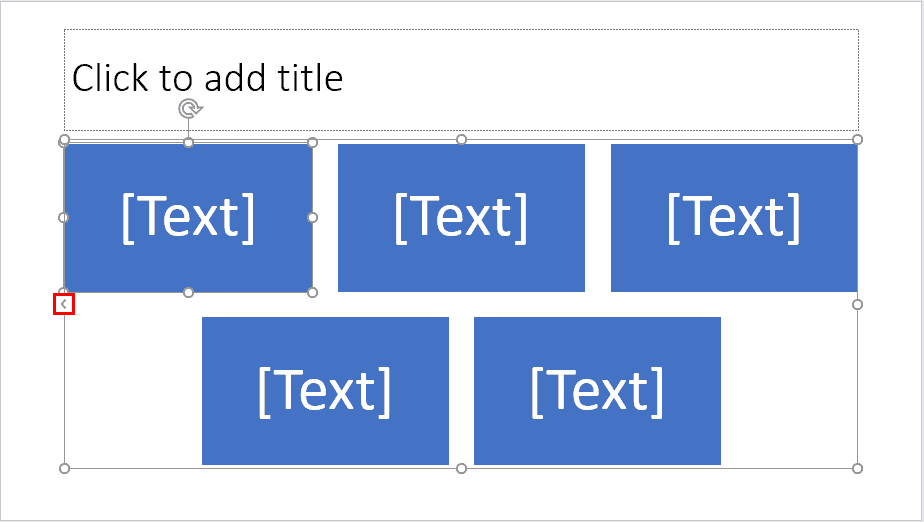
SmartArt in PowerPoint allows you to replace bullet points with info-graphic content using shapes (and also pictures) that contain text. This approach is very helpful to the audience as well as the presenter since it complements the way you view and present the content.
To learn more, choose your version of PowerPoint. If we do not have a tutorial for your version of PowerPoint, explore the version closest to the one you use.
Inserting SmartArt in PowerPoint 2016
Inserting SmartArt in PowerPoint 2013
Inserting SmartArt in PowerPoint 2010
Inserting SmartArt in PowerPoint 2007
Inserting SmartArt in PowerPoint 2011
Tutorial Code: 11 01 01
Previous: 10 15 11 PowerPoint Chart Tips 10: Ask Help, Read Books
Next: 11 01 02 Convert Bulleted Text to SmartArt in PowerPoint
Filed Under:
S
Tagged as: 11-01, PowerPoint Tutorials, SmartArt Basics, SmartArt Graphics
Comments Off on SmartArt Basics: Inserting SmartArt in PowerPoint
Do you want to show only selected slides from your presentation to a particular audience? The answer is not to delete the slides you do not want to show and thereafter saving as a copy. The answer is to create a custom slide show! So what’s a custom slide show? Think of your individual slides as songs, then a custom slide show is a playlist of those songs! Even better, since this is like a playlist, you do not have to delete the slides that are not used. And there’s more, you can create any number of custom slide shows!
To learn more, choose your version of PowerPoint. If we do not have a tutorial for your version of PowerPoint, explore the version closest to the one you use.
Creating Custom Slide Shows in PowerPoint 2013
Creating Custom Slide Shows in PowerPoint 2010
Creating Custom Slide Shows in PowerPoint 2011

Tutorial Code: 16 09 01
Previous: 16 08 03 Kiosk Mode and Kiosk Assistant
Next: 16 09 02 Playing Custom Shows in PowerPoint
Filed Under:
C
Tagged as: 16-09, Custom Slide Show, PowerPoint Tutorials, Share and Prepare
Comments Off on Custom Slide Show: Creating Custom Slide Shows in PowerPoint
PowerPoint’s Text Fill gallery provides you with plenty of text fill options which work similar to the fills for shapes within the Shape Fill gallery. However, a basic color fill is not the only option available for text fills in PowerPoint. In this tutorial, we will explore how you can use a picture as a fill for your selected text.
To learn more, choose your version of PowerPoint. If we do not have a tutorial for your version of PowerPoint, explore the version closest to the one you use.
Picture Fills for Text in PowerPoint 2013
Picture Fills for Text in PowerPoint 2010
Picture Fills for Text in PowerPoint 2011

Tutorial Code: 05 07 03
Previous: 05 07 02 Text Fills in PowerPoint
Next: 05 07 04 Text Characters with Picture Fills in PowerPoint
Filed Under:
W
Tagged as: 05-07, PowerPoint Tutorials, Text and Fonts, WordArt (incl Text Fills; Lines; and Effects)
Comments Off on WordArt (incl. Text Fills, Lines, and Effects): Picture Fills for Text in PowerPoint
In PowerPoint, inserting a new slide can be done in multiple ways. You just need to find a way that works best for you.
Filed Under:
W
Tagged as: Interface and Basics, PowerPoint Tutorials, Working with Slides
Comments Off on Working with Slides: Inserting a New Slide in PowerPoint
Once you add gradient fills to shapes in PowerPoint, you may want to make the gradient fill look a little different, or even a whole lot different. Yes, you can use the More Gradients option to add different types of gradients as fills to the shapes but that only provides more gradient fill types, and does not let you customize the colors within the gradient.
Filed Under:
S
Tagged as: 08-01, Fills Lines and Effects, PowerPoint Tutorials, Shape Fills
Comments Off on Shape Fills: Gradient Stops in PowerPoint
Microsoft and the Office logo are trademarks or registered trademarks of Microsoft Corporation in the United States and/or other countries.