
This is the print version of this page. All content is copyright Indezine.com 2000-2026.
Definitions and resources for terms and techniques used in the world of presentations
See Also:
PowerPoint and Presenting Notes
PowerPoint and Presenting Glossary
Presentations Glossary in alphabetical order:
A |
B |
C |
D |
E |
F |
G |
H |
I |
J |
K |
L |
M |
N |
O |
P |
Q |
R |
S |
T |
U |
V |
W |
X |
Y |
Z
If you want to insert a video clip within your PowerPoint slide, spare a thought for why you would insert video clips in the first place. Most video clips are added either to add value or to grab attention.
To learn more, choose your version of PowerPoint. If we do not have a tutorial for your version of PowerPoint, explore the version closest to the one you use.
Insert Video Clips in PowerPoint 365
Insert Video Clips in PowerPoint 2019
Insert Video Clips in PowerPoint 2016
Insert Video Clips in PowerPoint 2013
Insert Video Clips in PowerPoint 2010
Insert Video Clips in PowerPoint 2007
Insert Video Clips in PowerPoint 2003 and 2002
Insert Video Clips in PowerPoint 365
Insert Video Clips in PowerPoint 2019
Insert Video Clips in PowerPoint 2016
Insert Video Clips in PowerPoint 2011
Insert Video Clips in PowerPoint

Tutorial Code: 14 02 01
Previous: 14 01 02 PowerPoint Friendly Audio Formats
Next: 14 02 02 Insert Video Clips from the Clip Art Pane in PowerPoint
Filed Under:
V
Tagged as: 14-02, Multimedia, PowerPoint Tutorials, Video in PowerPoint - Basics
Comments Off on Video in PowerPoint – Basics: Insert Video Clips in PowerPoint
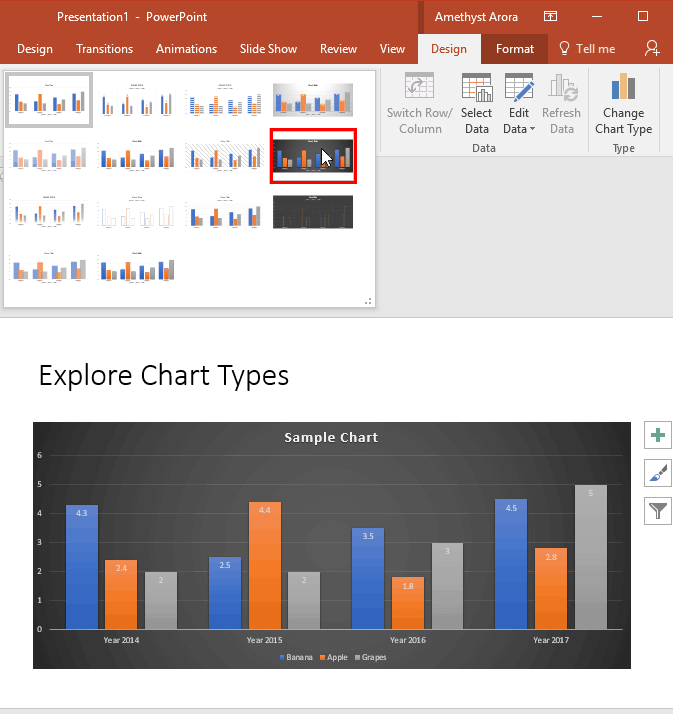
Making a chart look different translates to so much involvement. That’s because each chart has almost 10 or more elements that contribute to its appearance. Of course, you can format all these 10 elements individually, and end up spending some quality time exploring nuances that end up with some amazing and distinctive results. But what if you want the same format applied to another chart? The same format will be difficult to apply to any other chart because you will have to remember all the attributes you applied in the first one—not to speak about the time it will take to create a coordinated chart.
To learn more, choose your version of PowerPoint. If we do not have a tutorial for your version of PowerPoint, explore the version closest to the one you use.
Chart Styles in PowerPoint 2016
Chart Styles in PowerPoint 2013
Chart Styles in PowerPoint 2010
Chart Styles in PowerPoint 2007
Chart Styles in PowerPoint 2011
Tutorial Code: 10 01 02
Previous: 10 01 01 Inserting Charts in PowerPoint
Next: 10 01 03 Chart Elements in PowerPoint
Filed Under:
C
Tagged as: 10-01, Chart Basics, Charts and Graphs, PowerPoint Tutorials
Comments Off on Chart Basics: Chart Styles in PowerPoint
The Quick Access Toolbar or QAT is the only toolbar available for customization in PowerPoint. This toolbar can be customized and can contain your most-used commands so that they are accessible to you with just a single click.
Filed Under:
W
Tagged as: 01-06, Interface and Basics, PowerPoint Tutorials, Quick Access Toolbar in PowerPoint, Working with QAT and Ribbons
Comments Off on Working with QAT and Ribbons: Customize Quick Access Toolbar in PowerPoint
At times, you may want to change your default version of PowerPoint. This decision can be important for you if you have multiple versions of PowerPoint installed on your system. Typically the last version installed is the default version, but there are other ways to change the defaults, and all of them do not work all the time!
Filed Under:
G
Tagged as: 01-04, Default PowerPoint Version, Getting Started, Interface and Basics, PowerPoint Tutorials
Comments Off on Getting Started: Set as Default Version in PowerPoint
We already looked at the Trust Center in a previous tutorial. But who knew that there so many settings available within the Trust Center? In this tutorial, we will explore these settings within PowerPoint.
To learn more, choose your version of PowerPoint. If we do not have a tutorial for your version of PowerPoint, explore the version closest to the one you use.
Trust Center Settings in PowerPoint 2016
Trust Center Settings in PowerPoint 2013
Trust Center Settings in PowerPoint 2010

Tutorial Code: 20 03 02
Previous: 20 03 01 Trust Center in PowerPoint
Next: 21 01 01 Tell Me in PowerPoint
Filed Under:
T
Tagged as: 20-03, PowerPoint Tutorials, Programming, Trust Center Settings in PowerPoint
Comments Off on Trust Center: Trust Center Settings in PowerPoint
Microsoft and the Office logo are trademarks or registered trademarks of Microsoft Corporation in the United States and/or other countries.