
This is the print version of this page. All content is copyright Indezine.com 2000-2026.
Definitions and resources for terms and techniques used in the world of presentations
See Also:
PowerPoint and Presenting Notes
PowerPoint and Presenting Glossary
Presentations Glossary in alphabetical order:
A |
B |
C |
D |
E |
F |
G |
H |
I |
J |
K |
L |
M |
N |
O |
P |
Q |
R |
S |
T |
U |
V |
W |
X |
Y |
Z
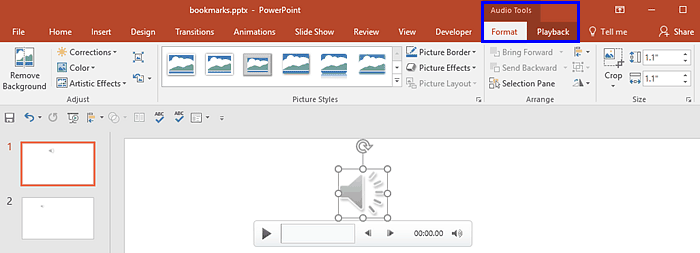
When you select an inserted audio clip in PowerPoint, you see two contextual Audio Tools tabs: Format and Playback. Once you explore the options within the Format tab, you’ll wonder why there are options to adjust, arrange, resize, and apply picture styles. Also, why does PowerPoint provide picture format options for an audio clip? That’s because an audio clip is represented by a sound icon. When you select the sound icon, the Player Controls bar is activated. Clearly, there’s so much to explore and learn.
To learn more, choose your version of PowerPoint. If we do not have a tutorial for your version of PowerPoint, explore the version closest to the one you use.
Format Tab for Audio Clips in PowerPoint 2016
Format Tab for Audio Clips in PowerPoint 2013
Format Tab for Audio Clips in PowerPoint 2010
Tutorial Code: 14 11 04
Previous: 14 11 03 Advanced Audio Options in PowerPoint
Next: 14 11 05 Audio Styles in PowerPoint
Filed Under:
A
Tagged as: 14-11, Audio in PowerPoint - Advanced, Multimedia, PowerPoint Tutorials
Comments Off on Audio in PowerPoint – Advanced: Format Tab for Audio Clips in PowerPoint
Insert an audio file within your PowerPoint slide, and choose to play it either with a click or set it to play automatically. Whichever option you choose, some files can sound loud and unexpected! Have you not experienced the sudden scare or shock when a shrill voice interrupts an almost silent environment? Rather than shake the soul of your audiences, you can use PowerPoint’s fade options to add a gradual increase in the volume of your audio files. PowerPoint provides both Fade In and Fade Out effects that you can add to the beginning and end of your audio clips. These fade options make your audio clips sound smoother and more subtle.
To learn more, choose your version of PowerPoint. If we do not have a tutorial for your version of PowerPoint, explore the version closest to the one you use.
Fade Effect for Audio Clips in PowerPoint 2016
Fade Effect for Audio Clips in PowerPoint 2013
Fade Effect for Audio Clips in PowerPoint 2010

Tutorial Code: 14 11 01
Previous: 14 10 02 Remove Bookmarks from Audio Clips in PowerPoint
Next: 14 11 02 Trim Audio Clips in PowerPoint
Filed Under:
A
Tagged as: 14-11, Audio in PowerPoint - Advanced, Multimedia, PowerPoint Tutorials
Comments Off on Audio in PowerPoint – Advanced: Fade Effect for Audio Clips in PowerPoint
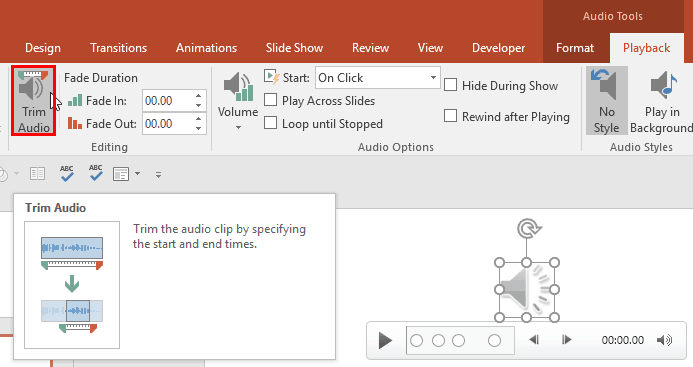
Once you insert an audio clip into your presentation, you may find that it is too long, or there may be parts in the clip that you don’t want audiences to hear. Or, maybe you just need a small bit to play, like the sound of that trumpet blowing! Although you can scrub the clip using the Player Controls bar to ascertain where you want the clip to begin and end, that option may become monotonous and inaccurate. Additionally, it also looks very unprofessional if you try scrubbing an audio clip right in front of your audience. Fortunately, PowerPoint’s Trim Audio option can make this easy for you. Follow these steps to explore how you can trim an audio clip right inside PowerPoint.
To learn more, choose your version of PowerPoint. If we do not have a tutorial for your version of PowerPoint, explore the version closest to the one you use.
Trim Audio Clips in PowerPoint 2016
Trim Audio Clips in PowerPoint 2013
Trim Audio Clips in PowerPoint 2010
Tutorial Code: 14 11 02
Previous: 14 11 01 Fade Effect for Audio Clips in PowerPoint
Next: 14 11 03 Advanced Audio Options in PowerPoint
Filed Under:
A
Tagged as: 14-11, Audio in PowerPoint - Advanced, Multimedia, PowerPoint Tutorials
Comments Off on Audio in PowerPoint – Advanced: Trim Audio Clips in PowerPoint
Once you add Bookmarks to an audio clip, you may want to edit or remove one or more Bookmarks altogether. In PowerPoint, you can’t edit a Bookmark. For example, you cannot change the time position of your Bookmark from 30 seconds to 28 seconds. To achieve this change, you have to delete the earlier Bookmark, and then add a new Bookmark on the time position that you want.
To learn more, choose your version of PowerPoint. If we do not have a tutorial for your version of PowerPoint, explore the version closest to the one you use.
Remove Bookmarks from Audio Clips in PowerPoint 2016
Remove Bookmarks from Audio Clips in PowerPoint 2013
Remove Bookmarks from Audio Clips in PowerPoint 2010

Tutorial Code: 14 10 02
Previous: 14 10 01 Add Bookmarks for Audio Clips in PowerPoint
Next: 14 11 01 Fade Effect for Audio Clips in PowerPoint
Filed Under:
B
Tagged as: 14-10, Bookmarks in Audio Clips, Multimedia, PowerPoint Tutorials
Comments Off on Bookmarks in Audio Clips: Remove Bookmarks from Audio Clips in PowerPoint
When you click the File menu and access Backstage view in PowerPoint, you see several options. Here, we explore two of these options: Save and Save As.
Filed Under:
F
Tagged as: 01-08, File Types File Menu and Backstage View, Interface and Basics, PowerPoint Save, PowerPoint Tutorials
Comments Off on File Types, File Menu, and Backstage View: Save and Save As Tabs of Backstage View in PowerPoint
Microsoft and the Office logo are trademarks or registered trademarks of Microsoft Corporation in the United States and/or other countries.