
This is the print version of this page. All content is copyright Indezine.com 2000-2026.
Definitions and resources for terms and techniques used in the world of presentations
See Also:
PowerPoint and Presenting Notes
PowerPoint and Presenting Glossary
Presentations Glossary in alphabetical order:
A |
B |
C |
D |
E |
F |
G |
H |
I |
J |
K |
L |
M |
N |
O |
P |
Q |
R |
S |
T |
U |
V |
W |
X |
Y |
Z
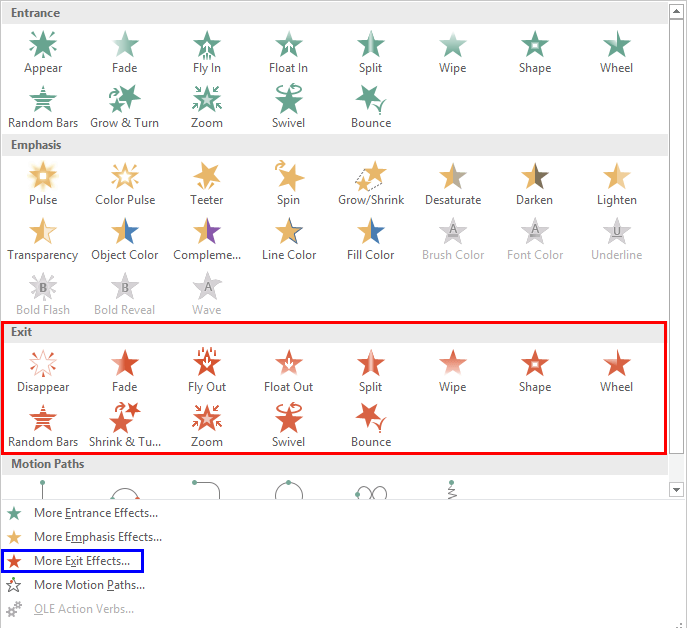
Exit animation effects determine how animated slide objects leave the Slide Area. For example, a slide object can fade or fly out the screen area, or use any of the many other Exit animation effects available within PowerPoint. Typical Exit animation effects include Disappear, in which an object just vanishes or Float Down, in which slide object mimics the setting sun. You can also apply Exit animation effects to text objects so that words Spiral out of the slide. There are plenty of Exit animation effects that PowerPoint provides. However, make sure you use animation sparingly to emphasize rather than to distract.
To learn more, choose your version of PowerPoint. If we do not have a tutorial for your version of PowerPoint, explore the version closest to the one you use.
Exit Animations in PowerPoint 2016
Exit Animations in PowerPoint 2013
Exit Animations in PowerPoint 2010
Exit Animations in PowerPoint 2007, 2003, and 2002
Exit Animations in PowerPoint 2011
Tutorial Code: 13 01 07
Previous: 13 01 06 Emphasis Animations in PowerPint
Next: 13 01 08 Apply Two or More Animations to One Object at the Same Time in PowerPoint
Filed Under:
B
Tagged as: 13-01, Animations and Transitions, Basics of PowerPoint Animation, PowerPoint Tutorials
Comments Off on Basics of Animation: Exit Animations in PowerPoint
Among several types of animations that PowerPoint provides, Entrance effects are probably the most popular. By applying Entrance animation effects, you can make your slide objects appear on the slide almost magically! You make them appear in the fraction of a second, or get them to fly in from any direction.
To learn more, choose your version of PowerPoint. If we do not have a tutorial for your version of PowerPoint, explore the version closest to the one you use.
Entrance Animations in PowerPoint 2016
Entrance Animations in PowerPoint 2013
Entrance Animations in PowerPoint 2010
Entrance Animations in PowerPoint 2002, 2003, and 2007
Entrance Animations in PowerPoint 2011

Tutorial Code: 13 01 05
Previous: 13 01 04 Types of Animation in PowerPoint
Next: 13 01 06 Emphasis Animations in PowerPoint
Filed Under:
B
Tagged as: 13-01, Animations and Transitions, Basics of PowerPoint Animation, PowerPoint Tutorials
Comments Off on Basics of Animation: Entrance Animations in PowerPoint
Like Gridlines, Guides also allow you to position and snap your slide objects in place. For most professional slide designers, creating slides without guides would be very worrisome! When guides are enabled for the first time within PowerPoint, you can just see two guides by default. These guides are two dotted lines, one horizontal and the other vertical. They span to intersect exactly at the center of the slide.
Filed Under:
W
Tagged as: Interface and Basics, PowerPoint Tutorials, Working with Slides
Comments Off on Working with Slides: Guides in PowerPoint
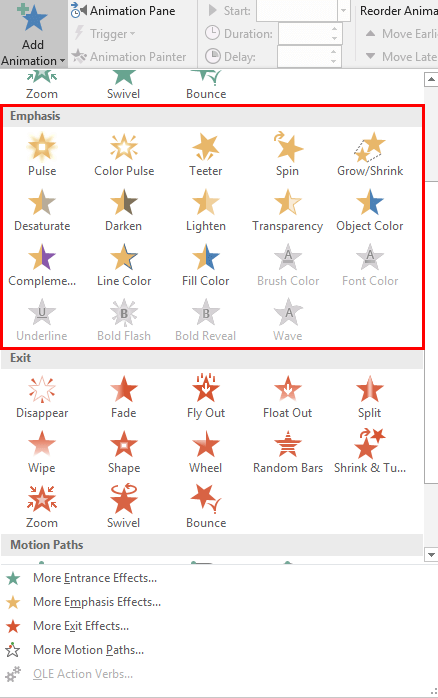
Emphasis animation effects determine how the slide object calls attention to itself while it is on-the-slide. Entrance and Exit effect animations allow a slide object to enter or exit the Slide Area, whereas slide objects with Emphasis Effect animations are already there on the slide area before they start animating, and will be there even after they have finished animating.
To learn more, choose your version of PowerPoint. If we do not have a tutorial for your version of PowerPoint, explore the version closest to the one you use.
Emphasis Animations in PowerPoint 2016
Emphasis Animations in PowerPoint 2013
Emphasis Animations in PowerPoint 2010
Emphasis Animations in PowerPoint 2002, 2003, and 2007
Emphasis Animations in PowerPoint 2011
Tutorial Code: 13 01 06
Previous: 13 01 05 Entrance Animations in PowerPoint
Next: 13 01 07 Exit Animations in PowerPoint
Filed Under:
B
Tagged as: 13-01, Animations and Transitions, Basics of PowerPoint Animation, PowerPoint Tutorials
Comments Off on Basics of Animation: Emphasis Animations in PowerPoint
When working with multiple slide objects, you should have a visual cue about where you are placing slide objects. You can get exact coordinates of your slide objects using the positioning options in PowerPoint, but most of the time, you just need an approximate idea of where your objects are placed, and this can be easily obtained by using the Rulers option available in PowerPoint. Turning on this option shows you the rulers in PowerPoint. These rulers are located on the top and left parts of the active slide.
Filed Under:
W
Tagged as: 01-09, Interface and Basics, PowerPoint Tutorials, Working with Slides
Comments Off on Working with Slides: Rulers in PowerPoint
Microsoft and the Office logo are trademarks or registered trademarks of Microsoft Corporation in the United States and/or other countries.