
This is the print version of this page. All content is copyright Indezine.com 2000-2026.
Definitions and resources for terms and techniques used in the world of presentations
See Also:
PowerPoint and Presenting Notes
PowerPoint and Presenting Glossary
Presentations Glossary in alphabetical order:
A |
B |
C |
D |
E |
F |
G |
H |
I |
J |
K |
L |
M |
N |
O |
P |
Q |
R |
S |
T |
U |
V |
W |
X |
Y |
Z
Content and appearance are the two major components of presentation slides. Among them, the former is always more significant than the latter. But that does not mean you should neglect the latter. A simple looking presentation with a clean background is always a great idea since that doesn’t overpower your message. Yet, there are plenty of opportunities to go beyond a plain background and use a less restrained background instead. Your choice for a slide background should complement the content of your presentation. For example, you’ll want a flashier background for slides created for kindergarten students, or if you were creating a PowerPoint greeting card. On the other hand, you may want a washed out, faded, or even a subtle patterned picture for a typical business presentation.
Filed Under:
S
Tagged as: 04-07, PowerPoint Tutorials, Slide Master and Slide Layouts, Themes Templates Masters and Layouts
Comments Off on Slide Master and Slide Layouts: Custom Backgrounds for Slide Master and Layouts in PowerPoint
Do you want to draw a square box on your slide, and none of the options within the Shapes gallery are called “Box” or “Square”? Yes, there’s a Rectangle option but the shapes that are drawn using this option almost never have the same width and height. The solution may be to manually resize the Rectangle so that it has the equal proportions of a Square but that again is a long process. Don’t you want something easier and quicker? The short answer is yes, you can easily draw a perfect square in PowerPoint.
To learn more, choose your version of PowerPoint. If we do not have a tutorial for your version of PowerPoint, explore the version closest to the one you use.
Drawing a Perfect Square in PowerPoint 2013
Drawing a Perfect Square in PowerPoint 2010
Drawing a Perfect Square in PowerPoint 2011

Tutorial Code: 06 07 02
Previous: 06 06 07 Drawing a Perfect Circle in PowerPoint
Next: 06 07 03 Creating Semi-Circles in PowerPoint
Filed Under:
C
Tagged as: 06-07, Circles and Squares, PowerPoint Tutorials, Shapes
Comments Off on Circles and Squares: Drawing a Perfect Square in PowerPoint
In PowerPoint, all information that you need about your currently active presentation is available in a single easily accessible location. This location is the Info pane of Backstage View. Using the options available within this pane, you can access information about permissions set for the active presentation, prepare your content for sharing, and also possibly recover older versions of unsaved files. In addition, the Info pane also provides access to many more properties.
Filed Under:
F
Tagged as: 01-08, File Types File Menu and Backstage View, Interface and Basics, PowerPoint Tutorials
Comments Off on File Types, File Menu, and Backstage View: Info Tab of Backstage View in PowerPoint
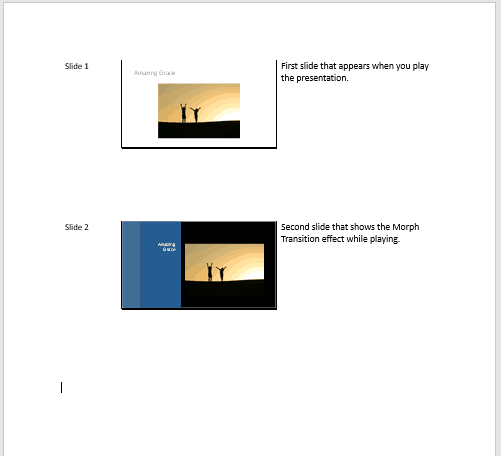
You may create the best presentation in the world, but what happens after the presentation has been delivered? Don’t you want to provide the information you presented in a document that you can distribute to attendees, or even send them a recap via email? Handouts are meant for such occasions, and PowerPoint lets you create some amazing handouts from your slides, that can also contain extra notes that were not visible on the slides. In this tutorial, we will explore an amazing option that creates handouts for PowerPoint presentations in Microsoft Word.
To learn more, choose your version of PowerPoint. If we do not have a tutorial for your version of PowerPoint, explore the version closest to the one you use.
Exporting Word Handouts in PowerPoint 2016
Exporting Word Handouts in PowerPoint 2013
Exporting Word Handouts in PowerPoint 2010
Tutorial Code: 16 01 04
Previous: 16 01 03 Inspect Document in PowerPoint
Next: 16 02 01 Mark as Final Option in PowerPoint
Filed Under:
P
Tagged as: 16-01, PowerPoint Tutorials, Prepare for Sharing, Share and Prepare
Comments Off on Prepare for Sharing: Exporting Word Handouts in PowerPoint
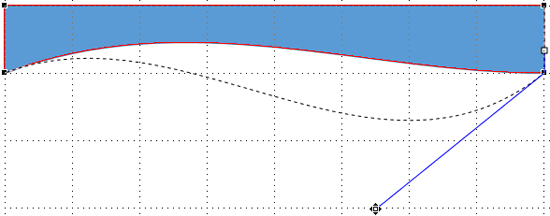
PowerPoint provides an extensive array of built-in shapes which help you create great looking graphics for your slides. You can manipulate these graphics by dragging their yellow squares or combining them, but at times, you may not achieve the exact appearance you want. For instance, you might want a little curve in your shape edges rather than conventional straight lines. PowerPoint does allow you to tweak and make your shape look more organic than geometric curved lines.
To learn more, choose your version of PowerPoint. If we do not have a tutorial for your version of PowerPoint, explore the version closest to the one you use.
Creating Curved Shapes in PowerPoint 2013
Creating Curved Shapes in PowerPoint 2010
Creating Curved Shapes in PowerPoint 2011
Tutorial Code: 06 08 01
Previous: 06 07 05 Creating Half Circles in PowerPoint
Next: 06 09 01 Text Within Shapes in PowerPoint
Filed Under:
D
Tagged as: 06-08, Drawing Common Shapes, PowerPoint Tutorials, Shapes
Comments Off on Drawing Common Shapes: Creating Curved Shapes in PowerPoint
Microsoft and the Office logo are trademarks or registered trademarks of Microsoft Corporation in the United States and/or other countries.