
This is the print version of this page. All content is copyright Indezine.com 2000-2026.
Definitions and resources for terms and techniques used in the world of presentations
See Also:
PowerPoint and Presenting Notes
PowerPoint and Presenting Glossary
Presentations Glossary in alphabetical order:
A |
B |
C |
D |
E |
F |
G |
H |
I |
J |
K |
L |
M |
N |
O |
P |
Q |
R |
S |
T |
U |
V |
W |
X |
Y |
Z
When you launch PowerPoint, you are provided with an option to create a new blank presentation. Further, if you are already working on an open presentation, and want to create a new presentation at that point, you can do so using the New tab within the Backstage View.
Filed Under:
F
Tagged as: 01-08, File Types File Menu and Backstage View, Interface and Basics, PowerPoint Tutorials
Comments Off on File Types, File Menu, and Backstage View: New Tab of Backstage View in PowerPoint
 Brian Reilly is President of Reillyand, a Milford CT based company, that develops custom solutions typically integrating several of the Office applications for output into PowerPoint. Brian is also a Most Valuable Professional (MVP) for Microsoft PowerPoint. He often creates customized solutions for clients that involve taking PowerPoint and other Microsoft Office applications to the limit.
Filed Under:
B
Tagged as: Brian Reilly, MVP, Personality
Comments Off on Brian Reilly
Enabling Guides for your presentation slides helps ensure that your objects are easily aligned, and also in the same relative position in successive slides. But just enabling Guides is more like getting started. There’s so much more you can do, such as customizing the Guides themselves using hierarchical options. PowerPoint lets you work with Guides on a higher hierarchical level within the Slide Master and individual Slide Layouts. Depending on whether you added Guides within the Slide Master, an individual Slide Layout, or even a normal slide, your Guides are color-coded for easy identification.
Filed Under:
W
Tagged as: 01-09, Interface and Basics, PowerPoint Tutorials, Working with Slides
Comments Off on Working with Slides: Hierarchical Guide Options in PowerPoint
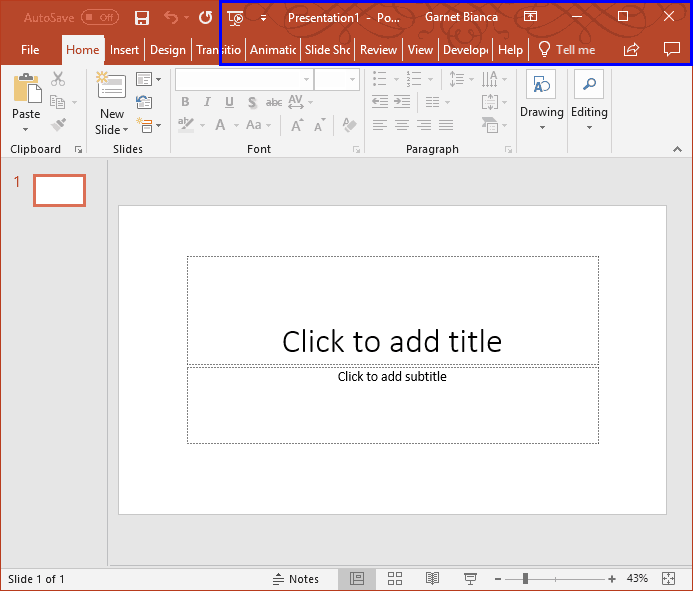
While working in PowerPoint and other Office applications, you will see the concept of “Office Background”, which essentially indicates the small image strip visible on the top right area of the program interface. It does look like PowerPoint just got tattooed!
To learn more, choose your version of PowerPoint. If we do not have a tutorial for your version of PowerPoint, explore the version closest to the one you use.
Office Background in PowerPoint 365
Office Background in PowerPoint 2016
Office Background in PowerPoint 2013
Tutorial Code: 01 05 14
Previous: 01 05 13 Changing Interface Color in PowerPoint
Next: 01 05 15 Black Interface in PowerPoint
Filed Under:
I
Tagged as: 01-05, Interface - Overview, Interface and Basics, PowerPoint Tutorials
Comments Off on Interface Overview: Office Background in PowerPoint

Robert Kawalsky is the CEO and co-founder of Zeetings, a software company changing the way people present their ideas to the world. Robert is also an active investor and advisor to technology and internet-related businesses. He previously held the position of Portfolio Manager at Keybridge Capital where he grew and managed a portfolio of assets across shipping, aviation, renewable energy and real estate. Robert began his career at Ernst & Young, holds a Bachelor of Commerce from the University of NSW and is a CFA Charterholder.
Filed Under:
R
Tagged as: Personality, PowerPoint, Robert Kawalsky, Zeetings
Comments Off on Robert Kawalsky
Microsoft and the Office logo are trademarks or registered trademarks of Microsoft Corporation in the United States and/or other countries.