May 23rd, 2017
Working with QAT and Ribbons: Customize Quick Access Toolbar in PowerPoint

See Also:
PowerPoint and Presenting Notes
PowerPoint and Presenting Glossary
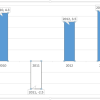 Advanced Chart Techniques: Using the Invert if Negative Option for Charts in PowerPoint
If your chart has negative values, then PowerPoint by default uses the same fill color for negative values in any chart. You can override this nature with the Invert if Negative option. To learn more, choose your version of PowerPoint. If we do not have a tutorial for your version of PowerPoint, explore the version ...
 Working with Slides: Guide Options in PowerPoint
Among the many features in PowerPoint, there are some that are more useful than the others. Options for using Guides are certainly vital. Many users are not aware of all the capabilities that Guides offer. To learn more, choose your version of PowerPoint. If we do not have a tutorial for your version of PowerPoint ...
 Advanced SmartArt: Change Shapes within a SmartArt Graphic in PowerPoint
The default look of SmartArt graphics works great, and you may not want to change a thing! Yet, it's good to know that you can change your SmartArt graphics to other layouts, change the color of SmartArt graphics, or apply a SmartArt Style to make your SmartArt graphic appear distinct and unique. You can also ...
Microsoft and the Office logo are trademarks or registered trademarks of Microsoft Corporation in the United States and/or other countries.