
This is the print version of this page. All content is copyright Indezine.com 2000-2026.
Definitions and resources for terms and techniques used in the world of presentations
See Also:
PowerPoint and Presenting Notes
PowerPoint and Presenting Glossary
Presentations Glossary in alphabetical order:
A |
B |
C |
D |
E |
F |
G |
H |
I |
J |
K |
L |
M |
N |
O |
P |
Q |
R |
S |
T |
U |
V |
W |
X |
Y |
Z
We already showed you how to remove the background from an inserted picture in PowerPoint. This process works great for simple pictures that have fairly distinct foreground and background areas. However, if the picture is a little crowded, or does not have clearly demarcated areas, you need to manually select the areas to be retained or removed in the picture using some fairly advanced background removal options.
To learn more, choose your version of PowerPoint. If we do not have a tutorial for your version of PowerPoint, explore the version closest to the one you use.
Advanced Background Removal Options for Pictures in PowerPoint 2011

Tutorial Code: 09 05 02
Previous: 09 05 01 Remove Background from Pictures in PowerPoint
Next: 09 05 03 Picture Borders in PowerPoint
Filed Under:
P
Tagged as: 09-05, Pictures - Appearance, Pictures and Visuals, PowerPoint Tutorials
Comments Off on Pictures – Appearance: Advanced Background Removal Options for Pictures in PowerPoint

Joel Harband heads Tuval Software Industries, based in Israel. Their best-known product is Speech-Over, a PowerPoint add-in that enables PowerPoint slides to incorporate narrations using automated voices.
Here’s a list of links on Indezine.com where she has been featured:
 Interactive Narration for e-Learning: Conversation with Joel Harband
May 26, 2016
 Speech-Over 5: Conversation with Joel Harband
May 14, 2015
 Speech-Over Professional: Conversation with Joel Harband
May 17, 2010
Tuval Software Releases SpeechOver Plus 3.0
January 2, 2009
Speech-Over Studio 2.5: Conversation with Joel Harband
April 1, 2008
Voice Effect Marshalling
February 5, 2008
Speech-Over Studio: Conversation with Joel Harband
September 4, 2007
Notes-Over: Conversation with Joel Harband
December 6, 2006
An Interview with Joel Harband
July 6, 2006
Filed Under:
J
Tagged as: Joel Harband, Personality
Comments Off on Joel Harband
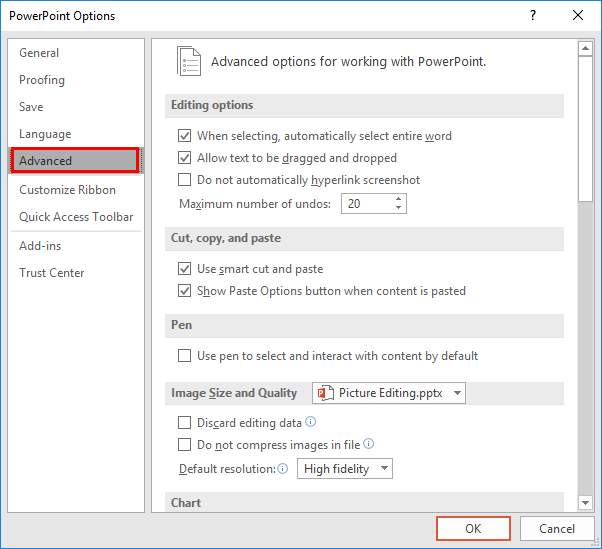
One of PowerPoint’s greatest qualities is that you can get all sorts of content from disparate sources and add them all within one presentation to create a unified document. Pictures are one of the most important content types you add to your slides. However, each picture you insert may have different resolutions, and thus even though you may have sized your picture to look like a small postage stamp on your slide, it may be increasing your file size by several megabytes.
To learn more, choose your version of PowerPoint. If we do not have a tutorial for your version of PowerPoint, explore the version closest to the one you use.
Set Document Resolution in PowerPoint 2016
Set Document Resolution in PowerPoint 2013
Set Document Resolution in PowerPoint 2010
Tutorial Code: 09 03 02
Previous: 09 03 01 Compress Pictures in PowerPoint
Next: 09 04 01 Crop Pictures in PowerPoint
Filed Under:
P
Tagged as: 09-03, Pictures - Compression, Pictures and Visuals, PowerPoint Tutorials
Comments Off on Pictures – Compression: Set Document Resolution in PowerPoint
Yes, undoubtedly a presentation with relevant pictures is more effective than plain text slides. However, even if pictures enhance appearances, they can also phenomenally increase the size of your presentation file.
To learn more, choose your version of PowerPoint. If we do not have a tutorial for your version of PowerPoint, explore the version closest to the one you use.
Compress Pictures in PowerPoint 2016
Compress Pictures in PowerPoint 2013
Compress Pictures in PowerPoint 2010
Compress Pictures in PowerPoint 2011

Tutorial Code: 09 03 01
Previous: 09 02 02 Slice and Animate Pictures in PowerPoint
Next: 09 03 02 Set Document Resolution in PowerPoint
Filed Under:
P
Tagged as: 09-03, Pictures - Compression, Pictures and Visuals, PowerPoint Tutorials
Comments Off on Pictures – Compression: Compress Pictures in PowerPoint
You can crop pictures in PowerPoint, and of course, you can animate them. But as you may observe frequently in life, synergy yields results that exceed the mere sum of two or more initiatives. And that’s true in a way for the technique we will explore on this page, we call this Slice and Animate. The two techniques being used for this synergy are cropping pictures and adding animation.
To learn more, choose your version of PowerPoint. If we do not have a tutorial for your version of PowerPoint, explore the version closest to the one you use.
Tutorial Code: 09 02 02
Previous: 09 02 01 Picture Layouts in PowerPoint
Next: 09 03 01 Compress Pictures in PowerPoint
Filed Under:
A
Tagged as: 09-02, Advanced Picture Concepts, Pictures and Visuals, PowerPoint Tutorials
Comments Off on Advanced Picture Concepts: Slice and Animate Pictures in PowerPoint
Microsoft and the Office logo are trademarks or registered trademarks of Microsoft Corporation in the United States and/or other countries.
