
This is the print version of this page. All content is copyright Indezine.com 2000-2026.
Definitions and resources for terms and techniques used in the world of presentations
See Also:
PowerPoint and Presenting Notes
PowerPoint and Presenting Glossary
Presentations Glossary in alphabetical order:
A |
B |
C |
D |
E |
F |
G |
H |
I |
J |
K |
L |
M |
N |
O |
P |
Q |
R |
S |
T |
U |
V |
W |
X |
Y |
Z

Many people have opinions about PowerPoint, but few can speak on the topic with the authority of Richard E. Mayer, Ph.D., professor of psychology at the University of California, Santa Barbara. Named the most prolific researcher in the field of educational psychology, Richard is the author of 18 books and more than 250 articles and chapters. His 12 years of research in multimedia learning and problem-solving have important implications for PowerPoint users.
Here’s a list of links on Indezine.com where he has been featured:
 Presentation Management 03: Visual Storytelling
May 8, 2019
 Voice Effect Marshalling
February 05, 2008
 Five Ways to Reduce PowerPoint Overload
March 18, 2004
 The Cognitive Load of PowerPoint: Interview with Richard E Mayer
January 20, 2004
Filed Under:
R
Tagged as: Personality, Richard Mayer
Comments Off on Richard E. Mayer
We already showed you how to remove the background from an inserted picture in PowerPoint. This process works great for simple pictures that have fairly distinct foreground and background areas. However, if the picture is a little crowded, or does not have clearly demarcated areas, you need to manually select the areas to be retained or removed in the picture using some fairly advanced background removal options.
To learn more, choose your version of PowerPoint. If we do not have a tutorial for your version of PowerPoint, explore the version closest to the one you use.
Advanced Background Removal Options for Pictures in PowerPoint 2011

Tutorial Code: 09 05 02
Previous: 09 05 01 Remove Background from Pictures in PowerPoint
Next: 09 05 03 Picture Borders in PowerPoint
Filed Under:
P
Tagged as: 09-05, Pictures - Appearance, Pictures and Visuals, PowerPoint Tutorials
Comments Off on Pictures – Appearance: Advanced Background Removal Options for Pictures in PowerPoint

Joel Harband heads Tuval Software Industries, based in Israel. Their best-known product is Speech-Over, a PowerPoint add-in that enables PowerPoint slides to incorporate narrations using automated voices.
Here’s a list of links on Indezine.com where she has been featured:
 Interactive Narration for e-Learning: Conversation with Joel Harband
May 26, 2016
 Speech-Over 5: Conversation with Joel Harband
May 14, 2015
 Speech-Over Professional: Conversation with Joel Harband
May 17, 2010
Tuval Software Releases SpeechOver Plus 3.0
January 2, 2009
Speech-Over Studio 2.5: Conversation with Joel Harband
April 1, 2008
Voice Effect Marshalling
February 5, 2008
Speech-Over Studio: Conversation with Joel Harband
September 4, 2007
Notes-Over: Conversation with Joel Harband
December 6, 2006
An Interview with Joel Harband
July 6, 2006
Filed Under:
J
Tagged as: Joel Harband, Personality
Comments Off on Joel Harband
One of PowerPoint’s greatest qualities is that you can get all sorts of content from disparate sources and add them all within one presentation to create a unified document. Pictures are one of the most important content types you add to your slides. However, each picture you insert may have different resolutions, and thus even though you may have sized your picture to look like a small postage stamp on your slide, it may be increasing your file size by several megabytes.
To learn more, choose your version of PowerPoint. If we do not have a tutorial for your version of PowerPoint, explore the version closest to the one you use.
Set Document Resolution in PowerPoint 2016
Set Document Resolution in PowerPoint 2013
Set Document Resolution in PowerPoint 2010
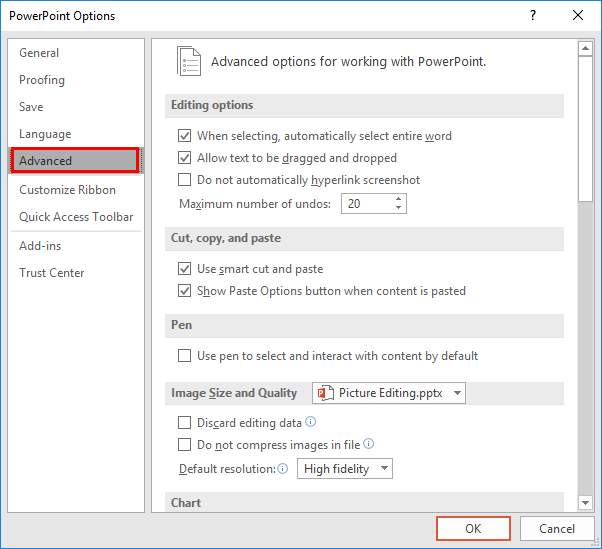
Tutorial Code: 09 03 02
Previous: 09 03 01 Compress Pictures in PowerPoint
Next: 09 04 01 Crop Pictures in PowerPoint
Filed Under:
P
Tagged as: 09-03, Pictures - Compression, Pictures and Visuals, PowerPoint Tutorials
Comments Off on Pictures – Compression: Set Document Resolution in PowerPoint
Yes, undoubtedly a presentation with relevant pictures is more effective than plain text slides. However, even if pictures enhance appearances, they can also phenomenally increase the size of your presentation file.
To learn more, choose your version of PowerPoint. If we do not have a tutorial for your version of PowerPoint, explore the version closest to the one you use.
Compress Pictures in PowerPoint 2016
Compress Pictures in PowerPoint 2013
Compress Pictures in PowerPoint 2010
Compress Pictures in PowerPoint 2011

Tutorial Code: 09 03 01
Previous: 09 02 02 Slice and Animate Pictures in PowerPoint
Next: 09 03 02 Set Document Resolution in PowerPoint
Filed Under:
P
Tagged as: 09-03, Pictures - Compression, Pictures and Visuals, PowerPoint Tutorials
Comments Off on Pictures – Compression: Compress Pictures in PowerPoint
Microsoft and the Office logo are trademarks or registered trademarks of Microsoft Corporation in the United States and/or other countries.