
This is the print version of this page. All content is copyright Indezine.com 2000-2026.
Definitions and resources for terms and techniques used in the world of presentations
See Also:
PowerPoint and Presenting Notes
PowerPoint and Presenting Glossary
Presentations Glossary in alphabetical order:
A |
B |
C |
D |
E |
F |
G |
H |
I |
J |
K |
L |
M |
N |
O |
P |
Q |
R |
S |
T |
U |
V |
W |
X |
Y |
Z
Everything on a chart within PowerPoint is placed atop the Chart Area. The Chart Area is the entire area that encompasses your chart. Thus, the Chart Area is that part of your chart which is placed beneath all other chart elements.
To learn more, choose your version of PowerPoint. If we do not have a tutorial for your version of PowerPoint, explore the version closest to the one you use.

Tutorial Code: 10 02 01
Previous: 10 01 06 Quick Layouts for Charts in PowerPoint
Next: 10 02 02 Fill and Line Options for the Chart Area in PowerPoint
Filed Under:
C
Tagged as: 10-02, Chart Area, Charts and Graphs, PowerPoint Tutorials
Comments Off on Chart Area: Chart Area in PowerPoint

Erica Keswin is an expert in the business of working human. She helps top-of-the-class businesses, organizations, and individuals improve their performance by honoring relationships in every context, always with an eye toward high-tech for human touch. Her book, Bring Your Human to Work: 10 Sure-Fire Ways to Design a Workplace That’s Good for People, Great for Business and Just Might Change the World (2018 McGraw-Hill), was an immediate Wall Street Journal bestseller.
Here’s a list of links on Indezine.com where she has been featured:
 Rituals Roadmap: Conversation with Erica Keswin
February 19, 2021
 Bring Your Human to Work: Conversation with Erica Keswin
June 12, 2019
Filed Under:
E
Tagged as: Erica Keswin, Personality
Comments Off on Erica Keswin
Did you want to move the location of the legend in your chart? Or do you always need to add a Data Table? Do PowerPoint’s default layout options for all chart elements work for you? If you identify with any of these scenarios, you will love the way you can play with different layouts for your charts using the pre-defined Chart Quick Layouts feature.
To learn more, choose your version of PowerPoint. If we do not have a tutorial for your version of PowerPoint, explore the version closest to the one you use.
Quick Layouts for Charts in PowerPoint 2013
Quick Layouts for Charts in PowerPoint 2011

Tutorial Code: 10 01 06
Previous: 10 01 05 Changing Fill and Border of Charts in PowerPoint
Next: 10 02 01 Chart Area in PowerPoint
Filed Under:
C
Tagged as: 10-01, Chart Basics, Charts and Graphs, PowerPoint Tutorials
Comments Off on Chart Basics: Quick Layouts for Charts in PowerPoint
Do you want to insert a cross mark, which is also called an X mark, in your slides? Very often, this symbol indicates a task is canceled or a concept is negated or no longer applicable. You may want to add this symbol as part of your regular text in text placeholders and boxes, shapes, tables, and even charts. This task is very easy to complete in most versions of PowerPoint for Windows. There may be slight differences, depending upon whether you are using a newer or older version of PowerPoint, but even then, the process is very similar. Using one of these options, you will be able to add a cross mark or an X mark in PowerPoint.
To learn more, choose your version of PowerPoint. If we do not have a tutorial for your version of PowerPoint, explore the version closest to the one you use.

Tutorial Code: 05 05 04
Previous: 05 05 03 Insert a Check Mark or Tick Mark in PowerPoint
Next: 05 05 05 Add Subscript and Superscript to Text in PowerPoint
Filed Under:
S
Tagged as: 05-05, PowerPoint Tutorials, Symbols, Text and Fonts
Comments Off on Symbols: Insert a Cross Mark or X Mark in PowerPoint
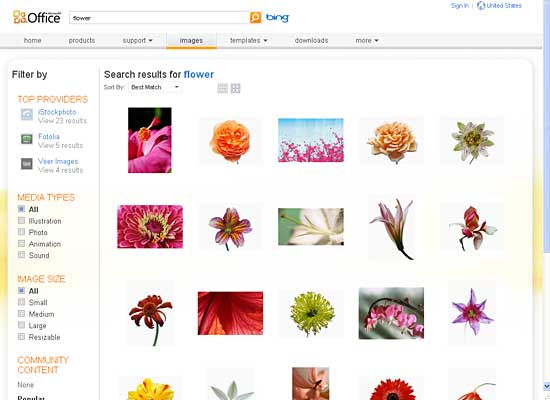
There is no dearth of sites providing royalty-free pictures that can be used in your PowerPoint presentations. But, none of these provide the breadth of choices that you can find at the Microsoft Office site (Office.com). Even better, all these pictures are free to all licensed users of Microsoft Office programs such as PowerPoint.
To learn more, choose your version of PowerPoint. If we do not have a tutorial for your version of PowerPoint, explore the version closest to the one you use.
Download Clip Media from Office.com
Download Clip Media from Office.com
Tutorial Code: 09 14 03
Previous: 09 14 02 Pond5
Next: 10 01 01 Inserting Charts
Filed Under:
A
Tagged as: 09-14, Amazing Picture Sources Online, Pictures and Visuals, PowerPoint Tutorials
Comments Off on Amazing Picture Sources Online: Download Clip Media from Office.com
Microsoft and the Office logo are trademarks or registered trademarks of Microsoft Corporation in the United States and/or other countries.