
This is the print version of this page. All content is copyright Indezine.com 2000-2026.
Definitions and resources for terms and techniques used in the world of presentations
See Also:
PowerPoint and Presenting Notes
PowerPoint and Presenting Glossary
Presentations Glossary in alphabetical order:
A |
B |
C |
D |
E |
F |
G |
H |
I |
J |
K |
L |
M |
N |
O |
P |
Q |
R |
S |
T |
U |
V |
W |
X |
Y |
Z
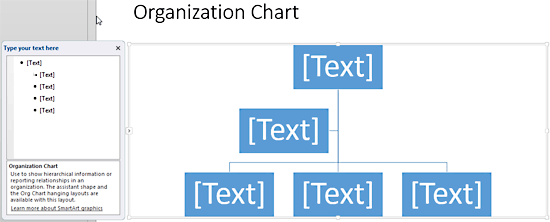
You won’t find an option to add an Organization Chart in the Insert tab of the Ribbon in PowerPoint. Instead, you will find the SmartArt option in the Insert tab, and organization charts are just one of the many variants of SmartArt graphics you can insert into your slide. An organization chart graphically represents the management or hierarchical structure of an organization.
To learn more, choose your version of PowerPoint. If we do not have a tutorial for your version of PowerPoint, explore the version closest to the one you use.
Insert an Organization Chart in PowerPoint 2013
Insert an Organization Chart in PowerPoint 2010
Insert an Organization Chart in PowerPoint 2011
Tutorial Code: 11 04 01
Previous: 11 03 10 Reset SmartArt Graphics in PowerPoint
Next: 11 04 02 Adding New Shapes to Existing Organization Charts
Filed Under:
O
Tagged as: 11-04, Organization Charts, PowerPoint Tutorials, SmartArt Graphics
Comments Off on Organization Charts: Insert an Organization Chart
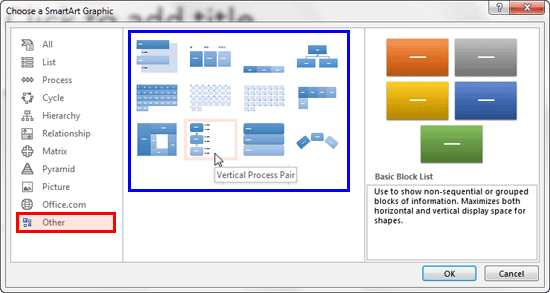
When Microsoft introduced SmartArt as part of Office, it essentially created one of the most welcomed and used features in all of Microsoft Office programs. People loved this feature, and you will still find that so many users are amazed by the fact that you can convert some bulleted text on a PowerPoint slide into a graphic with one click! In addition to creating SmartArt, and including a bunch of some great variants out of the box, Microsoft also created a way for individuals and developers to create their own custom SmartArt Layout files.
To learn more, click a link from the tutorials listed below.
Tutorial Code: 11 03 09
Previous: 11 03 08 Creating Timelines Using SmartArt in PowerPoint
Next: 11 03 10 Reset SmartArt Graphics in PowerPoint
Filed Under:
A
Tagged as: 11-03, Advanced, PowerPoint Tutorials, SmartArt, SmartArt Graphics
Comments Off on Advanced SmartArt: Get More SmartArt Graphics
Sometimes you need to draw multiple shapes of the same type on a slide, maybe a hundred smiley faces on one slide, or even a hundred stars on a dark blue slide.
To learn more, choose your version of PowerPoint. If we do not have a tutorial for your version of PowerPoint, explore the version closest to the one you use.
Filed Under:
D
Tagged as: 06-04, Duplicating Shapes and Drawing Multiple Shapes, Shapes, Tutorials
Comments Off on Duplicating Shapes, and Drawing Multiple Shapes: Drawing Multiple Shapes Quickly in PowerPoint

Kyle Murtagh is a public speaker. In 2018, he founded Confidence by Design, an industry-leading presentation skills company that has helped people from all walks of life to transform their public speaking abilities – from global corporations to ambitious entrepreneurs.
His passion, hard work, and talent have also led him to win multiple public speaking accolades, both in Scotland and on an international level. Not only that, but Kyle is now a successful author! His debut title, The 5 Pillars of Effective Public Speaking has received 5-star reviews from readers across the globe, who have discovered how to harness their public speaking potential to achieve tangible results.
Here’s a list of links on Indezine sites, where he has been featured:
 How to Make Your Feedback Inspiring
June 2, 2021
Filed Under:
K
Tagged as: Kyle Murtagh, Personality
Comments Off on Kyle Murtagh
SmartArt in PowerPoint has replaced the diagram options in previous versions of PowerPoint. SmartArt also allows you to replace bullet points with info-graphic content using text-within-shapes that are more logical to view and present. There are different SmartArt categories available. Additionally, you can also add an additional SmartArt category that shows content from Office.com.
To learn more, choose your version of PowerPoint. If we do not have a tutorial for your version of PowerPoint, explore the version closest to the one you use.
Add Office.com SmartArt Graphics in PowerPoint 2010

Tutorial Code: 11 03 07
Previous: 11 03 06 Format SmartArt Graphics Text Attributess
Next: 11 03 08 Creating Timelines Using SmartArt
Filed Under:
A
Tagged as: 11-03, Advanced, PowerPoint Tutorials, SmartArt Graphics
Comments Off on Advanced SmartArt: Add Office.com SmartArt Graphics
Microsoft and the Office logo are trademarks or registered trademarks of Microsoft Corporation in the United States and/or other countries.