
This is the print version of this page. All content is copyright Indezine.com 2000-2026.
Definitions and resources for terms and techniques used in the world of presentations
See Also:
PowerPoint and Presenting Notes
PowerPoint and Presenting Glossary
Presentations Glossary in alphabetical order:
A |
B |
C |
D |
E |
F |
G |
H |
I |
J |
K |
L |
M |
N |
O |
P |
Q |
R |
S |
T |
U |
V |
W |
X |
Y |
Z
Until some time ago, you could insert a video clip from a web site such as YouTube into your PowerPoint slide. Within PowerPoint 2010, this Insert Online Videos option lets you easily achieve an acceptable result. Within the Insert tab of the Ribbon, you would find a Video button.
To learn more, choose your version of PowerPoint. If we do not have a tutorial for your version of PowerPoint, explore the version closest to the one you use.
Missing “Video from Web Site” Option in PowerPoint 2010?

Tutorial Code: 14 07 03
Previous: 14 07 02 Support for YouTube Videos in PowerPoint
Next: 14 08 01 Insert Flash Movies using the Insert Tab in PowerPoint
Filed Under:
V
Tagged as: 14-07, Multimedia, PowerPoint Tutorials, Video Troubleshooting
Comments Off on Video Troubleshooting: Missing “Video from Web Site” Option in PowerPoint?

Sheila B. Robinson, Ed.D., of Custom Professional Learning, LLC is a speaker, educator, and consultant with a passion for the science of teaching and learning. She works with clients in education, business, government, health care, research, non-profits, and more. Sheila has taught thousands to reach, teach, and connect with audiences through her talks and workshops. She designs professional development and university courses on program evaluation, survey design, data visualization, and audience engagement. Sheila is a Certified Presentation Specialist (CPS)™ and the Director of Education, Training, and Advocacy at the Presentation Guild, and Senior Design and Facilitation Consultant with Evergreen Data.
Here’s a list of links on Indezine.com where she has been featured:
 Presentation Summit 2024: Conversation with Sheila B. Robinson
September 5, 2024
 What’s the Best Advice for a Presentation Designer? Good Questions.
December 23, 2021
 Presentation Summit 2021: Conversation with Sheila B. Robinson
July 16, 2021
Filed Under:
S
Tagged as: Personality
Comments Off on Sheila B. Robinson
Some things are better shown than read! Creating or animating a car in PowerPoint is just one of those things. So in this video tutorial, you will learn how you can use PowerPoint’s basic shapes to create a car, moving wheels, a steering, and even a driver! We will then explore how you can animate them all at the same time.
To learn more, click a link from the tutorials listed below.
Animate a Moving Car in PowerPoint

Tutorial Code: 13 06 02
Previous: 13 06 01 Star Wars Style Credits Animation
Next: 13 07 01 Third-Party PowerPoint Add-ins for Animation in PowerPoint
Filed Under:
A
Tagged as: 13-6, Animation Effects and Examples, Animations and Transitions, PowerPoint Tutorials
Comments Off on Animation Effects and Examples: Animate a Moving Car in PowerPoint
The other day a friend asked me how she could add a trigger animation to a slide object, but with a difference! She inserted a picture on a slide (let’s call this Picture 1) and then placed another picture of the exact same size over the first one (let’s call this Picture 2). She then wanted to click Picture 2 to cause a trigger animation on Picture 1. This caused Picture 1 to be revealed, almost like the example explained in our Trigger Animations in PowerPoint. However, what she wanted next was to click on Picture 1 to reveal Picture 2.
To learn more, click a link from the tutorial listed below.
Twin Trigger Animations in PowerPoint 2010

Tutorial Code: 13 05 05
Previous: 13 05 04 Add Trigger Animations for Media Actions in PowerPoint
Next: 13 06 01 Star Wars Style Credits Animation in Powerpoint
Filed Under:
T
Tagged as: 13-5, Animations and Transitions, PowerPoint Tutorials, Triggers and Animation Actions
Comments Off on Triggers and Animation Actions: Twin Trigger Animations in PowerPoint
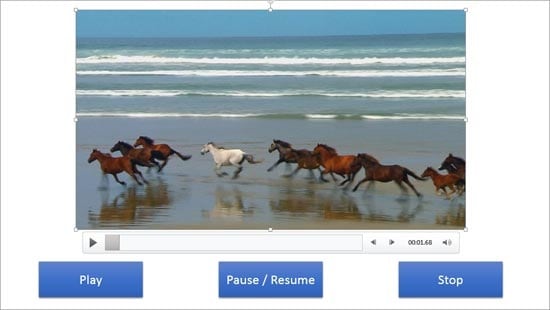
An interactive PowerPoint presentation always interests audiences since it gets them involved actively navigating the slides. However, audiences for whom these interactive slides are intended must be aware that some interactivity has been included so that they can click a slide object to cause an action to happen. With trigger animations, you click on a PowerPoint shape (or even an Action Button or any other slide object) to cause an audio or video clip on the same slide to play, pause, resume, or even stop.
To learn more, choose your version of PowerPoint. If we do not have a tutorial for your version of PowerPoint, explore the version closest to the one you use.
Add Trigger Animations for Media Actions in PowerPoint 2013
Add Trigger Animations for Media Actions in PowerPoint 2010
Add Trigger Animations for Media Actions in PowerPoint 2007
Tutorial Code: 13 05 04
Previous: 13 05 03 Media Actions for Video in PowerPoint
Next: 13 05 05 Twin Trigger Animations in PowerPoint
Filed Under:
T
Tagged as: 13-5, Animations and Transitions, PowerPoint Tutorials, Triggers and Animation Actions
Comments Off on Triggers and Animation Actions: Add Trigger Animations for Media Actions in PowerPoint
Microsoft and the Office logo are trademarks or registered trademarks of Microsoft Corporation in the United States and/or other countries.