
This is the print version of this page. All content is copyright Indezine.com 2000-2026.
Definitions and resources for terms and techniques used in the world of presentations
See Also:
PowerPoint and Presenting Notes
PowerPoint and Presenting Glossary
Presentations Glossary in alphabetical order:
A |
B |
C |
D |
E |
F |
G |
H |
I |
J |
K |
L |
M |
N |
O |
P |
Q |
R |
S |
T |
U |
V |
W |
X |
Y |
Z
Inserting online videos was one of the new key features Microsoft introduced in PowerPoint. However, you really won’t find the exact equivalent options in PowerPoint. In fact, it has since been also removed from PowerPoint!
To learn more, choose your version of PowerPoint. If we do not have a tutorial for your version of PowerPoint, explore the version closest to the one you use.
Manually Embed YouTube Video in PowerPoint 2013

Tutorial Code: 14 05 02
Previous: 14 05 01 Insert Online Video Clips in PowerPoint
Next: 14 05 03 Insert Video from OneDrive in PowerPoint
Filed Under:
O
Tagged as: 14-05, Multimedia, Online Video Clips, PowerPoint Tutorials
Comments Off on Online Video Clips: Manually Embed YouTube Video in PowerPoint
PowerPoint makes it easy to remove highlighted attributes from text. How you remove the highlight may differ if you are working with contiguous or non-contiguous text.
To learn more, choose your version of PowerPoint. If we do not have a tutorial for your version of PowerPoint, explore the version closest to the one you use.
Remove and Copy Highlighting for Text in PowerPoint 365
Remove and Copy Highlighting for Text in PowerPoint 2013
Remove and Copy Highlighting for Text in PowerPoint 2010

Tutorial Code: 05 09 02
Previous: 05 09 01 Highlight Text in PowerPoint
Next: 06 01 01 Types of Shapes in PowerPoint
Filed Under:
T
Tagged as: 05-09, PowerPoint Tutorials, Text Advanced, Text and Fonts
Comments Off on Text Advanced: Remove and Copy Highlighting for Text in PowerPoint
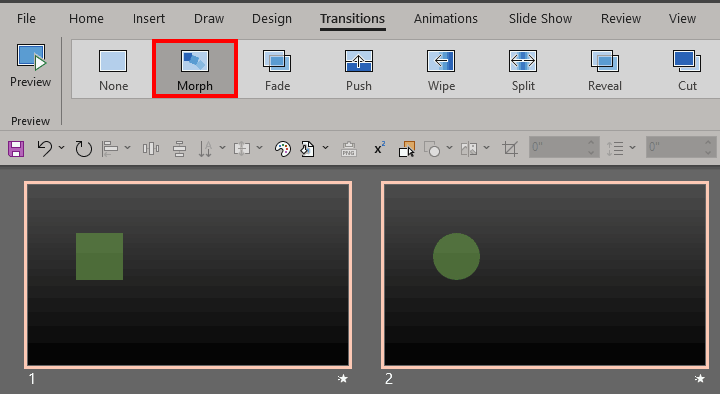
So, how does the Morph transition effect in PowerPoint work? You duplicate a slide and then modify the existing slide objects so that a tween effect is created based on the differences between two or more slides. You can also create your own shapes to Morph rather than use PowerPoint’s pre-built shapes.
To learn more, click a link from the tutorials listed below.
Using Exclamation Named Objects with Morph in PowerPoint
Tutorial Code: 13 10 03
Previous: 13 10 02 Using the Morph Transition with Curve Shapes in PowerPoint
Next: 13 10 04 Using the Morph Transition with Words in PowerPoint
Filed Under:
M
Tagged as: 13-10, Animations and Transitions, Morph in PowerPoint, PowerPoint Tutorials
Comments Off on Morph in PowerPoint: Using Exclamation Named Objects with Morph in PowerPoint
While PowerPoint has a robust animation engine and includes several options, there can be times when you want more. What if you could quickly copy and reuse animations? What if you could mark the end points of motion paths? What if you could find out the possibilities for animation that cannot be done using PowerPoint alone? When you are faced with a similar thought process, you must explore the several PowerPoint add-ins that let you do more with animation.
To learn more, click a link from the tutorials listed below.
Add-ins for Animation in PowerPoint

Tutorial Code: 13 07 01
Previous: 13 06 02 Animate a Moving Car in PowerPoint
Next: 13 08 01 Slide Transitions in PowerPoint
Filed Under:
M
Tagged as: 13-07, Animations and Transitions, More Animation Ideas, PowerPoint Tutorials
Comments Off on More Animation Ideas: Add-ins for Animation in PowerPoint
First of all, older PowerPoint versions did not support text highlighting. And before we explore getting over this limitation, let’s ask ourselves why do we need to highlight text? If you want to emphasize some important words within your slide, then the highlighting may indeed help. However, unlike Microsoft Word, older PowerPoint version do not have a tool to highlight text, but you can use Word’s highlighting options as a workaround!
To learn more, choose your version of PowerPoint. If we do not have a tutorial for your version of PowerPoint, explore the version closest to the one you use.
Highlight Text in PowerPoint 365
Highlight Text in PowerPoint 2013
Highlight Text in PowerPoint 2010
Highlight Text in PowerPoint 2011

Tutorial Code: 05 09 01
Previous: 05 08 25 Translation Options in PowerPoint
Next: 05 09 02 Remove and Copy Highlighting for Text in PowerPoint
Filed Under:
T
Tagged as: 05-09, PowerPoint Tutorials, Text Advanced, Text and Fonts
Comments Off on Text Advanced: Highlight Text in PowerPoint
Microsoft and the Office logo are trademarks or registered trademarks of Microsoft Corporation in the United States and/or other countries.