
This is the print version of this page. All content is copyright Indezine.com 2000-2026.
Definitions and resources for terms and techniques used in the world of presentations
See Also:
PowerPoint and Presenting Notes
PowerPoint and Presenting Glossary
Presentations Glossary in alphabetical order:
A |
B |
C |
D |
E |
F |
G |
H |
I |
J |
K |
L |
M |
N |
O |
P |
Q |
R |
S |
T |
U |
V |
W |
X |
Y |
Z
We already explored how you can link from an anchor object to any slide within the active presentation. However, this sort of linking is only the beginning of the possibilities for linking that PowerPoint provides. To take this to the next level, we will learn how you can link from an anchor object to create a new email message!
To learn more, click a link from the tutorials listed below.
Create a Hyperlink to a New Email Message in PowerPoint 2013

Tutorial Code: 15 02 09
Previous: 15 02 08 Create a New File with a Hyperlink in PowerPoint
Next: 15 02 10 Screen Tips for Hyperlinks in PowerPoint
Filed Under:
H
Tagged as: 15-02, Hyperlinking, Interactivity and Linking, PowerPoint Tutorials
Comments Off on Hyperlinking: Create a Hyperlink to a New Email Message in PowerPoint
We’ve learned about how hyperlinks let you do excellent stuff such as linking between slides or even linking to files outside PowerPoint. However, did you know that you can create a hyperlink that links to a file that does not even exist! Click that hyperlink, and a new file gets instantly created.
To learn more, click a link from the tutorials listed below.
Create a New File with a Hyperlink in PowerPoint 2013

Tutorial Code: 15 02 08
Previous: 15 02 07 Editing Hyperlinks in PowerPoint
Next: 15 02 09 Create a Hyperlink to a New Email Message in PowerPoint
Filed Under:
H
Tagged as: 15-02, Hyperlinking, Interactivity and Linking, PowerPoint Tutorials
Comments Off on Hyperlinking: Create a New File with a Hyperlink in PowerPoint
Columned text layouts are often seen in documents created within word processing programs such as Microsoft Word. Nevertheless, PowerPoint gives you some basic column capabilities, although you should not expect anything close to the controls provided by Word.
To learn more, choose your version of PowerPoint. If we do not have a tutorial for your version of PowerPoint, explore the version closest to the one you use.
Columns Within Text Containers in PowerPoint 2013
Columns Within Text Containers in PowerPoint 2010
Columns Within Text Containers in PowerPoint 2011

Tutorial Code: 05 06 10
Previous: 05 06 09 Character Spacing for Text in PowerPoint
Next: 05 06 11 Change Text Case in PowerPoint
Filed Under:
T
Tagged as: 05-06, PowerPoint Tutorials, Text and Fonts, Text Formatting
Comments Off on Text Formatting: Columns Within Text Containers in PowerPoint
Internal margins are relevant to all three types of text containers in PowerPoint. These three containers are text boxes, text placeholders, and shapes that contain text. Internal margins control the amount of blank space between the perimeter (edge) and the actual text within the text container. Although these margins are similar to the margins of pages in a word-processing document like Microsoft Word, there is a significant difference. Each text container has its own individual margins set, and you can have entirely different margins for different text containers, even if they reside on the same slide.
To learn more, choose your version of PowerPoint. If we do not have a tutorial for your version of PowerPoint, explore the version closest to the one you use.
Internal Margin Options for Text Containers in PowerPoint 2013
Internal Margin Options for Text Containers in PowerPoint 2010
Internal Margin Options for Text Containers in PowerPoint 2011

Tutorial Code: 05 06 08
Previous: 05 06 07 Text Layout Options in PowerPoint
Next: 05 06 09 Character Spacing for Text in PowerPoint
Filed Under:
T
Tagged as: 05-06, PowerPoint Tutorials, Text and Fonts, Text Formatting
Comments Off on Text Formatting: Internal Margin Options for Text Containers in PowerPoint
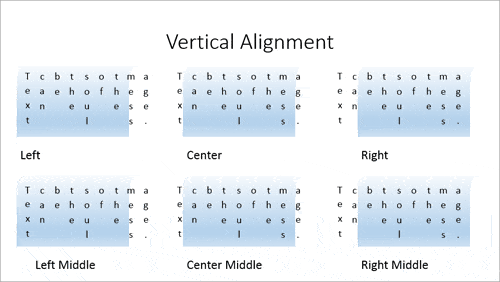
There are three types of text containers that PowerPoint provides: text placeholders, text boxes, and shapes. All three text containers are sufficiently similar in their characteristics for layout options for the text contained inside them.
To learn more, choose your version of PowerPoint. If we do not have a tutorial for your version of PowerPoint, explore the version closest to the one you use.
Text Layout Options in PowerPoint 2013
Text Layout Options in PowerPoint 2010
Text Layout Options in PowerPoint 2011
Tutorial Code: 05 06 07
Previous: 05 06 06 Resize Text Boxes Accurately on a Slide in PowerPoint
Next: 05 06 08 Internal Margin Options for Text Containers in PowerPoint
Filed Under:
T
Tagged as: 05-06, PowerPoint Tutorials, Text and Fonts, Text Formatting
Comments Off on Text Formatting: Text Layout Options in PowerPoint
Microsoft and the Office logo are trademarks or registered trademarks of Microsoft Corporation in the United States and/or other countries.