
This is the print version of this page. All content is copyright Indezine.com 2000-2026.
Definitions and resources for terms and techniques used in the world of presentations
See Also:
PowerPoint and Presenting Notes
PowerPoint and Presenting Glossary
Presentations Glossary in alphabetical order:
A |
B |
C |
D |
E |
F |
G |
H |
I |
J |
K |
L |
M |
N |
O |
P |
Q |
R |
S |
T |
U |
V |
W |
X |
Y |
Z
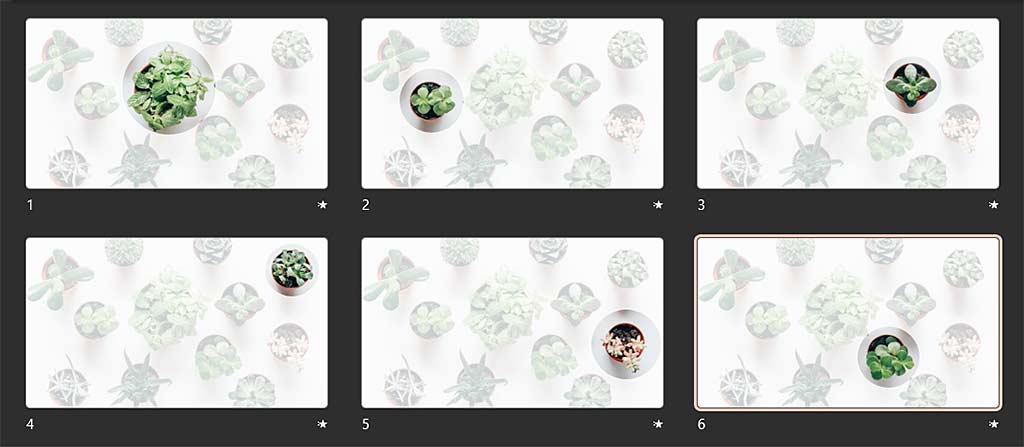
Have you used a large picture in your PowerPoint presentation that covers the entire slide area, and you now want to highlight some parts of the image more than others? Maybe, you have a picture of a lavish food spread at your restaurant, and you want to highlight individual dishes? Or you have a plant nursery, and you want to focus on some unique plants?
To learn more, choose your version of PowerPoint. If we do not have a tutorial for your version of PowerPoint, explore the version closest to the one you use.
Using Morph to Highlight Parts of an Image in PowerPoint 365
Tutorial Code: 13 10 06
Previous: 13 10 05 Using the Morph Transition with Characters in PowerPoint
Next: 14 01 01 PowerPoint Friendly Video Formats
Filed Under:
M
Tagged as: 13-10, Animations and Transitions, Morph in PowerPoint, PowerPoint Tutorials
Comments Off on Morph in PowerPoint: Using Morph to Highlight Parts of an Image in PowerPoint
When you consider using textures to fill up your text, you need not limit yourself to the default textures that PowerPoint offers. You can always explore some third party custom textures including our own Scribble Custom Textures that provide your text with an organic look, as if someone scribbled lines with a pencil to fill them! You can also try some more custom textures from our Ppted Background Texture Collection.
To learn more, choose your version of PowerPoint. If we do not have a tutorial for your version of PowerPoint, explore the version closest to the one you use.
Using Custom Textures as Fill for Text in PowerPoint 2013
Using Custom Textures as Fill for Text in PowerPoint 2010
Using Custom Textures as Fill for Text in PowerPoint 2011

Tutorial Code: 05 07 07
Previous: 05 07 06 Texture Fills for Text in PowerPoint
Next: 05 07 08 Pattern Fills for Text in PowerPoint
Filed Under:
W
Tagged as: 05-07, PowerPoint Tutorials, Text and Fonts, WordArt (incl Text Fills; Lines; and Effects)
Comments Off on WordArt (incl. Text Fills, Lines, and Effects): Using Custom Textures as Fill for Text in PowerPoint
Although you can fill your text so that it appears textured within PowerPoint, the final result depends upon the texture you use for the fill, and how well it contrasts with the slide background. For reasons of readability, make sure that the texture used is not too crowded or even multicolored.
To learn more, choose your version of PowerPoint. If we do not have a tutorial for your version of PowerPoint, explore the version closest to the one you use.
Texture Fills for Text in PowerPoint 2013
Texture Fills for Text in PowerPoint 2010
Texture Fills for Text in PowerPoint 2011

Tutorial Code: 05 07 06
Previous: 05 07 05 Gradient Fills for Text in PowerPoint
Next: 05 07 07 Using Custom Textures as Fill for Text in PowerPoint
Filed Under:
W
Tagged as: 05-07, PowerPoint Tutorials, Text and Fonts, WordArt (incl Text Fills; Lines; and Effects)
Comments Off on WordArt (incl. Text Fills, Lines, and Effects): Texture Fills for Text in PowerPoint
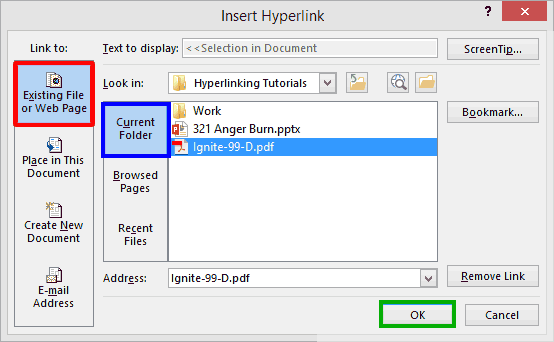
Although you can link from one presentation to another in PowerPoint, you can essentially use the same concept to link to any other file! You can link to PDFs, Word documents, Excel sheets, video files, and anything else. The link will then open in the associated program. For example, a PDF will typically open in Adobe Acrobat or Adobe Acrobat Reader. Word files will open in Microsoft Word. Of course, this depends on whether you have a suitable program installed on your system!
To learn more, click a link from the tutorials listed below.
Linking to Any File in PowerPoint 2013
Tutorial Code: 15 02 11
Previous: 15 02 10 Screen Tips for Hyperlinks in PowerPoint
Next: 16 01 01 Check Compatibility in PowerPoint
Filed Under:
H
Tagged as: 15-02, Hyperlinking, Interactivity and Linking, PowerPoint Tutorials
Comments Off on Hyperlinking: Linking to Any File in PowerPoint
You may have seen text used creatively as a container for picture fills so many times, but did you realize that you could do it within PowerPoint? Yes, all you need is PowerPoint and nothing else! Well, of course you still need imagination, the proper picture to use as a fill, and a nice thick, blocky font.
To learn more, choose your version of PowerPoint. If we do not have a tutorial for your version of PowerPoint, explore the version closest to the one you use.
Text Characters with Picture Fills in PowerPoint

Tutorial Code: 05 07 04
Previous: 05 07 03 Picture Fills for Text in PowerPoint
Next: 05 07 05 Gradient Fills for Text in PowerPoint
Filed Under:
W
Tagged as: 05-07, PowerPoint Tutorials, Text and Fonts, WordArt (incl Text Fills; Lines; and Effects)
Comments Off on WordArt (incl. Text Fills, Lines, and Effects): Text Characters with Picture Fills in PowerPoint
Microsoft and the Office logo are trademarks or registered trademarks of Microsoft Corporation in the United States and/or other countries.