
This is the print version of this page. All content is copyright Indezine.com 2000-2026.
Definitions and resources for terms and techniques used in the world of presentations
See Also:
PowerPoint and Presenting Notes
PowerPoint and Presenting Glossary
Presentations Glossary in alphabetical order:
A |
B |
C |
D |
E |
F |
G |
H |
I |
J |
K |
L |
M |
N |
O |
P |
Q |
R |
S |
T |
U |
V |
W |
X |
Y |
Z

Tim Stumbles is the co-founder of Office Timeline, a start-up focused on making project presentations simple. Office Timeline offers timeline maker and Gantt chart software, natively built for Microsoft PowerPoint. With Office Timeline, over 500,000 PowerPoint users easily create impressive project presentations for important client and executive meetings.
Here’s a list of links on Indezine and similar sites where he has been featured:
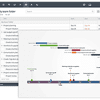 Office Timeline’s Integration with Wrike: Conversation with Tim Stumbles
March 30, 2016
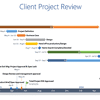 Office Timeline Plus Edition: Conversation with Tim Stumbles
February 9, 2015
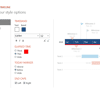 Office Timeline: The Indezine Review
May 07, 2014
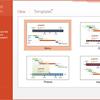 Office Timeline: Conversation with Tim Stumbles
December 3, 2012
Filed Under:
T
Tagged as: Personality
Comments Off on Tim Stumbles

Richard Michaels is an expert at applying critical thinking to address large-scale business challenges and has been responsible for the implementation of training initiatives for organizations including Bristol-Myers Squibb, IBM, Novartis, PricewaterhouseCoopers, Schering-Plough, Sanofi-Aventis, FDA, U.S. Army Training Command, and the Singapore Institute of Management.
Here’s a list of links on Indezine and similar sites where he has been featured:
 George for PowerPoint: Conversation with Richard Michaels
August 13, 2014
Zapps Pro: Conversation with Richard Michaels
May 4, 2016
Filed Under:
R
Tagged as: Personality
Comments Off on Richard Michaels
So, you’re absolutely sure PowerPoint is sitting nicely on your computer… but then you double-click a PowerPoint file and — ta-da! Instead of opening in PowerPoint like a well-trained puppy, it either refuses to open or jumps into some other random program you didn’t invite to the party.
To learn more, choose your version of PowerPoint. If we do not have a tutorial for your version of PowerPoint, explore the version closest to the one you use.
Repair File Associations in Windows 11
Repair File Associations in Windows 10
Repair File Associations in Windows XP

Tutorial Code: 22 02 01
Previous: 22 01 01 PowerPoint Updates
Next: 22 03 01 Troubleshooting Slide Objects
Filed Under:
P
Tagged as: 22-02, PowerPoint File Issues, PowerPoint Tutorials, Troubleshooting
Comments Off on PowerPoint File Issues: Repair File Associations
Stay on top of PowerPoint’s evolving landscape with practical troubleshooting tips and update guidance. This page explores how specific updates—such as 2464617 and 2464588—impact functionality, and provides clear steps to remove or disable them when needed.
To learn more, choose your version of PowerPoint. If we do not have a tutorial for your version of PowerPoint, explore the version closest to the one you use.
Remove and Disable the 2464617 update for PowerPoint
Remove and Disable the 2464588 update for PowerPoint

Tutorial Code: 22 01 01
Previous: 21 01 02 Locating and Sharing the Help URL for a Topic
Next: 22 02 01 Repair PowerPoint File Associations
Filed Under:
P
Tagged as: 22-01, PowerPoint Tutorials, PowerPoint Updates, Troubleshooting
Comments Off on PowerPoint Updates

Violeta Saladiene is a member of Toastmasters International, a not-for-profit organisation that has provided communication and leadership skills since 1924 through a worldwide network of clubs. There are more than 400 clubs and 10,000 members in the UK and Ireland.
Here’s a list of links on Indezine and similar sites where she has been featured:
 Start Your Presentation with Impact
November 25, 2025
 Mastering the Art of Podcast Presentation
November 4, 2024
Filed Under:
V
Tagged as: Personality
Comments Off on Violeta Saladiene
Microsoft and the Office logo are trademarks or registered trademarks of Microsoft Corporation in the United States and/or other countries.