
This is the print version of this page. All content is copyright Indezine.com 2000-2026.
Definitions and resources for terms and techniques used in the world of presentations
See Also:
PowerPoint and Presenting Notes
PowerPoint and Presenting Glossary
Presentations Glossary in alphabetical order:
A |
B |
C |
D |
E |
F |
G |
H |
I |
J |
K |
L |
M |
N |
O |
P |
Q |
R |
S |
T |
U |
V |
W |
X |
Y |
Z

A refugee from 18 years in corporate management and marketing, Rikk Flohr turned his attention inward to his 20-year love affair with photography. He founded his design firm Fleeting Glimpse Images in January 2006 and divides his days between various print and screen design projects, presentation consulting and, of course, photography. He lives in Apple Valley, Minnesota.
Here’s a list of links on Indezine.com where he has been featured:
 iPad for Presenter View in PowerPoint: Conversation with Rikk Flohr
November 23, 2011
 Photographs and Copyrights: Conversation with Rikk Flohr
November 10, 2009
 PowerPoint and Photography: Conversation with Rikk Flohr
November 17, 2007
Filed Under:
R
Tagged as: Personality
Comments Off on Rikk Flohr
Many times, you can manage with a table within PowerPoint instead of an actual Excel spreadsheet. This is especially true when you want your table content to have a consistent look and feel with the rest of your slide. However, tables are dumb, and they cannot work with formulas or even do the most basic functions that Excel provides. So, there may be times when you would want a real Excel spreadsheet within your slides rather than a table.
To learn more, choose your version of PowerPoint. If we do not have a tutorial for your version of PowerPoint, explore the version closest to the one you use.
Insert Excel Spreadsheet in PowerPoint 2013

Tutorial Code: 17 01 02
Previous: 17 01 01 Using Excel and PowerPoint Together
Next: 17 01 03 Link to Excel Cells and Ranges in PowerPoint
Filed Under:
W
Tagged as: 17-01, PowerPoint Tutorials, Working with Microsoft Excel, Working with Other Programs
Comments Off on Working with Microsoft Excel: Insert Excel Spreadsheet in PowerPoint
If any two programs were meant to work together in the Microsoft Office suite, they have to be Excel and PowerPoint. Almost everyone who works with Excel has to use PowerPoint to present data and charts to an audience, or even create their business reports in PowerPoint. On the other hand, all PowerPoint charts are essentially created by Excel, even if many of you may not be aware of this fact.
To learn more, choose your version of PowerPoint. If we do not have a tutorial for your version of PowerPoint, explore the version closest to the one you use.
Guidelines: Using Excel and PowerPoint Together

Tutorial Code: 17 01 01
Previous: 16 14 01 PowerPoint to EXE: Complete Series
Next: 17 01 02 Insert Excel Spreadsheet in PowerPoint
Filed Under:
W
Tagged as: 17-01, PowerPoint Tutorials, Working with Microsoft Excel, Working with Other Programs
Comments Off on Working with Microsoft Excel: Guidelines: Using Excel and PowerPoint Together
Radar charts compare aggregate values of several data series.
To learn more, choose your version of PowerPoint. If we do not have a tutorial for your version of PowerPoint, explore the version closest to the one you use.
Radar Chart Type in PowerPoint

Tutorial Code: 10 14 12
Previous: 10 14 11 Bubble Chart Type in PowerPoint
Next: 10 14 13 Harvey Balls in PowerPoint
Filed Under:
P
Tagged as: 10-14, Charts and Graphs, PowerPoint Chart Types, PowerPoint Tutorials
Comments Off on PowerPoint Chart Types: Radar Chart Type in PowerPoint
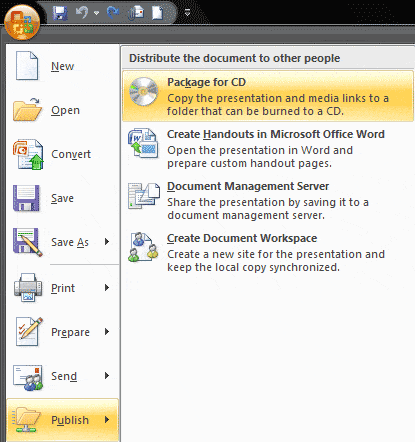
PowerPoint includes the Package for CD feature, which we’ll use with a cool and undocumented Windows utility to create a standalone EXE file from PPT or PPTX presentations that can play on any system with Windows XP, Vista, or higher installed.
To learn more, choose a specific tutorial link from the list below.
Convert PowerPoint to EXE – 1. Create a Packaged Folder
Convert PowerPoint to EXE – 2. Get Started with IExpress
Convert PowerPoint to EXE – 3. Getting Ahead with IExpress
Convert PowerPoint to EXE – 4. Creating the EXE
Tutorial Code: 16 14 01
Previous: 16 13 01 Convert PowerPoint to Flash Manually
Next: 17 01 01 Using Excel and PowerPoint Together
Filed Under:
P
Tagged as: 16-14, PowerPoint to EXE, PowerPoint Tutorials, Share and Prepare
Comments Off on PowerPoint to EXE: Complete Series
Microsoft and the Office logo are trademarks or registered trademarks of Microsoft Corporation in the United States and/or other countries.