
This is the print version of this page. All content is copyright Indezine.com 2000-2026.
Definitions and resources for terms and techniques used in the world of presentations
See Also:
PowerPoint and Presenting Notes
PowerPoint and Presenting Glossary
Presentations Glossary in alphabetical order:
A |
B |
C |
D |
E |
F |
G |
H |
I |
J |
K |
L |
M |
N |
O |
P |
Q |
R |
S |
T |
U |
V |
W |
X |
Y |
Z
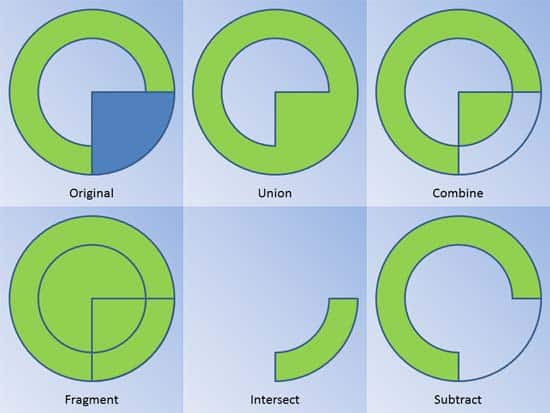
Merge Shape commands are a set of five commands that work with shapes, text and pictures. Using these commands, you can play with shapes, text, and picture—and merge them, or subtract one object from the other. The results can be fascinating and playing with the Merge Shape commands can be addictive.
To learn more, choose your version of PowerPoint. If we do not have a tutorial for your version of PowerPoint, explore the version closest to the one you use.
Merge Shape Commands in PowerPoint 2016
Merge Shape Commands in PowerPoint 2013
Merge Shape Commands in PowerPoint 2016
Merge Shape Commands in PowerPoint 2011
Tutorial Code: 06 10 01
Previous: 06 09 03 Align Text Within Shapes and Text Boxes in PowerPoint
Next: 06 10 02 Add Combine Shape Commands to the Quick Access Toolbar in PowerPoint
Filed Under:
M
Tagged as: 06-10, Merge Shapes, PowerPoint Tutorials, Shapes
Comments Off on Merge Shapes: Merge Shape Commands in PowerPoint
Articulate is a New York, USA based provider of e-learning software that works well with PowerPoint content. Most of their products show up as add-ins inside PowerPoint.
Their principal products are Presenter, Engage, and QuizMaker — all three are available as individual products, and also sold as a suite of products called Articulate Studio. Articulate also hosts an online service called Articulate Online that lets you track your e-learning content. In addition, Articulate also offers other products such as Storyline and Rise.
Here are a few reviews, conversations, etc. about Articulate:
 Articulate 360: Conversation with Tom Kuhlmann
January 17, 2018
Articulate Storyline 2: Conversation with Tom Kuhlmann
May 11, 2015
 Articulate Studio ’13: Conversation with Tom Kuhlmann
December 23, 2013
 Articulate Storyline: Conversation with Tom Kuhlmann
June 21, 2012
 Articulate, PowerPoint, and E-Learning: Conversation with Tom Kuhlmann
March 30, 2012
 Articulate Presenter ’09: Conversation with Mark Schwartz
November 4, 2008
 Articulate Presenter ’09: The Indezine Review
October 15, 2008
 Articulate Quizmaker ’09: Conversation with Mark Schwartz
October 15, 2008
 Articulate Video Encoder ’09: The Indezine Review
October 14, 2008
 Articulate Engage ’09: Conversation with Mark Schwartz
October 10, 2008
 Articulate Engage ’09: The Indezine Review
October 8, 2008
 Articulate Quizmaker ’09: The Indezine Review
October 08, 2008
 Articulate Online: Conversation with Gabe Anderson
May 12, 2007
 Articulate Online Announced
April 18, 2007
Articulate: Conversation with Gabe Anderson
December 21, 2006
 PowerPoint to Flash: Articulate or Camtasia?
December 14, 2006
 Articulate Engage: The Indezine Review
November 3, 2006
 Articulate Updates Engage
October 24, 2006
 Articulate Quizmaker: The Indezine Review
October 19, 2006
 Articulate Presenter 5: The Indezine Review
October 10, 2006
 Bringing Distance Learning Alive
August 4, 2005
 Articulate Announces Rapid E-Learning Studio
July 12, 2005
 Articulate Presenter: The Indezine Review
August 9, 2004
 Word of Mouth – The Articulate Blog
June 11, 2004
 The Online Rich Media Marketplace
February 10, 2004

Filed Under:
A
Tagged as: Add-in, Articulate, e-Learning, Microsoft Office, PowerPoint
Comments Off on Articulate
PowerPoint has a ready-to-use collection of shapes that can be inserted with a click or two. You can add multiple shapes on the same slide and then flip, rotate, reorder, or group them as required to create your own combined diagrams and designs within PowerPoint. These combined shapes help create more involved diagrams such as a target diagram.
To learn more, choose your version of PowerPoint. If we do not have a tutorial for your version of PowerPoint, explore the version closest to the one you use.
Drawing Target Diagrams in PowerPoint 2013
Drawing Target Diagrams in PowerPoint 2010
Drawing Target Diagrams in PowerPoint 2011

Tutorial Code: 06 16 01
Previous: 06 15 09 Creating Anchor Points for Connectors in PowerPoint
Next: 06 16 02 Drawing Parabolas in PowerPoint
Filed Under:
E
Tagged as: 06-16, Exotic Shapes, PowerPoint Tutorials, Shapes
Comments Off on Exotic Shapes: Drawing Target Diagrams in PowerPoint
SmartArt is the name of a diagramming component in Microsoft Office applications such as PowerPoint, Word, Excel, etc. SmartArt was first introduced in Office 2007 for Windows and has since then been an integral part of all Microsoft Office releases, on both Windows and Mac.
SmartArt allows you to replace boring bullet points with info-graphic content using text-within-shapes that’s more logical to view and present.
Here are some features on Indezine that pertain to SmartArt:
Indezine’s SmartArt tutorials page has over 50 steo-by-step tutorials.
Also, read an excerpt from my book, Special Edition: Using Microsoft Office PowerPoint 2007. The chapter, Working With SmartArt is available on this site.

Filed Under:
S
Tagged as: Charts, Diagrams, Microsoft Office, PowerPoint, SmartArt
Comments Off on SmartArt
A slide background fill is a type of PowerPoint fill for a shape that shows the area of the background right beneath the shape. Even if the shape is animated and moves to another area of the slide, the shape continues to show the same area of the background where it was originally placed.
Filed Under:
S
Tagged as: 08-01, Fills Lines and Effects, PowerPoint Tutorials, Shape Fills
Comments Off on Shape Fills: Add Slide Background Fill to Shapes in PowerPoint
Microsoft and the Office logo are trademarks or registered trademarks of Microsoft Corporation in the United States and/or other countries.