
This is the print version of this page. All content is copyright Indezine.com 2000-2026.
Definitions and resources for terms and techniques used in the world of presentations
See Also:
PowerPoint and Presenting Notes
PowerPoint and Presenting Glossary
Presentations Glossary in alphabetical order:
A |
B |
C |
D |
E |
F |
G |
H |
I |
J |
K |
L |
M |
N |
O |
P |
Q |
R |
S |
T |
U |
V |
W |
X |
Y |
Z
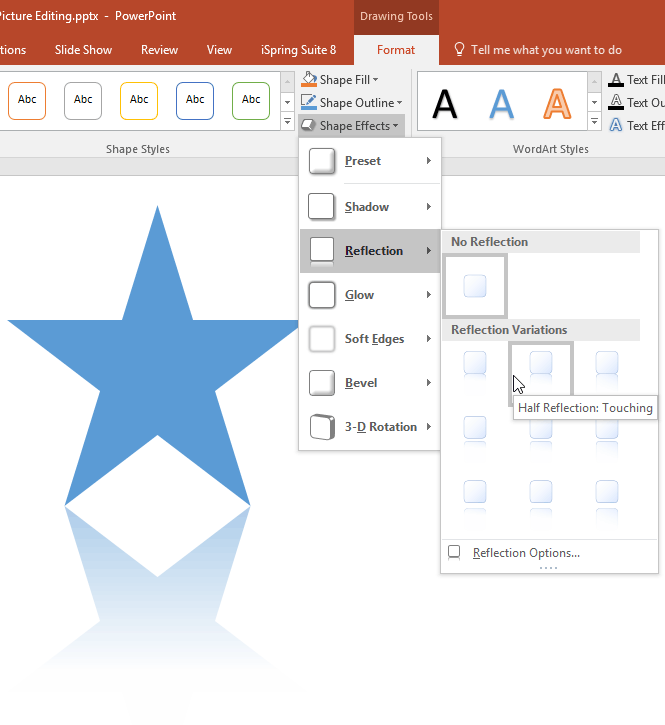
A reflection effect applied to a slide object shows its mirror reflection on the slide, including all its colors in a blurred way – similar to an object’s reflection on water or glass. To learn more about how to apply this effect, and how to edit it to match your requirements, refer to the following tutorials based on your PowerPoint version:
To learn more, choose your version of PowerPoint. If we do not have a tutorial for your version of PowerPoint, explore the version closest to the one you use.
Apply Reflection Effects to Shapes in PowerPoint 2016
Apply Reflection Effects to Shapes in PowerPoint 2013
Apply Reflection Effects to Shapes in PowerPoint 2010
Apply Reflection Effects to Shapes in PowerPoint 2007
Apply Reflection Effects to Shapes in PowerPoint 2011
Tutorial Code: 08 03 05
Previous: 08 03 04 Advanced Shadow Effect Options in PowerPoint
Next: 08 03 06 Advanced Reflection Effect Options in PowerPoint
Filed Under:
S
Tagged as: 08-03, Fills Lines and Effects, PowerPoint Tutorials, Shape Effects
Comments Off on Shape Effects: Apply Reflection Effects to Shapes in PowerPoint
Shape fills such as solid colors, gradients, pictures, and textures can have a Transparency attribute that lets you reduce the opacity of a fill so that the slide object or background behind shows through. Transparency is calculated in percentages and you can change its value all the way from 0 to 100%. Some fill options, such as pattern and slide background have no Transparency options.
Filed Under:
S
Tagged as: 08-01, Fills Lines and Effects, PowerPoint Tutorials, Shape Fills
While learning about chart axes, you will come across two terms, major and minor units. These are the intervals at which the axis spaces itself. As the names suggest, you can choose to space the axis at two levels: major and minor.
To learn more, choose your version of PowerPoint. If we do not have a tutorial for your version of PowerPoint, explore the version closest to the one you use.
Change Major and Minor Units of Value Axis in PowerPoint 2013
Change Major and Minor Units of Value Axis in PowerPoint 2010
Change Major and Minor Units of Value Axis in PowerPoint 2007
Change Major and Minor Units of Value Axis in PowerPoint 2002 and 2003
Change Major and Minor Units of Value Axis in PowerPoint 2011

Tutorial Code: 10 08 05
Previous: 10 08 04 Tick Marks in PowerPoint
Next: 10 08 06 Changing Axis Labels in PowerPoint
Filed Under:
C
Tagged as: 10-08, Chart Axes, Charts and Graphs, PowerPoint Tutorials
Comments Off on Chart Axes: Change Major and Minor Units of Value Axis in PowerPoint

Garr Reynolds is a well-known presentation designer and author. He lives in Japan.
Here’s a list of links on Indezine.com where he has been featured:
 Hand Drawn PowerPoint Elements: Conversation with Peter Zvirinsky
February 4, 2013
 Garr Reynolds at the Presentation Summit 2011
October 8, 2011
 PowerPoint Alternatives
August 24, 2011
 SlideShare Announces Contest Winners
September 4, 2008
 Presentations Roundtable with Ric Bretschneider
January 5, 2008
Filed Under:
G
Tagged as: Garr Reynolds, Personality
Comments Off on Garr Reynolds
Gradient fills are typically blended fills between two or more colors that graduate from one color to another. Although shapes filled with gradients look so incredible, make sure you choose the colors that form the gradient very carefully. PowerPoint’s basic gradients are all very useable since they just blend a Theme color with white or black, making the resultant gradient lighter or darker.
Filed Under:
S
Tagged as: 08-01, Fills Lines and Effects, PowerPoint Tutorials, Shape Fills
Microsoft and the Office logo are trademarks or registered trademarks of Microsoft Corporation in the United States and/or other countries.