
This is the print version of this page. All content is copyright Indezine.com 2000-2026.
Definitions and resources for terms and techniques used in the world of presentations
See Also:
PowerPoint and Presenting Notes
PowerPoint and Presenting Glossary
Presentations Glossary in alphabetical order:
A |
B |
C |
D |
E |
F |
G |
H |
I |
J |
K |
L |
M |
N |
O |
P |
Q |
R |
S |
T |
U |
V |
W |
X |
Y |
Z
PowerPoint’s Photo Album feature is very powerful, allowing you to insert hundreds of pictures in two or three clicks. The best part is all these pictures are editable, right down to their picture layouts, captions, etc. In fact, you can also change the frame shapes of the pictures. You’ll end up with pictures that have drop shadows, or a black border, or even a picture that’s contained in a frame with rounded corners. What frame you choose depends entirely upon you.
To learn more, choose your version of PowerPoint. If we do not have a tutorial for your version of PowerPoint, explore the version closest to the one you use.
Frame Shapes for Photo Album in PowerPoint 2013
Frame Shapes for Photo Album in PowerPoint 2010

Tutorial Code: 09 07 07
Previous: 09 07 06 Black and White Options for Photo Album Presentations in PowerPoint
Next: 09 07 08 Apply Themes to Photo Album Presentations in PowerPoint
Filed Under:
P
Tagged as: 09-07, Photo Album, Pictures and Visuals, PowerPoint Tutorials
Comments Off on Photo Album: Frame Shapes for Photo Album in PowerPoint
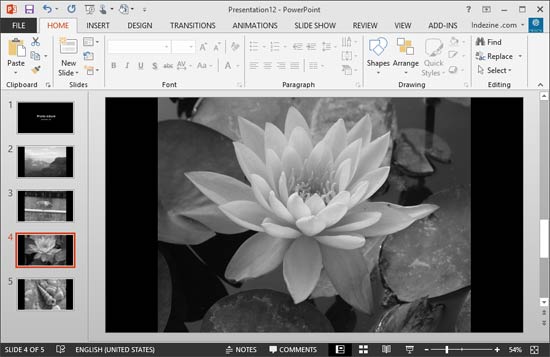
Rich, vibrant color attracts more attention in a picture than black and white. However, the contrast visible in a black and white photo is far superior. Artists and photography purists have long hailed the black and white picture as a creative medium. You may want to extend this creative medium to your Photo Album presentations. Fortunately, a click or two is all that is required to create an inspirational black and white Photo Album.
To learn more, choose your version of PowerPoint. If we do not have a tutorial for your version of PowerPoint, explore the version closest to the one you use.
Black and White Options for Photo Album Presentations in PowerPoint 2013
Black and White Options for Photo Album Presentations in PowerPoint 2010
Tutorial Code: 09 07 06
Previous: 09 07 05 Using Captions in Photo Album Presentations in PowerPoint
Next: 09 07 07 Frame Shapes for Photo Album in PowerPoint
Filed Under:
P
Tagged as: 09-07, Photo Album, Pictures and Visuals, PowerPoint Tutorials
Comments Off on Photo Album: Black and White Options for Photo Album Presentations in PowerPoint
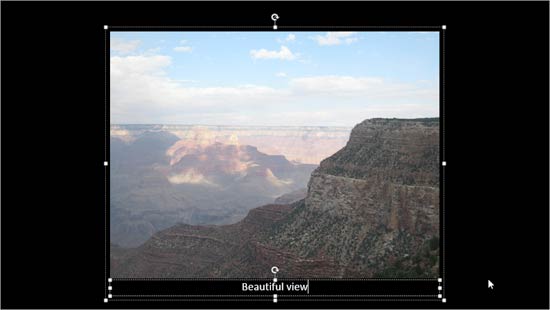
We explored how you can create a new Photo Album presentation, and how you can edit existing Photo Album presentations by reordering pictures and changing the slide’s picture layouts. Other than these options, PowerPoint also enables you to add captions for the pictures you add in a Photo Album presentation.
To learn more, choose your version of PowerPoint. If we do not have a tutorial for your version of PowerPoint, explore the version closest to the one you use.
Using Captions in Photo Album Presentations in PowerPoint 2013
Using Captions in Photo Album Presentations in PowerPoint 2010
Tutorial Code: 09 07 05
Previous: 09 07 04 Photo Album Picture Layouts in PowerPoint
Next: 09 07 06 Black and White Options for Photo Album Presentations in PowerPoint
Filed Under:
P
Tagged as: 09-07, Photo Album, Pictures and Visuals, PowerPoint Tutorials
Comments Off on Photo Album: Using Captions in Photo Album Presentations in PowerPoint
Once you create a Photo Album, you can make changes to the layouts of the individual slides, such as how many pictures you want to be visible on a single slide. You can also choose to show slide titles (or not), or even show your pictures in full-screen view where one individual picture fits the entire slide area. What choices you make will depend entirely upon you.
To learn more, choose your version of PowerPoint. If we do not have a tutorial for your version of PowerPoint, explore the version closest to the one you use.
Photo Album Picture Layouts in PowerPoint 2013
Photo Album Picture Layouts in PowerPoint 2010

Tutorial Code: 09 07 04
Previous: 09 07 03 Reorder, Remove, and Edit Photos within Photo Album in PowerPoint
Next: 09 07 05 Using Captions in Photo Album Presentations in PowerPoint
Filed Under:
P
Tagged as: 09-07, Photo Album, Pictures and Visuals, PowerPoint Tutorials
Comments Off on Photo Album: Photo Album Picture Layouts in PowerPoint
After your Photo Album has been created, you may forget about its existence for a few days or months. Then, when you open the Photo Album presentation again, you can edit it almost like you have just created it a moment ago! You can edit the photo content in many ways, since the Edit Photo Album dialog box provides abundant possibilities. We look at reordering and editing photos and also removing the ones you no longer need within the Photo Album.
To learn more, choose your version of PowerPoint. If we do not have a tutorial for your version of PowerPoint, explore the version closest to the one you use.
Reorder, Remove, and Edit Photos within Photo Album in PowerPoint 2013
Reorder, Remove, and Edit Photos within Photo Album in PowerPoint 2010

Tutorial Code: 09 07 03
Previous: 09 07 02 Editing Your Photo Album in PowerPoint
Next: 09 07 04 Photo Album Picture Layouts in PowerPoint
Filed Under:
P
Tagged as: 09-07, Photo Album, Pictures and Visuals, PowerPoint Tutorials
Comments Off on Photo Album: Reorder, Remove, and Edit Photos within Photo Album in PowerPoint
Microsoft and the Office logo are trademarks or registered trademarks of Microsoft Corporation in the United States and/or other countries.