
This is the print version of this page. All content is copyright Indezine.com 2000-2026.
Definitions and resources for terms and techniques used in the world of presentations
See Also:
PowerPoint and Presenting Notes
PowerPoint and Presenting Glossary
Presentations Glossary in alphabetical order:
A |
B |
C |
D |
E |
F |
G |
H |
I |
J |
K |
L |
M |
N |
O |
P |
Q |
R |
S |
T |
U |
V |
W |
X |
Y |
Z
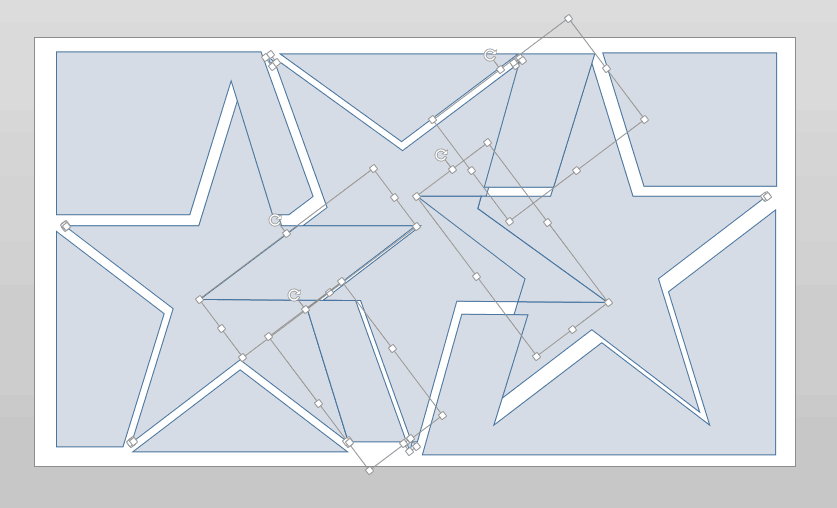
The newest versions of PowerPoint provide five options within the Merge Shapes gallery. While four of the five options either remove or retain something, the fifth option known as Fragment finds common ground by keeping everything. Yes, it discards nothing at all. In fact, it “fragments” each possible division caused by overlapping shapes and turns them into many small shapes.
To learn more, choose your version of PowerPoint. If we do not have a tutorial for your version of PowerPoint, explore the version closest to the one you use.
Shape Fragment Command in PowerPoint 2016
Shape Fragment Command in PowerPoint 2013
Shape Fragment Command in PowerPoint 2016
Tutorial Code: 06 10 05
Previous: 06 10 04 Shape Union Command in PowerPoint
Next: 06 10 06 Shape Intersect Command in PowerPoint
Filed Under:
M
Tagged as: 06-10, Merge Shapes, PowerPoint Tutorials, Shapes
Comments Off on Merge Shapes: Shape Fragment Command in PowerPoint
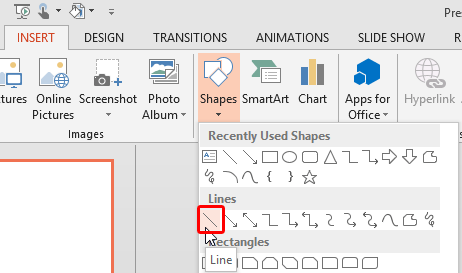
Beyond being just a program to create slides, PowerPoint is also a great illustration program with tools and options that rival top end graphic programs. There has always been the ability to create shapes from scratch such as circles, rectangles, triangles, hearts, smileys, etc. Additionally, you can find Line options within the Shapes gallery. The following introductory tutorials show you how to draw a simple line; please choose a version from the listing below:
Drawing Lines in PowerPoint 2016
Drawing Lines in PowerPoint 2013
Drawing Lines in PowerPoint 2010
Drawing Line in PowerPoint 2007
Drawing Lines in PowerPoint 2011
You May Also Like: Drawing Perfect Circles
Tutorial Code: 06 13 01
Previous: 06 12 04 Adding Iconography to Action Buttons in PowerPoint
Next: 06 13 02 Drawing Curved Lines in PowerPoint
Filed Under:
D
Tagged as: Drawing Lines, Drawing Lines in PowerPoint, PowerPoint Tutorials, Shapes
Comments Off on Drawing Lines: Drawing Straight Lines in PowerPoint
Why would anyone want to duplicate slides? There are many reasons to do so. For example, you may want to create another slide that is similar to what you already have. Or you may need to use the same slide twice. Or perhaps create a slightly different table or chart than what you already have on an existing slide. Duplicating and editing slides is easier than redoing it from scratch. Whatever your reasons may be, it is easy to duplicate slides in both the Slides Pane and Slide Sorter View.
Filed Under:
W
Tagged as: 01-09, Interface and Basics, PowerPoint Tutorials, Working with Slides
Comments Off on Working with Slides: Duplicate Slides in PowerPoint
It’s been observed that most of the time, users may remove an animation and apply another one rather than changing one animation into another. This may be because in PowerPoint there is no particular option within the interface that changes the animation. But there is still a very easy one-click operation to change an existing animation to another one, as you will learn in the following tutorials.
To learn more, choose your version of PowerPoint. If we do not have a tutorial for your version of PowerPoint, explore the version closest to the one you use.
Change Animations in PowerPoint 2016
Change Animations in PowerPoint 2013
Change Animations in PowerPoint 2010
Change Animations in PowerPoint 2007, 2003, and 2002
Change Animations in PowerPoint 2011

Tutorial Code: 13 03 05
Previous: 13 03 04 Reorder Animations in PowerPoint
Next: 13 03 06 Show and Hide the Advanced Animation Timeline in PowerPoint
Filed Under:
A
Tagged as: 13-03, Advanced Animation Concepts, Animations and Transitions, PowerPoint Tutorials
Comments Off on Advanced Animation Concepts: Change Animations in PowerPoint
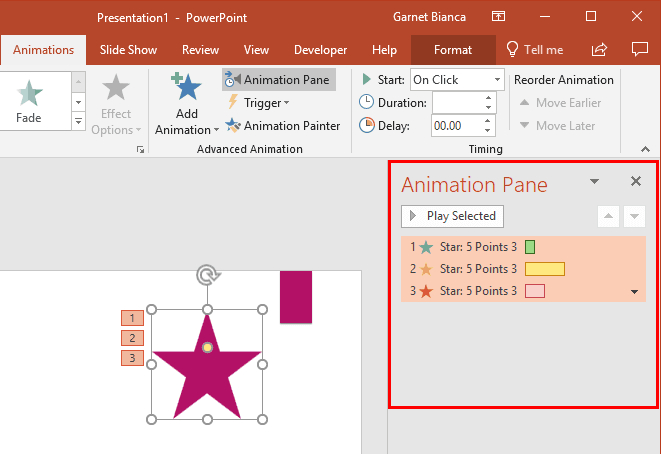
Removing an animation in PowerPoint is a simple select-and-click option, but even before you remove any animations, do ascertain why you want to remove them. If the animation is there for a particular reason, you may want to look at other options first, as explained below.
To learn more, choose your version of PowerPoint. If we do not have a tutorial for your version of PowerPoint, explore the version closest to the one you use.
Remove Animations in PowerPoint 2016
Remove Animations in PowerPoint 2013
Remove Animations in PowerPoint 2010
Remove Animations in PowerPoint 2007
Remove Animations in PowerPoint 2011
Tip: Do you want to remove all animations from your slides? Is there a magic button somewhere in PowerPoint that can get rid of all animations all together? Yes, you can do this easily in PowerPoint using some simple VBA code, says John Wilson. Read more in our VBA Code: Remove Animations in PowerPoint.
Tutorial Code: 13 03 03
Previous: 13 03 02 Animation Speed in PowerPoint
Next: 13 03 04 Reorder Animations in PowerPoint
Filed Under:
A
Tagged as: 13-03, Advanced Animation Concepts, Animations and Transitions, PowerPoint Tutorials
Comments Off on Advanced Animation Concepts: Remove Animations in PowerPoint
Microsoft and the Office logo are trademarks or registered trademarks of Microsoft Corporation in the United States and/or other countries.