
This is the print version of this page. All content is copyright Indezine.com 2000-2026.
Definitions and resources for terms and techniques used in the world of presentations
See Also:
PowerPoint and Presenting Notes
PowerPoint and Presenting Glossary
Presentations Glossary in alphabetical order:
A |
B |
C |
D |
E |
F |
G |
H |
I |
J |
K |
L |
M |
N |
O |
P |
Q |
R |
S |
T |
U |
V |
W |
X |
Y |
Z
When you run a spell check, PowerPoint looks at each word you have typed and matches those words with the entries listed in its dictionary. If it comes across any word that the dictionary does not contain, it goes ahead and marks that word as misspelled. Yes, if a word does not exist within that dictionary, it is not necessarily misspelled! There are so many specialized words in different knowledge branches like medicine, research, law, computing, etc. that are not common. To counter this state of affairs, you can use specialized dictionaries. These dictionaries can be then loaded within PowerPoint and other Microsoft Office programs to give you a larger range of words to use.
To learn more, choose your version of PowerPoint. If we do not have a tutorial for your version of PowerPoint, explore the version closest to the one you use.
Loading and Using Custom Dictionaries in PowerPoint 365
Loading and Using Custom Dictionaries in PowerPoint 2016
Loading and Using Custom Dictionaries in PowerPoint 2013
Loading and Using Custom Dictionaries in PowerPoint 2010
Loading and Using Custom Dictionaries in PowerPoint 2011

Tutorial Code: 05 08 12
Previous: 05 08 11 Find and Replace Words in PowerPoint
Next: 05 08 13 Creating and Editing Custom Dictionaries in PowerPoint
Filed Under:
S
Tagged as: 05-08, AutoCorrect, AutoCorrect Entries in PowerPoint, PowerPoint Tutorials, Spelling, Spelling AutoCorrect and Reference Tools
Comments Off on Spelling, AutoCorrect, and Reference Tools: Loading and Using Custom Dictionaries in PowerPoint
The AutoCorrect feature is dependent on a small list of words and phrases. This list contains two columns called Replace and With. For example, the Replace entry for teh will correspond to the With entry containing the word the.
To learn more, choose your version of PowerPoint. If we do not have a tutorial for your version of PowerPoint, explore the version closest to the one you use.
Creating and Editing AutoCorrect Entries in PowerPoint 365
Creating and Editing AutoCorrect Entries in PowerPoint 2016
Creating and Editing AutoCorrect Entries in PowerPoint 2013
Creating and Editing AutoCorrect Entries in PowerPoint 2010
Creating and Editing AutoCorrect Entries in PowerPoint 2011

Tutorial Code: 05 08 07
Previous: 05 08 06 AutoCorrect Options in PowerPoint
Next: 05 08 08 Saving and Sharing AutoCorrect Entries in PowerPoint
Filed Under:
S
Tagged as: 05-08, AutoCorrect, AutoCorrect Entries in PowerPoint, PowerPoint Tutorials, Spelling, Spelling AutoCorrect and Reference Tools
Comments Off on Spelling, AutoCorrect, and Reference Tools: Creating and Editing AutoCorrect Entries in PowerPoint
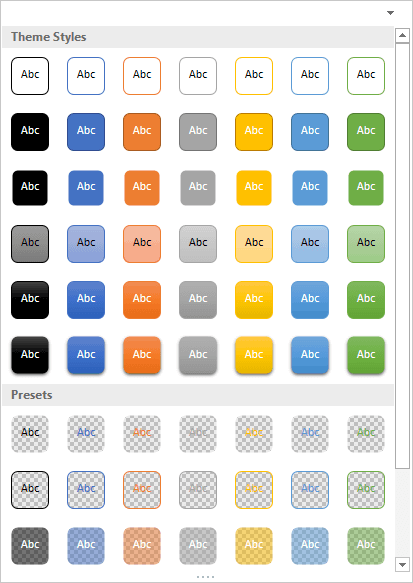
After inserting a SmartArt graphic in your slide, you can change the color for the entire SmartArt graphic. Doing so applies new colors to the entire SmartArt graphic including various shapes it contains. However, there may be times when you want one of the shapes to be colored differently.
To learn more, choose your version of PowerPoint. If we do not have a tutorial for your version of PowerPoint, explore the version closest to the one you use.
Shape Fills, Lines, and Effects for SmartArt in PowerPoint 2016
Shape Fills, Lines, and Effects for SmartArt in PowerPoint 2013
Shape Fills, Lines, and Effects for SmartArt in PowerPoint 2010
Shape Fills, Lines, and Effects for SmartArt in PowerPoint 2011
Tutorial Code: 11 02 05
Previous: 11 02 04 Change Shape Colors of SmartArt Graphics in PowerPoint
Next: 11 02 06 Apply SmartArt Styles in PowerPoint
Filed Under:
W
Tagged as: 11-02, PowerPoint Tutorials, SmartArt Graphics, Working with SmartArt
Comments Off on Working with SmartArt: Shape Fills, Lines, and Effects for SmartArt in PowerPoint
PowerPoint includes proofing tools (spelling dictionaries, thesauri, and grammar rules) for more than one language. For example, if you use English as your main language, then Spanish and French dictionaries may already be installed. This enables you to spell check Spanish and French words. Similarly, you can add and remove proofing dictionaries in many languages.
To learn more, choose your version of PowerPoint. If we do not have a tutorial for your version of PowerPoint, explore the version closest to the one you use.
Add and Remove Proofing Dictionaries for Foreign Languages in PowerPoint 365
Add and Remove Proofing Dictionaries for Foreign Languages in PowerPoint 2016
Add and Remove Proofing Dictionaries for Foreign Languages in PowerPoint 2013
Add and Remove Proofing Dictionaries for Foreign Languages in PowerPoint 2010
Add and Remove Proofing Dictionaries for Foreign Languages in PowerPoint 2011

Tutorial Code: 05 08 17
Previous: 05 08 16 Disable, Enable, and Set the Default Custom Dictionary in PowerPoint
Next: 05 08 18 Language Options on the Status Bar in PowerPoint
Filed Under:
S
Tagged as: 05-08, AutoCorrect, PowerPoint Tutorials, Spelling, Spelling AutoCorrect and Reference Tools, Text and Fonts
Comments Off on Spelling, AutoCorrect, and Reference Tools: Add and Remove Proofing Dictionaries for Foreign Languages in PowerPoint
Like many other users of PowerPoint, you might have also faced this situation: you have been working on a presentation for hours, and suddenly PowerPoint or even the computer crashes! This crash may happen due to a power outage, instability of the system or even PowerPoint itself may crash due to a bug or glitch. You then realize that you had not saved the presentation for a long time and may have lost most of your work. Although you can keep your programs updated, system secure, and even save your file often, there is no guarantee that you will never see a crash again and lose all or some of your work.
To learn more, choose your version of PowerPoint. If we do not have a tutorial for your version of PowerPoint, explore the version closest to the one you use.
AutoRecover and AutoSave Options in PowerPoint 2016
AutoRecover and AutoSave Options in PowerPoint 2013
AutoRecover and AutoSave Options in PowerPoint 2010

Tutorial Code: 16 03 01
Previous: 16 02 04 Remove and Change Passwords in PowerPoint
Next: 16 03 02 Recovering Unsaved Presentations in PowerPoint
Filed Under:
M
Tagged as: 16-03, Manage Versions, PowerPoint Tutorials, Share and Prepare
Comments Off on Manage Versions: AutoRecover and AutoSave Options in PowerPoint
Microsoft and the Office logo are trademarks or registered trademarks of Microsoft Corporation in the United States and/or other countries.