
This is the print version of this page. All content is copyright Indezine.com 2000-2026.
Definitions and resources for terms and techniques used in the world of presentations
See Also:
PowerPoint and Presenting Notes
PowerPoint and Presenting Glossary
Presentations Glossary in alphabetical order:
A |
B |
C |
D |
E |
F |
G |
H |
I |
J |
K |
L |
M |
N |
O |
P |
Q |
R |
S |
T |
U |
V |
W |
X |
Y |
Z
You can position or reposition pictures and shapes, but did you know that you can make changes to any inserted video in PowerPoint? Resizing can help you change dimensions of your video clips, while slight changes in rotation values can draw attention. Flip, the last of these options though is something you will almost never use unless you want to do something drastically different!
To learn more, choose your version of PowerPoint. If we do not have a tutorial for your version of PowerPoint, explore the version closest to the one you use.
Resize, Rotate, and Flip Videos in PowerPoint 2016
Resize, Rotate, and Flip Videos in PowerPoint 2013
Resize, Rotate, and Flip Videos in PowerPoint 2010
Resize, Rotate, and Flip Videos in PowerPoint 2011

Tutorial Code: 14 02 11
Previous: 14 02 10 Crop Video in PowerPoint
Next: 14 02 12 Reset Options for Videos in PowerPoint
Filed Under:
V
Tagged as: 14-02, Multimedia, PowerPoint Tutorials, Video in PowerPoint - Basics
Comments Off on Videos in PowerPoint – Basics: Resize, Rotate, and Flip Videos in PowerPoint
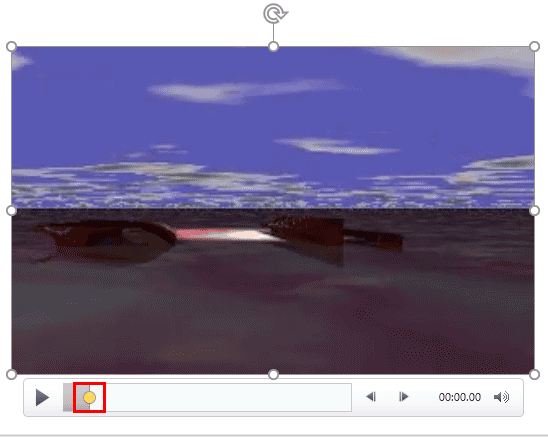
If you want your inserted video clip to play from a certain point within the video clip, you can actually trim the video so that it only plays the parts you want. However, there is another elegant solution that lets you achieve the same results, and do even more. This feature is called a Bookmark. It is similar to the conventional bookmarks you place within the pages of a book you are reading. Just like how you can easily go to that particular page with the help of a bookmark, the Bookmark you add to a video clip becomes an indicator of the time position you want to access.
To learn more, choose your version of PowerPoint. If we do not have a tutorial for your version of PowerPoint, explore the version closest to the one you use.
Add Bookmarks to Video Clips in PowerPoint 2016
Add Bookmarks for Video Clips in PowerPoint 2013
Add Bookmarks for Video Clips in PowerPoint 2010
Tutorial Code: 14 03 01
Previous: 14 02 12 Reset Options for Videos in PowerPoint
Next: 14 03 02 Remove Bookmarks from Video Clips in PowerPoint
Filed Under:
B
Tagged as: 14-03, Bookmarks in Video Clips, Multimedia, PowerPoint Tutorials
Comments Off on Bookmarks in Video Clips: Add Bookmarks to Video Clips in PowerPoint
Presentation properties are the details about a presentation such as title, author name, subject, and keywords that identify the document’s topic or contents etc. It’s important to specify relevant values for the presentation’s Property attributes, because they help to identify the presentation.
To learn more, choose your version of PowerPoint. If we do not have a tutorial for your version of PowerPoint, explore the version closest to the one you use.
Properties of a Presentation in PowerPoint 2016
Properties of a Presentation in PowerPoint 2013
Properties of a Presentation in PowerPoint 2010

Tutorial Code: 16 06 01
Previous: 16 05 02 Package a Presentation to a CD or Folder in PowerPoint
Next: 16 06 02 Advanced Presentation Properties in PowerPoint
Filed Under:
P
Tagged as: 16-06, PowerPoint Tutorials, Properties, Share and Prepare
Comments Off on Properties: Properties of a Presentation in PowerPoint
You might have experienced this scenario: you have created a presentation within PowerPoint, but you are not sure whether your client, boss, friend, or colleague, who has an earlier version of PowerPoint will be able to view and edit this presentation using the same options that you have used? And, if you save this presentation as a file compatible with an earlier version of PowerPoint, there are chances that you could lose some attributes of the presentation that are not available in previous versions. Or worse, your editable content could just change to flat, non-editable pictures!
To learn more, choose your version of PowerPoint. If we do not have a tutorial for your version of PowerPoint, explore the version closest to the one you use.
Check Compatibility in PowerPoint 2016
Check Compatibility in PowerPoint 2013
Check Compatibility in PowerPoint 2010
Check Compatibility in PowerPoint 2011

Tutorial Code: 16 01 01
Previous: 15 02 11 Linking to Any File in PowerPoint
Next: 16 01 02 Check Accessibility in PowerPoint
Filed Under:
P
Tagged as: 16-01, PowerPoint Tutorials, Prepare for Sharing, Share and Prepare
Comments Off on Prepare for Sharing: Check Compatibility in PowerPoint
An understanding has grown over the years to make all kinds of computer-generated content available to people with disabilities. PowerPoint is no stranger to this accessibility concept and has many options up its sleeve that help your slides be more relevant to those with accessibility impairments. PowerPoint’s built-in Accessibility Checker works similar to the spell checker. It highlights potential accessibility issues in your presentation so that you can fix these potential problems and make your content accessible to everyone.
To learn more, choose your version of PowerPoint. If we do not have a tutorial for your version of PowerPoint, explore the version closest to the one you use.
Check Accessibility in PowerPoint 2016
Check Accessibility in PowerPoint 2013
Check Accessibility in PowerPoint 2010

Tutorial Code: 16 01 02
Previous: 16 01 01 Check Compatibility in PowerPoint
Next: 16 01 03 Inspect Document in PowerPoint
Filed Under:
P
Tagged as: 16-01, PowerPoint Tutorials, Prepare for Sharing, Share and Prepare
Comments Off on Prepare for Sharing: Check Accessibility in PowerPoint
Microsoft and the Office logo are trademarks or registered trademarks of Microsoft Corporation in the United States and/or other countries.