
This is the print version of this page. All content is copyright Indezine.com 2000-2026.
Definitions and resources for terms and techniques used in the world of presentations
See Also:
PowerPoint and Presenting Notes
PowerPoint and Presenting Glossary
Presentations Glossary in alphabetical order:
A |
B |
C |
D |
E |
F |
G |
H |
I |
J |
K |
L |
M |
N |
O |
P |
Q |
R |
S |
T |
U |
V |
W |
X |
Y |
Z
When your PowerPoint presentation is digitally signed and shared, it helps to validate your identity. At times, you may want to remove a digital signature attached to your PowerPoint presentation. Why? Maybe you want it signed by someone else, you may want to use another signature, or maybe there’s no need for a particular presentation to be signed anymore. Follow these steps to remove the digital signature from a PowerPoint presentation in PowerPoint.
To learn more, choose your version of PowerPoint. If we do not have a tutorial for your version of PowerPoint, explore the version closest to the one you use.
Remove Digital Signatures from PowerPoint 2013
Remove Digital Signatures from PowerPoint 2010

Tutorial Code: 16 10 05
Previous: 16 10 04 Enable Trusted Certificates in PowerPoint
Next: 16 10 06 Removing Certificates with Internet Explorer in PowerPoint
Filed Under:
D
Tagged as: 16-10, Digital Signatures, PowerPoint Tutorials, Share and Prepare
Comments Off on Digital Signatures: Remove Digital Signatures from PowerPoint
Once you add a sound track, such as a music clip, to your PowerPoint presentation, you can let the inserted audio span across all your slides from the first one to the last by selecting the Play Across Slides option. That’s great if you need the same music playing on all your slides. But what if you want the music to play only across some successive slides? What if you want the music to play from slide 1 to 12, and let all subsequent slides play without any music? Or you may want to add another audio clip for the next set of slides? Either way, it is possible to limit the number of slides that your music will play across.
To learn more, choose your version of PowerPoint. If we do not have a tutorial for your version of PowerPoint, explore the version closest to the one you use.
Sound Across Specific Slides in PowerPoint 365
Sound Across Specific Slides in PowerPoint 2019
Sound Across Specific Slides in PowerPoint 2016
Sound Across Specific Slides in PowerPoint 2013
Sound Across Specific Slides in PowerPoint 2010
Sound Across Specific Slides in PowerPoint 365
Sound Across Specific Slides in PowerPoint 2019
Sound Across Specific Slides in PowerPoint 2016
Sound Across Specific Slides in PowerPoint 2011
Sound Across Specific Slides in PowerPoint

Tutorial Code: 14 09 03
Previous: 14 09 02 Sound Across Slides in PowerPoint
Next: 14 09 04 Insert Online Audio in PowerPoint
Filed Under:
A
Tagged as: 14-09, Audio in PowerPoint - Basics, Multimedia, PowerPoint Tutorials
Comments Off on Audio in PowerPoint – Basics: Sound Across Specific Slides in PowerPoint
After inserting an audio file, such as a background music file within your PowerPoint presentation, do you want to play this soundtrack across slides without any interruption when you move from one slide to another? Firstly, if a live speaker is spearheading the presentation, then you don’t want to add a sound that spans across slides. Why? Because then the sound will distract the audience, and also the speaker. However, if you are showing a sequence of slides that include pictures and no live presenter is required to speak to the audience, then adding a sound across slides may be a great idea. Even then, a soothing background music score playing across your presentation slides can be a good fit. Stay away from loud or jarring tracks.
To learn more, choose your version of PowerPoint. If we do not have a tutorial for your version of PowerPoint, explore the version closest to the one you use.
Sound Across Slides in PowerPoint 365
Sound Across Slides in PowerPoint 2019
Sound Across Slides in PowerPoint 2016
Sound Across Slides in PowerPoint 2013
Sound Across Slides in PowerPoint 2010
Sound Across Slides in PowerPoint 2007
Sound Across Slides in 2002 and 2003
Sound Across Slides in PowerPoint 97 and 2000
Sound Across Slides in PowerPoint 365
Sound Across Slides in PowerPoint 2019
Sound Across Slides in PowerPoint 2016
Sound Across Slides in PowerPoint 2011
Sound Across Slides in PowerPoint 2008
Sound Across Slides in PowerPoint 2004
Sound Across Slides in PowerPoint X
Sound Across Slides in PowerPoint

Tutorial Code: 14 09 02
Previous: 14 09 01 Insert Audio (Sound) in PowerPoint
Next: 14 09 03 Sound Across Specific Slides in PowerPoint
Filed Under:
A
Tagged as: 14-09, Audio in PowerPoint - Basics, Multimedia, PowerPoint Tutorials
Comments Off on Audio in PowerPoint – Basics: Sound Across Slides in PowerPoint
PowerPoint allows you to insert video and also online videos files within your presentation. One of the file formats that you can use for these video options is Flash SWF. However, these SWF clips may not play because of security settings. Fortunately, you can use the Developer tab of the Ribbon to insert Flash SWF movies.
To learn more, choose your version of PowerPoint. If we do not have a tutorial for your version of PowerPoint, explore the version closest to the one you use.
Insert Flash Movies using the Developer Tab in PowerPoint 2016
Insert Flash Movies using the Developer Tab in PowerPoint 2013
Insert Flash Movies using the Developer Tab in PowerPoint 2010
Insert Flash Movies using the Developer Tab in PowerPoint 2007

Tutorial Code: 14 08 02
Previous: 14 08 01 Insert Flash Movies using the Insert Tab in PowerPoint
Next: 14 09 01 Insert Audio (Sound) in PowerPoint
Filed Under:
F
Tagged as: 14-08, Flash Movie Clips, Multimedia, PowerPoint Tutorials
Comments Off on Flash Movie Clips: Insert Flash Movies using the Developer Tab in PowerPoint
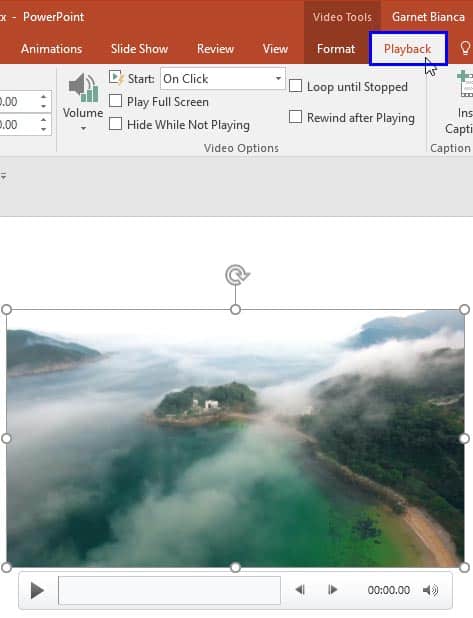
Do you want to add a video clip to your PowerPoint slide so that it continues to play across subsequent slides? This means that when you move from one slide to another, the video continues playing without any interruption. In PowerPoint 2007, the Play Across Slides option was available within the interface. But in PowerPoint 2010 and later versions, this option is no longer available. However, there is a workaround to make a video play across slides.
To learn more, choose your version of PowerPoint. If we do not have a tutorial for your version of PowerPoint, explore the version closest to the one you use.
Playing Video Across Slides in PowerPoint 2016
Playing Video Across Slides in PowerPoint 2013
Playing Video Across Slides in PowerPoint 2010
Tutorial Code: 14 04 05
Previous: 14 04 04 Advanced Video Options in PowerPoint
Next: 14 05 01 Insert Online Video Clips in PowerPoint
Filed Under:
V
Tagged as: 14-04, Multimedia, PowerPoint Tutorials, Video in PowerPoint - Advanced
Comments Off on Video in PowerPoint – Advanced: Playing Video Across Slides in PowerPoint
Microsoft and the Office logo are trademarks or registered trademarks of Microsoft Corporation in the United States and/or other countries.