
This is the print version of this page. All content is copyright Indezine.com 2000-2026.
Definitions and resources for terms and techniques used in the world of presentations
See Also:
PowerPoint and Presenting Notes
PowerPoint and Presenting Glossary
Presentations Glossary in alphabetical order:
A |
B |
C |
D |
E |
F |
G |
H |
I |
J |
K |
L |
M |
N |
O |
P |
Q |
R |
S |
T |
U |
V |
W |
X |
Y |
Z
In PowerPoint, animating table components is not possible unless you ungroup the table. Once your table is ungrouped, you can animate the ungrouped table components as you wish. However, for those of you who don’t want to ungroup your table, there is another workaround where you don’t actually apply any animation to the table components, but when you play the slide containing the table, it looks like your table components are animating!
To learn more, choose your version of PowerPoint. If we do not have a tutorial for your version of PowerPoint, explore the version closest to the one you use.
Fake Animate Tables in PowerPoint 2013
Fake Animate Tables in PowerPoint 2011

Tutorial Code: 13 04 02
Previous: 13 04 01 Animate Ungrouped Tables in PowerPoint
Next: 13 04 03 Animate Charts in PowerPoint
Filed Under:
A
Tagged as: 13-04, Animate Slide Objects, Animations and Transitions, PowerPoint Tutorials
Comments Off on Animate Slide Objects: Fake-Animate Tables in PowerPoint
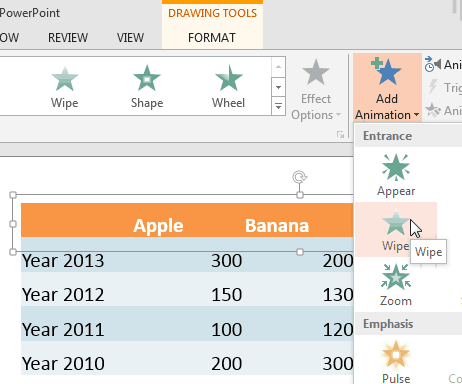
Animating table components is something that you cannot do in PowerPoint. You can either set to animate the entire table at a time, or can’t animate it at all. The solution is to first ungroup the table using the workaround explained in our Ungroup a Table in PowerPoint and then animate the ungrouped components as required. When you ungroup a table the output will be a bunch of rectangles and text boxes.
To learn more, choose your version of PowerPoint. If we do not have a tutorial for your version of PowerPoint, explore the version closest to the one you use.
Animate Ungrouped Tables in PowerPoint 2013
Tutorial Code: 13 04 01
Previous: 13 03 12 Slice and Animate Pictures in PowerPoint
Next: 13 04 02 Fake-Animate Tables in PowerPoint
Filed Under:
A
Tagged as: 13-04, Animate Slide Objects, Animations and Transitions, PowerPoint Tutorials
Comments Off on Animate Slide Objects: Animate Ungrouped Tables in PowerPoint
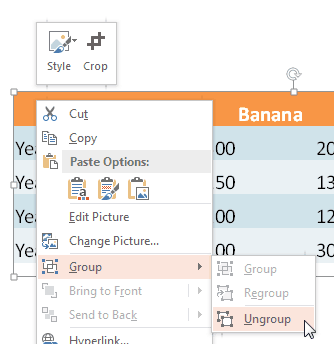
Tables are essentially a group of cells arranged in a proper way. So typically you would expect that ungrouping a table into individual cells should be a piece of cake, right? Nothing can be further from that! Before we explore ways to ungroup a table, let us understand why you would want to ungroup a table in the first place. One of the main reasons why you may consider ungrouping a Table within PowerPoint is to animate it segment by segment. In all PowerPoint versions, either the entire table can be animated or nothing! The workaround is to ungroup the table so that your table gets converted into a bunch of individual shapes, and you can animate every individual shape as you want. So let us look at some ideas to understand ungrouping Tables better.
To learn more, choose your version of PowerPoint. If we do not have a tutorial for your version of PowerPoint, explore the version closest to the one you use.
Ungroup a Table in PowerPoint 2013
Ungroup a Table in PowerPoint 2007
Ungroup a Table in PowerPoint 2003
Filed Under:
A
Tagged as: 12-05, Advanced Table Techniques, PowerPoint Tutorials, Tables
Comments Off on Advanced Table Techniques: Ungroup a Table
The borders for tables that you create within PowerPoint are thin lines by default. You can change the thickness of these borders, but even before you do so, there are certain prerequisites to take care of. First of all, if you use Table Styles, then some borders may have been set to be invisible. So first of course, you need to set them to be visible since there’s no sense in thickening an invisible border. Once borders are visible, you can make changes to their appearance such as changing their color, line style, or the thickness of the table borders.
To learn more, choose your version of PowerPoint. If we do not have a tutorial for your version of PowerPoint, explore the version closest to the one you use.
Set Line Style for Table Borders in PowerPoint 2013
Set Line Style for Table Borders in PowerPoint 2011

Filed Under:
T
Tagged as: 12-04, PowerPoint Tutorials, Table Borders, Tables
Comments Off on Table Borders: Set Line Style for Table Borders
While drawing tables, you might have noticed that table borders are thin with just 1pt. weight (thickness). And truly speaking, you may not need to change that value most of the time. However, if you do want to change the weight of table borders, you do so in the same way as you change their color or line style. Your table borders can be of any weight starting from 0.25 pt. to 6pt., and no higher. Even 6 pt. is very thick for a table border, so it does pay to be careful, just to make sure that your table borders don’t look too blocky, or even distract from the content within the table.
To learn more, choose your version of PowerPoint. If we do not have a tutorial for your version of PowerPoint, explore the version closest to the one you use.
Set Line Weight for Table Borders in PowerPoint 2013
Set Line Weight for Table Borders in PowerPoint 2011

Filed Under:
T
Tagged as: 12-04, PowerPoint Tutorials, Table Borders, Tables
Comments Off on Table Borders: Set Line Weight for Table Borders
Microsoft and the Office logo are trademarks or registered trademarks of Microsoft Corporation in the United States and/or other countries.