
This is the print version of this page. All content is copyright Indezine.com 2000-2026.
Definitions and resources for terms and techniques used in the world of presentations
See Also:
PowerPoint and Presenting Notes
PowerPoint and Presenting Glossary
Presentations Glossary in alphabetical order:
A |
B |
C |
D |
E |
F |
G |
H |
I |
J |
K |
L |
M |
N |
O |
P |
Q |
R |
S |
T |
U |
V |
W |
X |
Y |
Z

Simon Raybould is a speaker and trainer. As a speaker, he specializes in resilience, emotional robustness, public speaking, and presenting. As a trainer, he is the director of the training company Aware Plus. He has a particular specialty as a trainer and coach helping anyone who wants to make better use of their voice or who wants (needs?) to make better presentations. Basically, as he says, it all boils down to impact. His clients range from start-ups to multinationals such as Dell Computers and football teams in the English Premiership!
Filed Under:
S
Tagged as: Personality, Simon Raybould
Comments Off on Simon Raybould

Jullietta Stoencheva is a Media Psychology graduate from the University of Cologne, Germany. Jullietta manages the content and community of Pickit.com, a marketplace for presentation images. In addition, she is responsible for PR and media inquiries, as well as social media management of the company. Outside of work, Jullietta is a photo enthusiast, passionate about reading, literature, and meeting new people.
Filed Under:
J
Tagged as: Jullietta Stoencheva, Personality, Pickit
Comments Off on Jullietta Stoencheva

Betsy Weber is Chief Evangelist at Okemos-based TechSmith Corporation. With nearly a decade of experience in corporate training and product management, she has worked on both the development and customer service side of delivering business applications. In her current role, Betsy heads up the company’s highly acclaimed evangelism program where she collaborates with customers, industry experts, and technologists all over the world. Betsy and her husband reside in Lansing, Michigan along with their faithful Old English Sheepdog, Mutton Chop.
Filed Under:
B
Tagged as: Betsy Weber, Personality
Comments Off on Betsy Weber

Christian Lund is the Chief Product Officer and Co-founder of Templafy, an enterprise-grade productivity and governance platform for enterprise document, presentation and email creation. With over 15 years of domain knowledge, Christian helped spearhead the transition for large organizations from on-premise systems to Software-as-a-Service solutions for document content and template management. Templafy is now a global leader in its category, serving many of the largest international organizations and over 1.5 million users.
Filed Under:
C
Tagged as: Christian Lund, Personality
Comments Off on Christian Lund
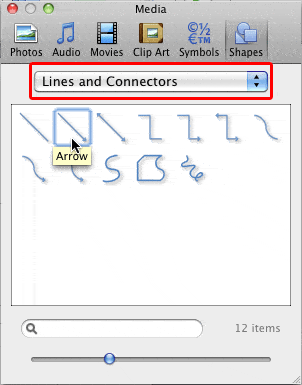
Connectors are lines that link different flowchart shapes (or any shapes you place within your Microsoft Office documents). They are different from conventional lines because connectors, as the name implies stay connected to the shapes they are linked to. Move any “connected” shape, and the connectors move and reorient with the shapes automatically.
To learn more, choose your version of PowerPoint. If we do not have a tutorial for your version of PowerPoint, explore the version closest to the one you use.
Using Flowchart and Connector Shapes Together in PowerPoint for Windows
Using Flowchart and Connector Shapes Together in PowerPoint for Mac
Tutorial Code: 07 02 01
Previous: 07 01 03 Basics Flowchart Techniques: Flowchart Symbols – What they Represent?
Next: 07 02 02 Advanced Flowchart Techniques: Formatting Connectors within Flowcharts
Filed Under:
A
Tagged as: 07 02, Advanced Flowchart Techniques, Flowchart, PowerPoint Tutorials
Comments Off on Advanced Flowchart Techniques: Using Flowchart and Connector Shapes Together
Microsoft and the Office logo are trademarks or registered trademarks of Microsoft Corporation in the United States and/or other countries.