This is the print version of this page. All content is copyright Indezine.com 2000-2026.
Definitions and resources for terms and techniques used in the world of presentations
See Also:
PowerPoint and Presenting Notes
PowerPoint and Presenting Glossary
Presentations Glossary in alphabetical order:
A |
B |
C |
D |
E |
F |
G |
H |
I |
J |
K |
L |
M |
N |
O |
P |
Q |
R |
S |
T |
U |
V |
W |
X |
Y |
Z
PowerPoint’s Merge Shapes commands open new opportunities and possibilities for you. Typically, whenever we need to create a jigsaw puzzle in PowerPoint, we source the actual jigsaw shapes from Office.com or from one of the many stock image sites. However, the Merge Shapes commands make it so easy to create your own jigsaws with nothing more than a few shapes!
To learn more, choose your version of PowerPoint. If we do not have a tutorial for your version of PowerPoint, explore the version closest to the one you use.
Create Jigsaw Shapes with Merge Shapes Commands in PowerPoint 2013

Tutorial Code: 06 10 11
Previous: 06 10 10 Merge Shapes with Pictures in PowerPoint
Next: 06 11 01 Callout Shapes in PowerPoint
Filed Under:
M
Tagged as: 06-10, Merge Shapes, PowerPoint Tutorials, Shapes
Comments Off on Merge Shapes: Create Jigsaw Shapes with Merge Shapes Commands in PowerPoint
By default, the PowerPoint shapes that you insert on your slide are flat and two-dimensional. And this indeed works well most of the time. Yet, there are situations that may benefit from a 3D graphic. It is times like these that you can apply a plethora of Shape Effects that PowerPoint provides, or just use the Bevel shape effect that makes it stand apart by making your shape look embossed, like a button, or even a pillow.
To learn more, choose your version of PowerPoint. If we do not have a tutorial for your version of PowerPoint, explore the version closest to the one you use.
Apply Bevel Effects to Shapes in PowerPoint 2016
Apply Bevel Effects to Shapes in PowerPoint 2013
Apply Bevel Effects to Shapes in PowerPoint 2010
Apply Bevel Effects to Shapes in PowerPoint 2007
Apply Bevel Effects to Shapes in PowerPoint 2011

Tutorial Code: 08 03 12
Previous: 08 03 11 Advanced Soft Edge Options in PowerPoint
Next: 08 03 13 Apply 3-D Rotation Effects to Shapes in PowerPoint
Filed Under:
S
Tagged as: 08-03, Fills Lines and Effects, PowerPoint Tutorials, Shape Effects
Comments Off on Shape Effects: Apply Bevel Effects to Shapes in PowerPoint
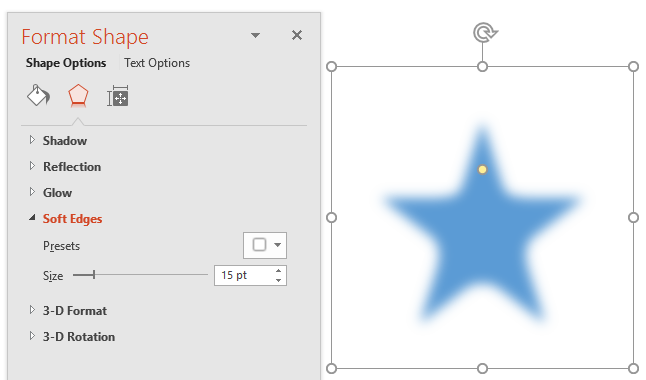
The Soft Edges effect adds an eaten-up, feathered edge to a selected shape. PowerPoint does provide you with some ready-to-use pre-set Soft Edges, but you may want to edit the applied Soft Edges effect to be less or more pronounced.
To learn more, choose your version of PowerPoint. If we do not have a tutorial for your version of PowerPoint, explore the version closest to the one you use.
Advanced Soft Edge Options in PowerPoint 2016
Advanced Soft-Edge Options in PowerPoint 2013
Advanced Soft-Edge Options in PowerPoint 2010
Tutorial Code: 08 03 11
Previous: 08 03 10 Apply Soft Edges to Shapes in PowerPoint
Next: 08 03 12 Apply Bevel Effects to Shapes in PowerPoint
Filed Under:
S
Tagged as: 08-03, Fills Lines and Effects, PowerPoint Tutorials, Shape Effects
Comments Off on Shape Effects: Advanced Soft Edge Options in PowerPoint
Among the various Shape Effects available in PowerPoint, probably the most subtle one is the Soft Edges effect. This effect adds an eaten-up, feathered edge to a selected shape. Soft Edges work best with larger shapes, especially if you use some of the larger Soft Edge variations available.
To learn more, choose your version of PowerPoint. If we do not have a tutorial for your version of PowerPoint, explore the version closest to the one you use.
Apply Soft Edges to Shapes in PowerPoint 2016
Apply Soft-Edges to Shapes in PowerPoint 2013
Apply Soft-Edges to Shapes in PowerPoint 2010
Apply Soft-Edges to Shapes in PowerPoint 2007
Apply Soft-Edges to Shapes in PowerPoint 2011

Tutorial Code: 08 03 10
Previous: 08 03 09 Advanced Glow Options in PowerPoint
Next: 08 03 11 Advanced Soft Edge Options in PowerPoint
Filed Under:
S
Tagged as: 08-03, Fills Lines and Effects, PowerPoint Tutorials, Shape Effects
Comments Off on Shape Effects: Apply Soft Edges to Shapes in PowerPoint
Applying a Glow effect adds a nice halo around a selected shape or most other slide objects. You may find that the Glow effect defaults do not work for you all the time, especially since the default glow options are limited only to Theme Colors. So if you want to make some changes, you have to step outside these defaults and change the glow color, alter the spread or transparency, etc.
To learn more, choose your version of PowerPoint. If we do not have a tutorial for your version of PowerPoint, explore the version closest to the one you use.
Advanced Glow Options in PowerPoint 2016
Advanced Glow Options in PowerPoint 2013
Advanced Glow Options in PowerPoint 2010
Advanced Glow Options in PowerPoint 2011
Tutorial Code: 08 03 09
Previous: 08 03 08 More Glow Colors in PowerPoint
Next: 08 03 10 Apply Soft Edges to Shapes in PowerPoint
Filed Under:
S
Tagged as: 08-03, Fills Lines and Effects, PowerPoint Tutorials, Shape Effects
Comments Off on Shape Effects: Advanced Glow Options in PowerPoint
Microsoft and the Office logo are trademarks or registered trademarks of Microsoft Corporation in the United States and/or other countries.